My Timecard
My Timecard allows you to view your timecard, i.e. the logged-in user's timecard.
- Tap on My Timecard.
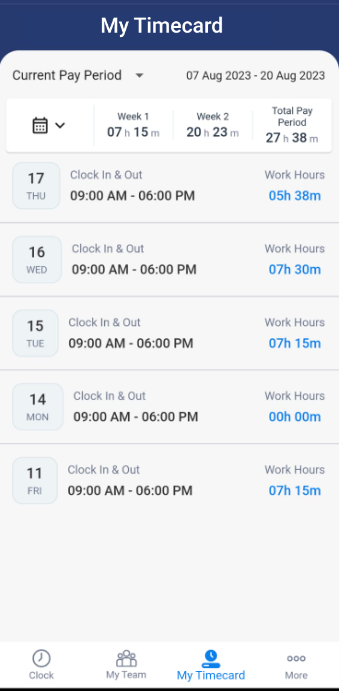
- The timecard is divided into the following segments:
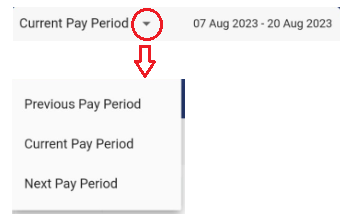
- Pay Period - By default, the timecard will display the time entries for the "current pay period". You can select Previous Pay Period or Next Pay Period using the dropdown option.
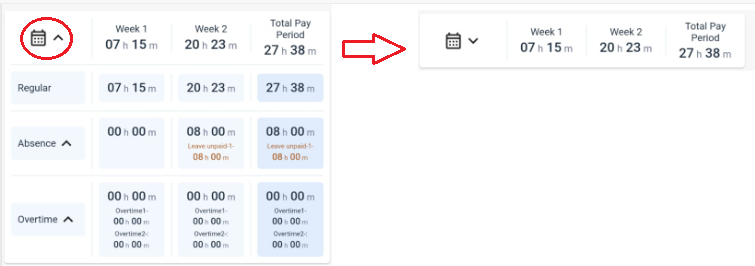
- Pay Period Summary
- The first row presents the total hours worked for each week and the overall total for the pay period. You can use the arrow next to the calendar icon to hide the information related to the regular hours, absences, and overtime hours.
- The second row shows the total regular hours worked for each week and the cumulative total.
- The third row indicates the total absences for each week and the overall absence total for the pay period. Expanding the arrow reveals the type of absence and the logged hours.
- The fourth row presents the total overtime hours for each week and the overall overtime total for the pay period. Expanding the arrow reveals the logged hours for overtime 1 and overtime 2.
- Date-wise summary of worked hours - It will list the date, schedule, in-out time, and worked hours. Each row is clickable and will navigate to the timecard screen where you can view the complete details.
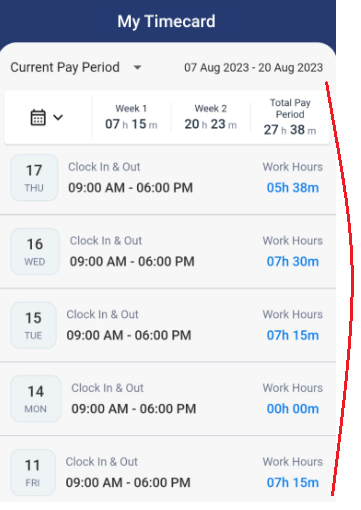
- To view the timecard in detail, click on one of the rows and it will navigate to your timecard screen. A calendar and a time entry table will appear below the pay period summary section.
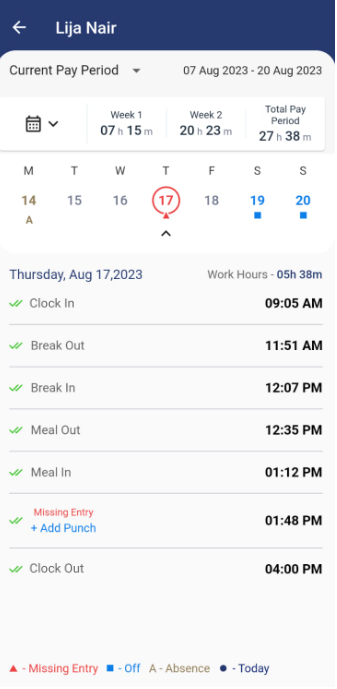
- Calendar - The Calendar gives a preview of total hours, days with missed punches, absences, and off days.
Note: The pay period and the first day of the week depend on the pay period settings. Similarly, the schedule template assigned to an employee determines their hours and off days.
- By default, the current date will be selected and the screen will display the current day's time entries.
- Worked Hours - It is the total span of time from when an employee starts their shift to when they finish, considering all the scheduled breaks and pauses within that period.
- Clock In - "Clock in time" refers to the designated hour when an employee is expected to report to work and begin their shift. This time can vary depending on the specific shift schedule and the policies of the organization. For example, an employee might have a clock-in time of 8:00 AM, which means they should arrive and be ready to start working at that time.
- Clock Out - "Clock out time" or "end time" refers to the designated hour when an employee's work shift is expected to conclude. This is the time when the employee is free to leave the workplace or complete their assigned tasks. For example, if an employee has a clock-out time of 4:00 PM, it means they are scheduled to finish work and can leave the premises at that time.
- Meal Out - Meal In - "Meal out" refers to the time when an employee punches to go out for a meal break. It signifies the start of their designated meal time. "Meal in" signifies the end of the meal break period, i.e. when the employee resumes their work after having their meal break.
- Rest Out - Rest In - Rest breaks designate break times specifically allocated for tea or beverage breaks, allowing employees to rest and refresh during their work shifts. Rest Out means when the employee stepped out for a break and Rest In means when the employee resumes work.
- Missed Punch - Missed Punch refers to a situation where an employee forgets to clock in or clock out, i.e. the clock in/out table has no entry for the specific time when the employee should have punched in or punched out. When a missed punch occurs, the employee or their manager should rectify the missed punch. This may involve manually adding the missed punch. A missed punch symbol
 appears when the table has an odd number of punches. Refer to the Missed Punch topic.
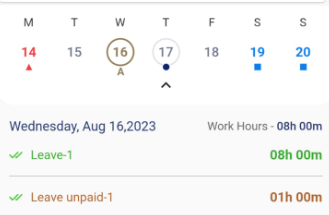
- Absences - Absence refers to a period of time during which an employee is not present at work. The paid and unpaid absences will be displayed in a different color. This visual distinction will help differentiate between paid/unpaid absences and punches. Refer to the Adding Absences topic.
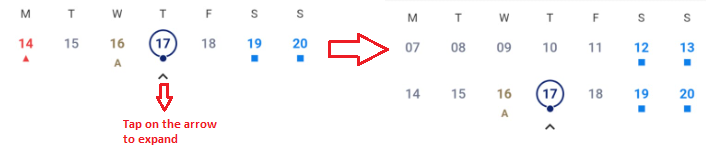
- The calendar's pay period options include weekly, bi-weekly, semi-monthly, and monthly. By default, it displays data for just one week. To access the complete calendar view, simply tap the arrow to expand it.
- Refer to More > Mobile Settings to view the totals in decimals or convert the time format to military time.
- Selected date time entries - By default, the current date will be selected and it will display all the in/out time including meal and break time.
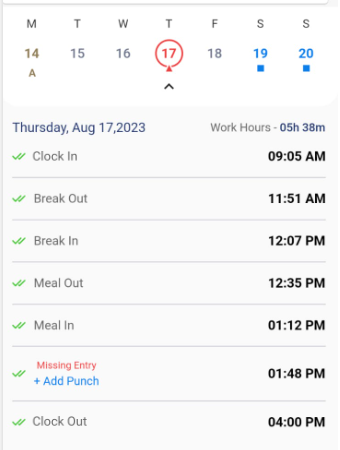
- Adding a Missed Punch
- An "Add Punch" button will be provided below the Missed Entry.
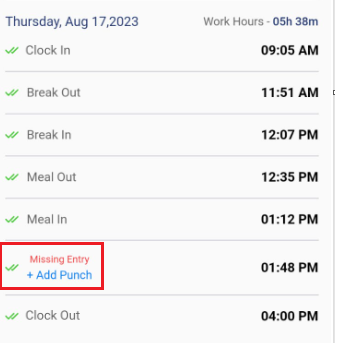
- To add a missed punch, tap on the Add Punch.
- A popup will appear where you can enter the time.
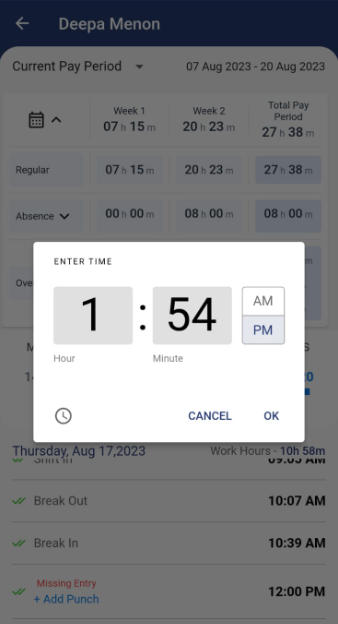
Note: Tap on  to switch from clock to digital or vice versa.
- Click OK. Click Cancel to cancel the time entry option.
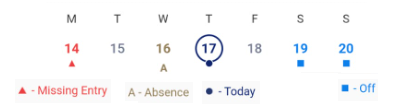
- Legends explain the symbols on the calendar.
Web Application References: