More
Tap on More to access the following options:
- Sync Database - It will display the last download date and time. This feature ensures that the data in all applications remains consistent and up-to-date. Tap on the option to initiate the process of updating and aligning data across various devices that are connected to the same database system.
- Server URL - Display the server URL. To switch to another server URL, you should log out and use the Switch server option on the login screen.
- Dark Theme - Allows you to switch to dark theme.
- Settings - Provides settings for the mobile application. Refer to the mobile settings topic for more details.
- Share Logs - Share logs allow you to share logs via email.
- Display Logs - Display the log details.
- About - It will display the application's version info, copyright, and privacy policy. Another way to access this screen is through the info icon (
 ) on the login screen.
- Logout - This allows you to log out of the application.

Switch Server
To switch server information:
- Tap on the Switch Server link provided on the login screen.

- Enter the new server URL, username, and password. Tap on Login.

Mobile Settings
The mobile application has the following settings:

- Display timecard total as decimals - When checked, the totals in the timecard interface will be displayed as fractions of hours. Otherwise, it will be in hours and minutes. When checked and enabled, the time on the timecard will be shown in fractions.

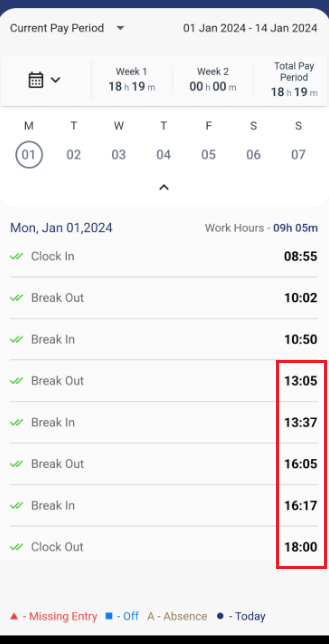
- Display time in military format - Military Time displays the time in a 24-hour format. This setting applies to the application only, not clocks. When enabled, the time will be shown in a 24-hour format.