
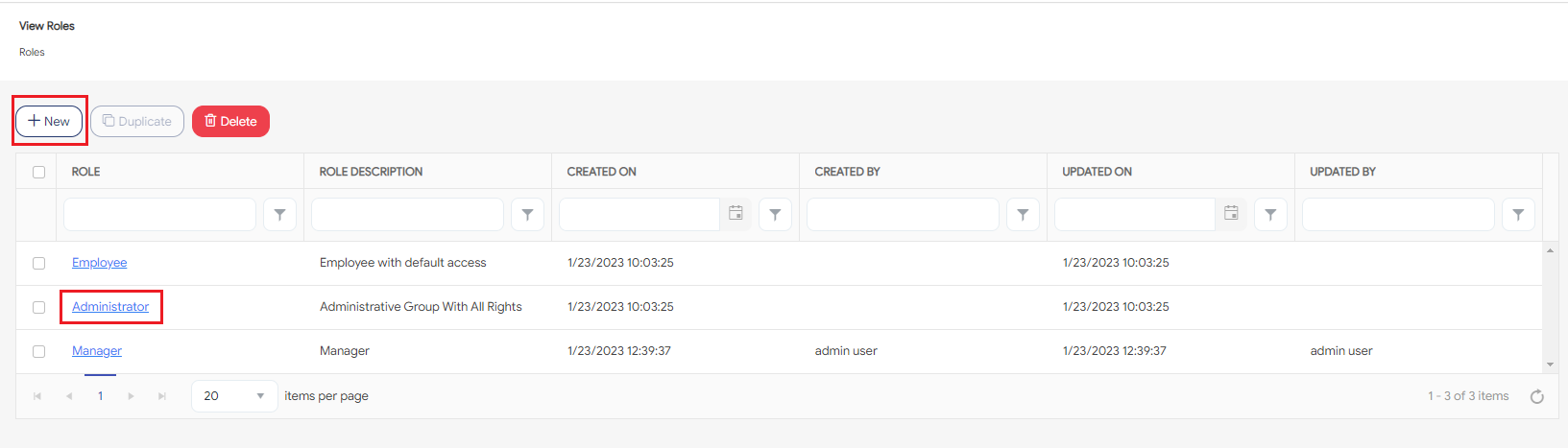
A Permission screen under Role is a collection of security settings that one or more employees share. The Permissions tab allows you to control access to the application and its features by setting employee roles and permissions. This can include specifying which employee can view, add, edit, or delete, as well as which employee can perform other actions, such as generating reports or managing other users. By setting these permissions, you can ensure that only authorized employees can access the application and functionality they need to perform their jobs effectively.
Before creating a role, you can analyze various designations in the organization and can decide who will need access to the application and what features/functions they will need to use in the software. For example, your company may have 5 supervisors who would need access to the same feature. Instead of setting up each employee and assigning these features individually, you can assign them to a role with the required permission.
The permission screen contains a list of features and functionalities with a concise description. These features and functionalities are listed below the Modules. Each module has Allow Access, Create, Edit, and Delete checkboxes. These checkboxes are used to specify the level of permission a role has for a particular item.
Note: The term "object" is used as a generic term. An object can be an employee or any initial setup lookups, schedule, etc.
Note: An Employee can revoke View/Create/Edit/Delete permission if they have access to Edit Roles and have the following permissions on the edit roles screen - View, Create, Edit, and Delete permissions. Make sure that the employee does not have access to the Edit Role screen and is restricted from all the permissions related to the edit role screen. Also, ensure that they do not have an Application Administrator role. If a person can edit permissions, they can (re)grant any permission.


|
S.No |
Module |
Description |
Permissions |
Affected Functionality & Navigation |
|
1 |
A classification of codes for absence tracking |
Allow Access, Create, Edit, Delete |
Setup > Absence Codes |
|
|
2 |
Make changes to the company details |
Allow Access, Edit |
Gear " |
|
|
3 |
A classification of push clocks |
Allow Access, Create, Edit, Delete |
Setup > Clocks |
|
|
4 |
Define Custom Fields |
Allow Access, Create, Edit, Delete |
Gear " |
|
|
5 |
A classification of customers/employees |
Allow Access, Create, Edit, Delete |
Setup > Departments |
|
|
6 |
A worker that consumes items |
Allow Access, Create, Edit, Delete |
Main Menu > Employees |
|
|
7 |
Employee application access settings |
Allow Access, Edit |
Employees > General |
|
|
8 |
Employee attachments |
Allow Access, Create, Edit, Delete |
Employees > Attachments |
|
|
9 |
Assign employee to a clock |
Allow Access, Edit |
Employees > Clock |
|
|
10 |
Other's Demographics |
Allow Access, Edit |
Employees > Personal |
|
|
11 |
Your own Demographics |
Allow Access, Edit |
Employees > Personal |
|
|
12 |
Employee details and contact sections |
Allow Access, Edit |
Employees > Personal |
|
|
13 |
Employee notes |
Allow Access, Edit |
Employees > Personal |
|
|
14 |
Employee pay rates |
Allow Access, Create, Edit, Delete |
Employees > Pay |
|
|
15 |
Employee's personal address and contact information |
Allow Access, Edit |
Employees > Personal |
|
|
16 |
Other's SSN/SIN/NIN |
Allow Access, Edit |
Employees > General |
|
|
17 |
Your own SSN/SIN/NIN |
Allow Access, Edit |
Employees > General |
|
|
18 |
Employee timecard settings section |
Allow Access, Edit |
Employees > General |
|
|
19 |
Allows a user to view changes made to employee's fields. |
Allow Access |
Employees > Change Log |
|
|
20 |
Configure an employee to view the employee hierarchy from another's perspective |
Allow Access, Edit |
Employees > General |
|
|
21 |
Customize form labels |
Allow Access, Create, Edit, Delete |
Gear " |
|
|
22 |
A classification of genders |
Allow Access, Create, Edit, Delete |
Gear " |
|
|
23 |
Holiday Code |
A classification of statutory holidays |
Allow Access, Create, Edit, Delete |
Setup > Holiday Codes
|
|
24 |
Import is used to insert data from another system into PreciseTimeCloud. |
Allow Access |
Gear " |
|
|
25 |
Mobile App Login Access |
Controls whether or not members of this role can login using a mobile devices. |
Allow Access |
Mobile Application |
|
26 |
Manage Notification |
Allow Access, Create, Edit, Delete |
Gear " |
|
|
27 |
A classification of codes for time tracking |
Allow Access, Create, Edit, Delete |
Setup > Payroll Codes |
|
|
28 |
A classification of payroll and overtime rules |
Allow Access, Create, Edit, Delete |
Setup > Overtime Rules |
|
|
29 |
A classification of settings used during payroll processing |
Allow Access, Edit |
Setup > Pay Period Settings |
|
|
30 |
A classification of push clock verify modes |
Allow Access, Edit |
Gear " |
|
|
31 |
A classification of races |
Allow Access, Create, Edit, Delete |
Gear " |
|
|
32 |
View all reports |
Allow Access, Create, Delete |
Main Menu > Reports |
|
|
33 |
Report Schedules |
Manage report schedules |
Allow Access, Create, Edit, Delete |
Setup > Reports |
|
34 |
Defines a set of roles |
Allow Access, Create, Edit, Delete |
Setup > Roles |
|
|
35 |
A classification of timecard processing rules |
Allow Access, Create, Edit, Delete |
Setup > Schedule Templates |
|
|
36 |
View or edit system settings |
Allow Access, Edit |
Gear " |
|
|
37 |
A group of locations |
Allow Access, Create, Edit, Delete |
Setup > Sites |
|
|
38 |
A classification of timecards |
Allow Access, Edit |
Main Menu > Timecards > My Timecards |
|
|
39 |
Controls whether an employee can log an absence for themselves on their timecard. |
Allow Access, Create, Edit, Delete |
Main Menu > Timecards > My Timecards > Absences |
|
|
40 |
Controls interactions with other employees timecards |
Allow Access, Edit |
Main Menu > Timecards > View & Approve Timecard > Absences, Overtime Override, Schedule Override |
|
|
41 |
Controls interactions with time values on your employee's timecards |
Allow Access, Create, Edit, Delete |
Main Menu > Timecards > View & Approve Timecard > Add Punches, History tab, and Adjustment tab |
|
|
42 |
Controls interactions with time values on your Timecard |
Allow Access, Create, Edit, Delete |
Main Menu > Timecards > My Timecard > Add Punches, History tab and Adjustment tab |
|
|
43 |
View all employees regardless of hierarchy |
Allow Access |
Main Menu > Employees Main Menu > View & Approve Timecards Main Menu > Home |
|
|
44 |
Controls whether employees in this role are allowed to use the web to capture a punch. |
Allow Access |
Main Menu > Home |
Each column on the view screen has a sorting and a search option. You will see a search text box in each column where you can type and search. In some cases, the column will only have a sorting option. The search box in each column in an application provides users with a more precise and granular way of filtering data, making it easier to navigate and find the information they need. Enter the text/value that you want to search. You can also enter multiple search terms across different columns. The application will apply all search criteria to filter the data, showing the rows (on the top) that match all the selected criteria.
This approach enables you to filter data based on multiple criteria simultaneously, making it easier to find the specific information you are looking for.

 " icon > Company Details