Pay Period Settings
The pay period settings screen allows you to configure the pay period and its related settings.
Note - The employees with the pay period settings permission will be able to access pay period settings, the payroll export feature, and the export payroll screen. Refer to permission for more details.
Configure Pay Period Settings
Notes on Pay Period Settings
Payroll Exports
Configure Pay Period Settings
- Click Pay Period Settings below Setup.

Pay Period Settings affect how overtime and pay periods are calculated. So carefully set the pay period, week selection, and dates.
Note - The calendar on the timecard and New/Edit Schedule screens also depend on the Pay Period settings.
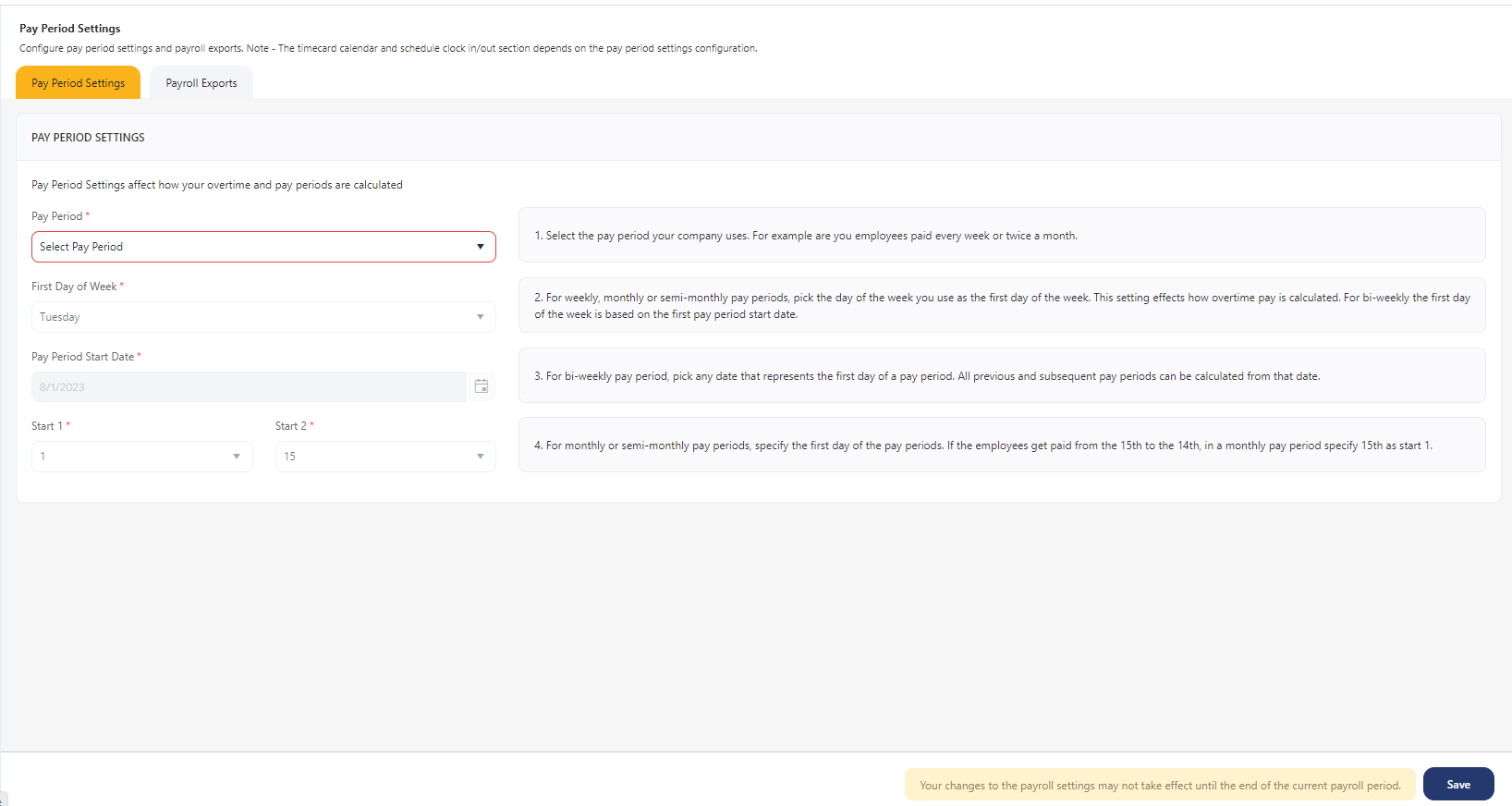
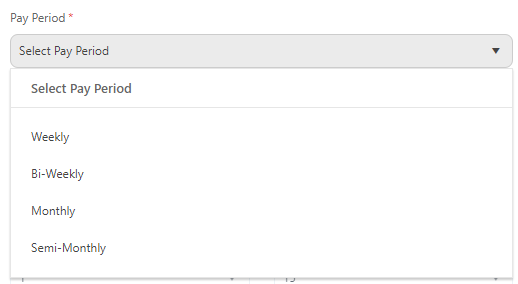
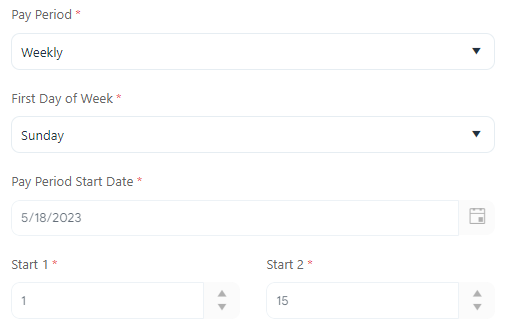
- Pay Period - Select the pay period. The options are Weekly, Bi-Weekly, Monthly, Semi-Monthly, and Partial Weeks. The actual calendar days are included in one paycheck. Any time worked, or a vacation spent on the first day of the pay period through the last day of the pay period is added together to determine the total hours worked.
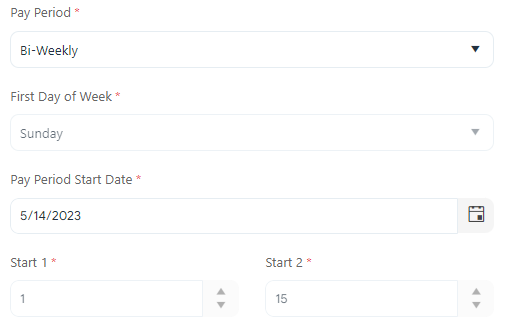
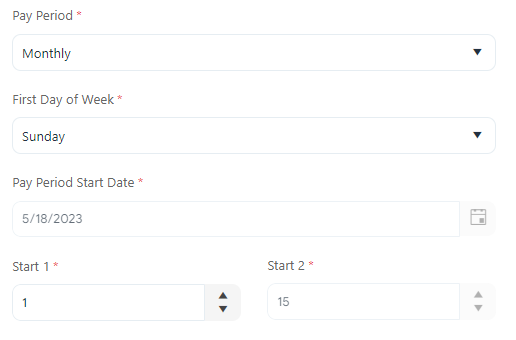
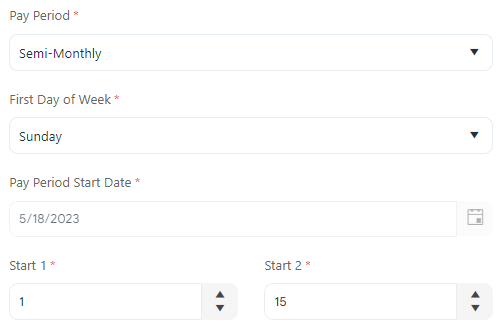
Depending on the type of pay period, the following fields enable or disable - the first day of the week, pay period start date, start 1, and start2 date field.
- Weekly Pay Period - This pay period is always 7 days long. It can start any day of the week, but it starts on the same day every week. There are always 52 pay periods in a year.
- First day of the Week - Enter the first day of the week. In the application, when you select the first day of the week, the pay period will include that first day plus 6 more days.
For example, if you select Sunday as the first day of the week, all time on Sunday through the following Saturday is included on the timecard. If you select Tuesday as the first day of the week, the timecard will run from Tuesday through the following Monday.
- Bi-Weekly Pay Period - This pay period is always 14 days long. It can start any day of the week, but it starts on the same day every week. There are always two complete weeks, which means two complete sets of overtime, in each bi-weekly pay period. There are 26 to 28 pay periods in a year depending on the year and when the pay periods start.
- Pay Period Start Date - Enter the pay period start date. In the application, when you specify the date of the first day of any pay period, the software calculates the first day of the week and all the other pay periods. The pay period will include the date specified plus the next 13 days. Note that you are not specifying the pay day, but the day pay starts to accumulate.
For example, you might select May 14th. That means that your pay week always runs from Sunday through Saturday because the 14th is a Sunday. The pay period would be two weeks, starting on Sunday, May 14th through Saturday, May 27th.
- Monthly Pay Period - This pay period means one pay period per month. It can be 28 to 31 days long.
- First day of the Week - Enter the first day of the week. You specify the first day of the week because it does not change even if the pay period does not fall evenly on the selected day. There will always be 12 pay periods in a year.
- Start 1 and Start 2 Date - Enter the Start 1 date. Start 2 will be disabled. To define when the monthly pay period starts and ends, you will select the day of the month that is the first day of the pay period. In the application, when you specify the first date in any pay period, it will calculate the length of the pay periods.
- First day of the Week - Enter the first day of the week. You can also specify the first day of the week because the pay period will rarely start on the same day from month to month. This also means that some pay periods will include partial weeks. For more detail, please see Partial Weeks in a Pay Period defined below.
For example, you might select May 1st as the first day of your monthly pay period. That means that your pay period for May will run from May 1st to May 31st - 31 days. Most monthly pay periods start on the 1st of the month and are as long as the month.
- Semi-Monthly Pay Period -This pay period means 'two' pay periods per month. It differs from bi-monthly because semi-monthly pay periods are not always the same number of days.
- Start 1 and Start 2 Date - Enter the dates on the Start 1 and Start 2 fields. There are always 24 pay periods a year. To define when the pay period starts and ends, you will select the day of the month that starts the first and second pay periods. In the application, you specify the day of the month when pay starts to accumulate for the first and second pay periods.
- First day of the Week - Enter the first day of the week. You must also specify the first day of the week because the pay period will rarely start on the same day, month to month. This means that some pay periods will include partial weeks. For more detail, please see Partial Weeks in a Pay Period defined below.
For example, if you select the 1st and 15th as the start of the first and second pay periods. Then, for May, the first pay period will be from May 1st through May 14th - 14 days. The second pay period would be from May 15th to May 31st—16 days.
- Pay Period Scale - The scale will dynamically change to give you a preview of the length of the pay period.
Note: The pay period scale will only become visible once you have chosen the pay period.

- Click Save.
Notes on Pay Period Settings
- Pay Period Setting is a must for web clock-in/clock-out, timecards, and creating schedules.
- New payrolls should be created using the current payroll settings.
- When modifying the payroll settings during the current pay period, a notification will be displayed next to the Save button. However, please be aware that the changes won't take effect immediately.

- If there are any punches recorded in the current pay period, the updated payroll settings will not apply to it. Instead, the changes will only take effect in the subsequent pay periods, while the current one will continue to follow the old settings.
Overlapping Payroll Settings:
- In case there are overlapping payroll periods due to changes in payroll settings, the overlapping days in the new payroll period will not receive any punch data. For all such overlapping payroll periods, punches on timecards are always in the active payroll on active timecards (which were created with the older settings.)
-
If there are incoming punches during overlapping payroll periods, all those punches will be added to the older payroll period to maintain data consistency. This ensures that no punch data is lost, and all relevant punches are correctly associated with the appropriate payroll period.
-
Moreover, when timecards are edited, and a user attempts to add a punch to the overlapping part of the wrong timecard (i.e., the edited punch falls within the overlapping period), the system will reject the new (edited) punch.
Example of Overlapping Payroll Settings:
- Let's consider an example of overlapping payroll settings using the "Weekly" pay period with a start day on Monday.
- The Initial Payroll Settings are:
- Pay Period: Weekly
- Start Day: Monday
- Access the Timecard screen.
- Current Pay Period: 16th July 2023 (Monday) to 22nd July 2023 (Sunday)
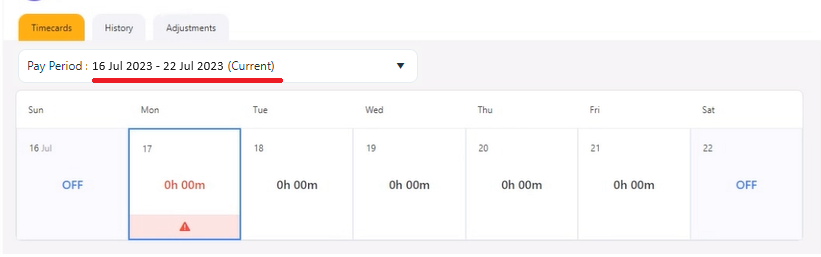
- Next Pay Period: 23rd July 2023 (Monday) to 29th July 2023 (Sunday)
- Now, let's update the Payroll Settings: The updated Payroll Settings are
- Pay Period: Weekly
- Start Day: Wednesday
- Again, access the timecard screen.
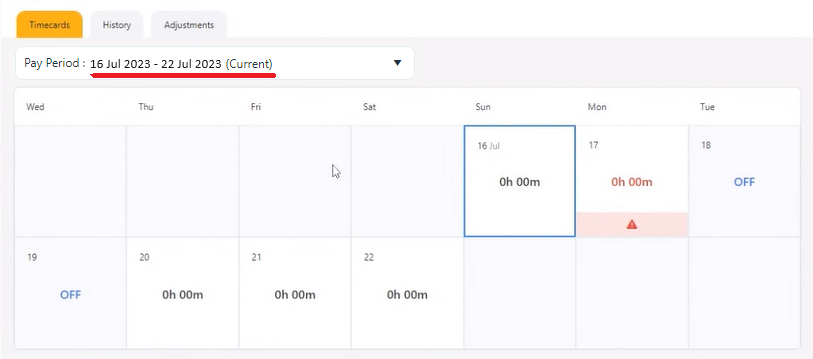
- Current Pay Period: 16th July 2023 (Monday) to 22nd July 2023 (Sunday)
- But with the updated settings, the next pay period will be adjusted based on the new start day (Wednesday), So the revised Next Pay Period would be 19th July 2023 (Wednesday) to 25th July 2023 (Tuesday)
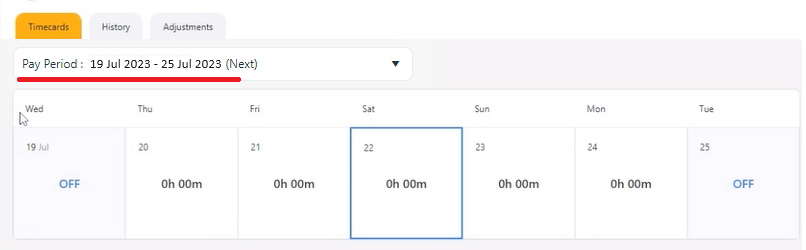
- As you can see, the new pay period (19th July to 25th July) overlaps with the existing pay period (16th July to 22nd July) by four days (19th July to 22nd July).
- Due to this overlapping of pay periods, any punches recorded on the overlapping days (19th July to 22nd July) will not be included in the new pay period (19th July to 25th July). Instead, the punches on timecards for those days will continue to be associated with the active payroll (16th July to 22nd July), which was created using the older settings.
 I
I
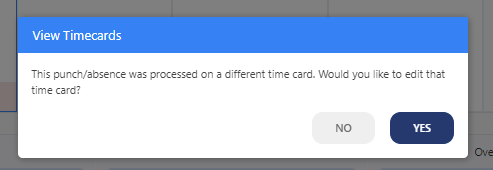
- If any user attempts to edit a timecard and add a punch to the overlapping part (e.g., on 21st July 2023) of the wrong timecard or the new payroll period (19th July to 25th July), a popup message will appear indicating that the punch/absences were processed on a different timecard and would you like to edit. On clicking yes, the screen will navigate to the overlapped date on the current pay period.