Absence Codes
An Absence Code is a code used to record and classify the reason for an employee's absence from work. It can be used for tracking attendance, calculating pay, and managing benefits. Examples of absence codes may include "sick leave," "vacation time," "personal time off," "bereavement leave," and "family medical leave."
The Absence Codes screen allows you to add absence codes that you can later assign to employee absences on the Timecard screen to tell the system how to calculate pay for those absences. For instance, you can set up some absences to be included in overtime calculations and others not to be included in these calculations.
Note: You should have absence code permissions to allow access, create, add, and delete. Refer to permission for more details.
View Absence Codes
Add Absence Code
Edit Absence Code
Delete Absence Codes
Export
Filter
View Absence Codes
Click Absence Codes below Setup.

The Absence code screen has the following functionalities:

- New and Delete button - Allows you to add and delete absence codes.
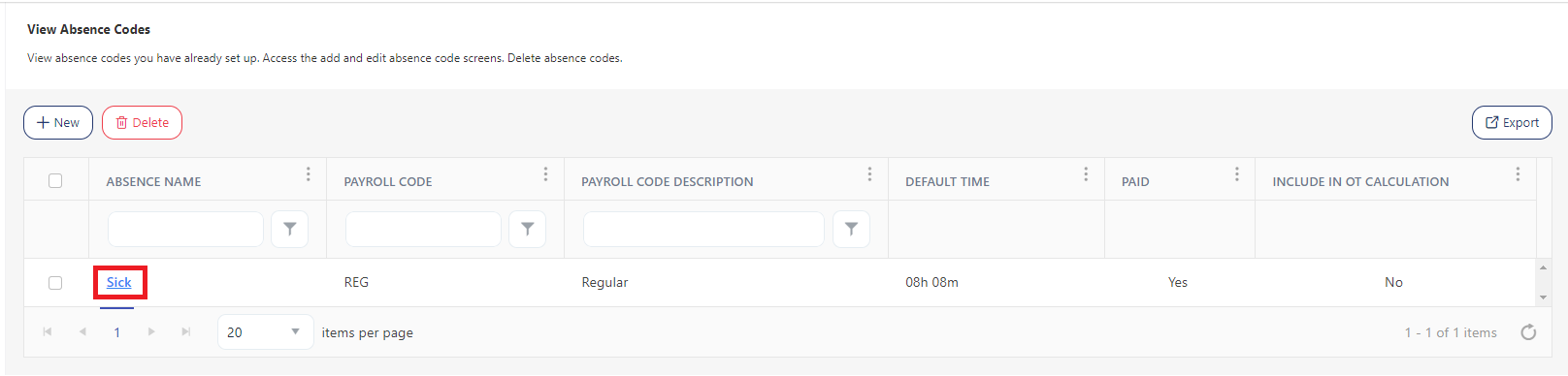
- Edit - The absence name is a hyperlink that will navigate to the View/Edit Absence Codes screen.
- Export - You can also export the list of absence codes.
- Filter/ Sorting Applied - It displays the filter text and the column where sorting is applied.
Add Absence Code
- Click Absence Codes below Setup.
- Click New.
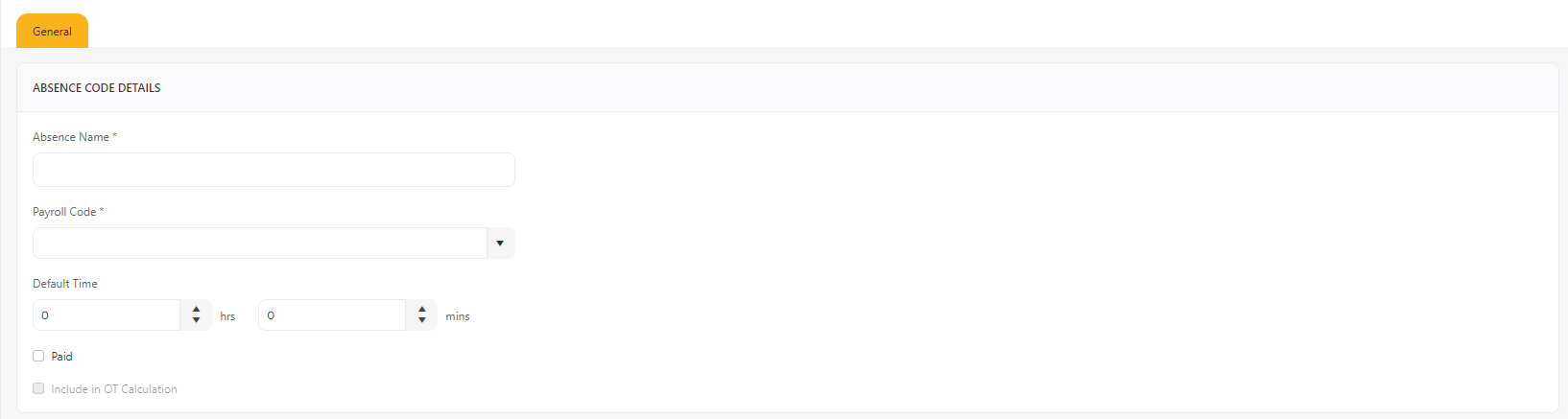
- Add the following details on the New Absence Code screen:
- Absences (Required) - Enter the name of the absence.
- Payroll Code (Required) - Pick the payroll code that will be used to code this absence type for accounting or payroll. Refer to Payroll codes.
- Default Time (Optional) - Enter or select the default number of hours to use for this absence. By default, it will show zero.
- Paid (Optional) - Select the checkbox if the absence is paid. It will be treated like a regular time worked in the timecard calculation.
- Include in OT Calculation (Optional) - OT is Overtime. This checkbox is enabled on selecting the "Paid' checkbox. Select the checkbox if you want to include the absence in the overtime calculation. Any time coded with this absence will count towards the overtime threshold or be included in overtime pay.
- Click Save. To cancel the changes, click Cancel.
- Save and add another - if you want to add more, check this checkbox before saving. The New screen appears on saving.

- A success message appears on saving.
Edit Absence Code
- Click on the absence name.
The screen navigates to the View/Edit Absence Codes screen.
- Edit or update the required fields.
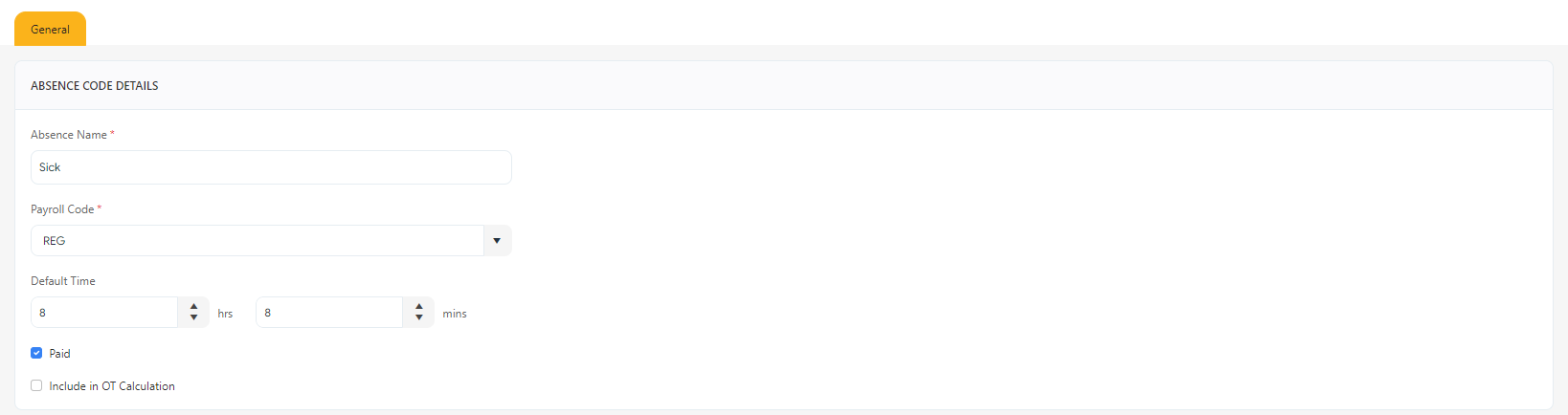
- Click on Save. To cancel the changes, click Cancel.
A success message appears on saving.
Delete Absence Codes
- Select the absence code by checking the checkbox.
- Click on Delete.
- Click on the Delete button again on the confirmation message.
Note: You cannot delete an absence code if it is used in the timecards.
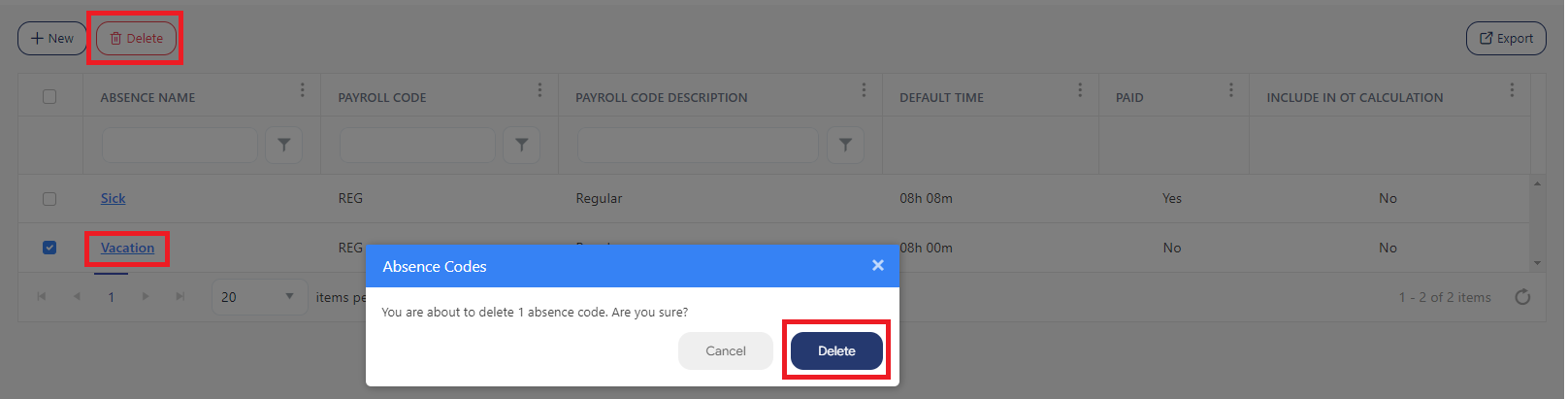
A success message appears on deleting.
Export
Click on the Export button to download the list of Absence Codes.

Filter
Each column on the view screen has a sorting and a search option. You will see a search text box in each column where you can type and search. In some cases, the column will only have a sorting option. The search box in each column in an application provides users with a more precise and granular way of filtering data, making it easier to navigate and find the information they need. Enter the text/value that you want to search. You can also enter multiple search terms across different columns. The application will apply all search criteria to filter the data, showing the rows (on the top) that match all the selected criteria.
This approach enables you to filter data based on multiple criteria simultaneously, making it easier to find the specific information you are looking for.
- You can use the filter funnel icon to select - Starts with, Is equal to, Is not equal to, Contains, Does not contain, and Ends with.

- Filter/Sorting Applied - This feature is an indicator in the application to show you that sorting or a filter/set of filters has been applied to a list. This indicator can help users keep track of the filters that are currently in use and understand which items are being displayed because of those filters.