
The Payroll Rules screen provides a comprehensive list of all the existing payroll rules within the system. It serves as a common platform where you can view and manage the various payroll rules that have been created.
Note: You should have payroll rules permissions to allow access, add, edit, and delete. Refer to permission for more details.
Click Payroll Rules below Setup.

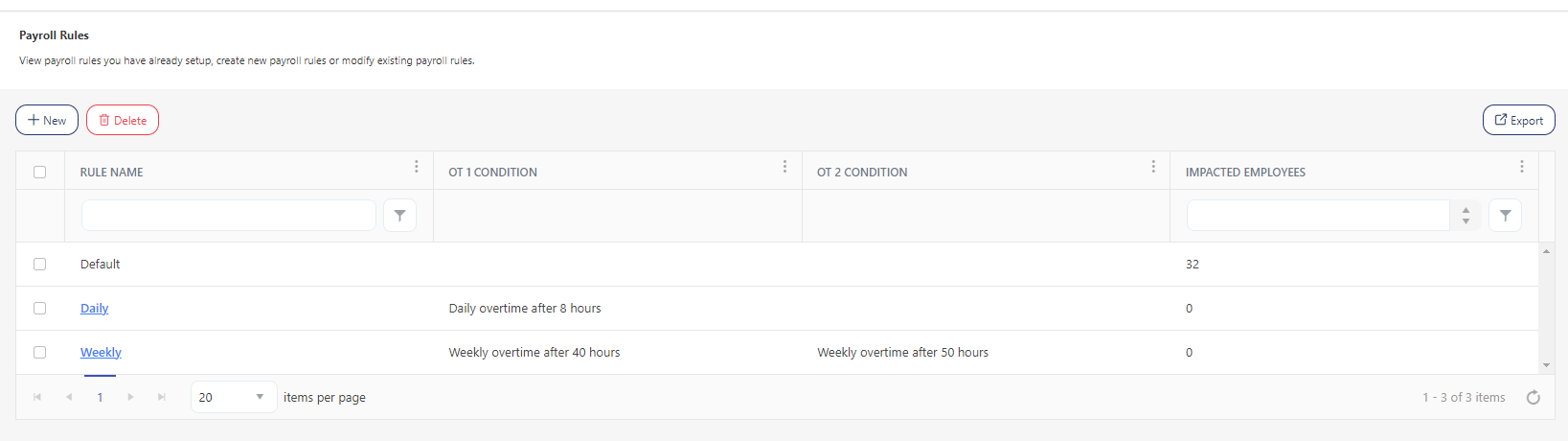
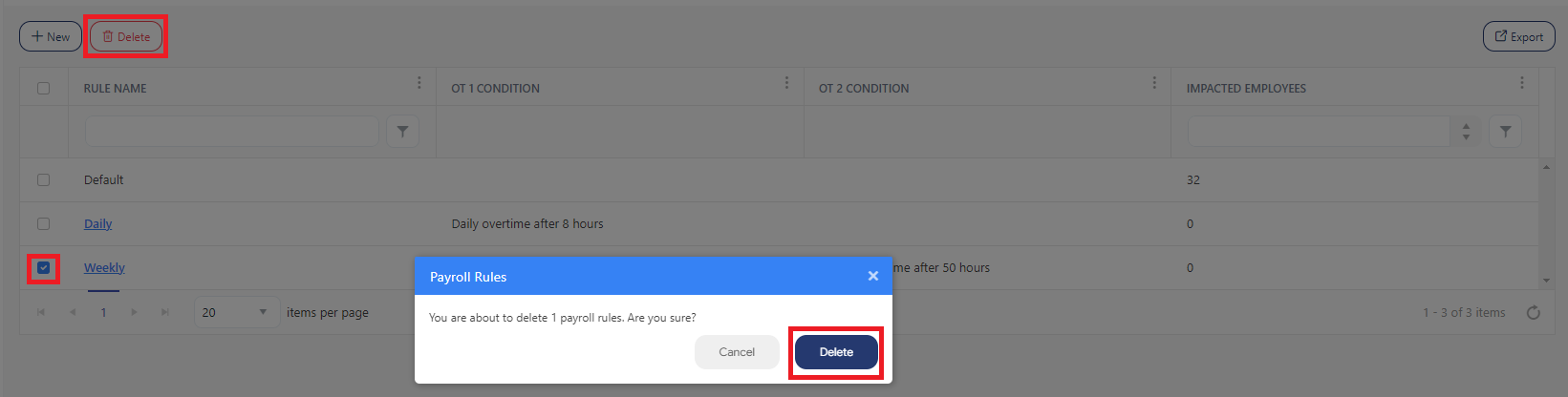
The View Payroll Rules screen displays the rule name, OT1 condition, OT2 condition, and Impacted Employees. There will be a "Default" payroll rule.
"Default" payroll rule
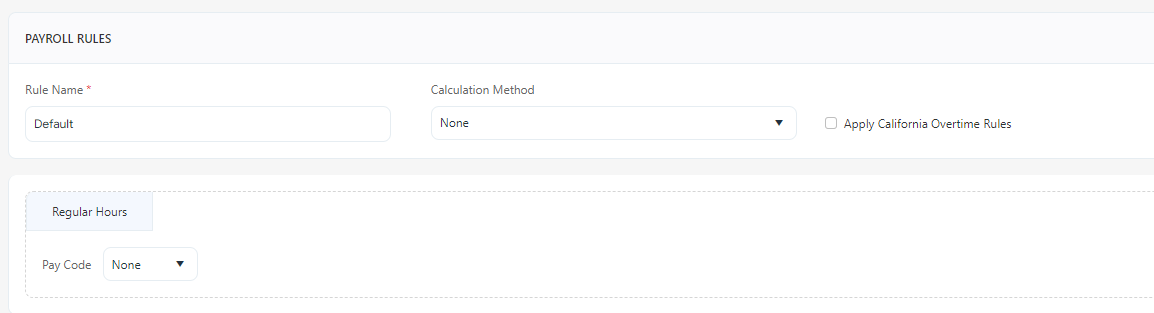
Note: Make sure that you define and associate all Pay Codes with the respective Payroll Rules prior to users beginning to clock in or punch in on the product. The application includes a default payroll rule, and it is important that once you have added all Pay Codes, you access the payroll rules screen to modify the default Payroll Rule. This modification should include the assigning pay code for regular hours and, if necessary, for overtime. Additionally, keep in mind that you have the option to create a new payroll rule if needed.
The screen also provides a provision to add, edit, or delete payroll rules.
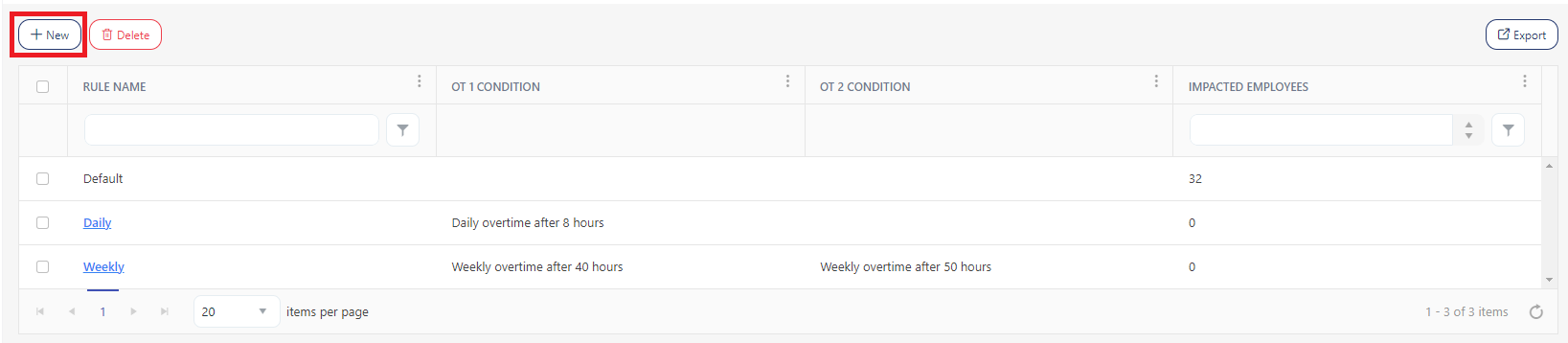
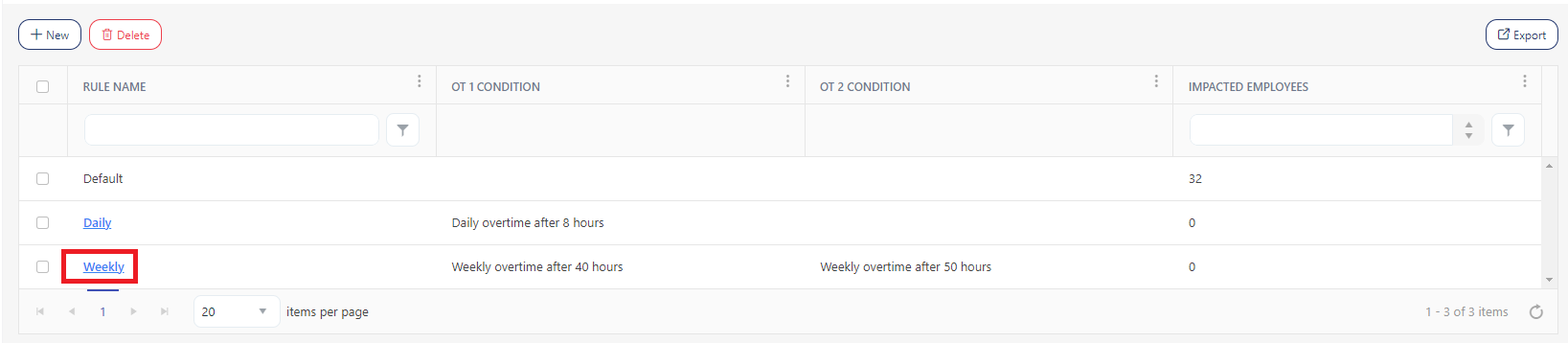
Note: You cannot delete a payroll rule if it is assigned to an employee.
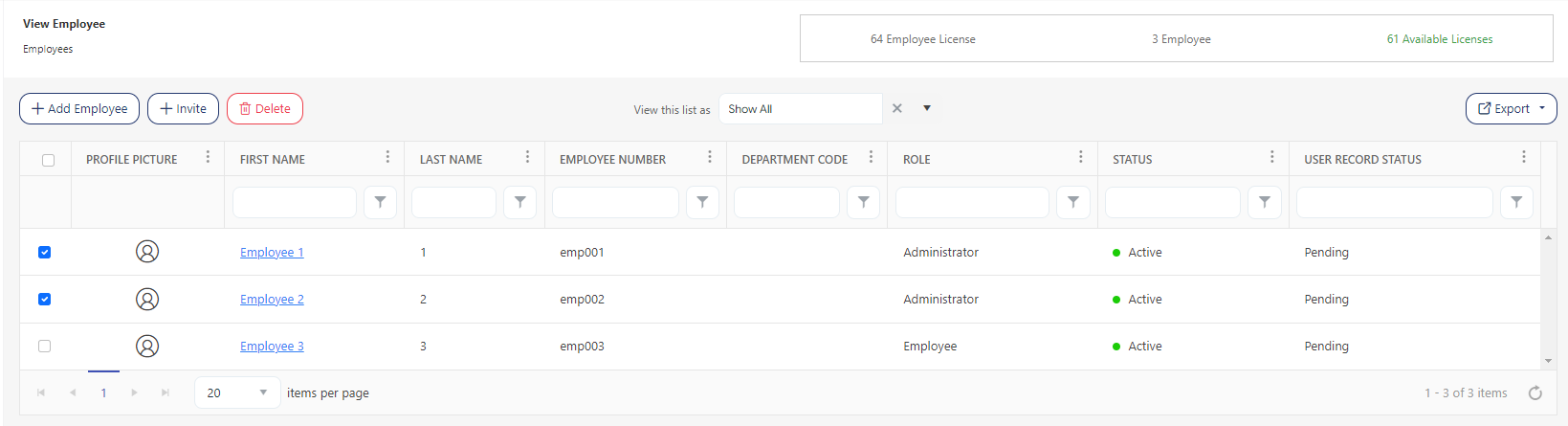
Each column on the view screen has a sorting and a search option. You will see a search text box in each column where you can type and search. In some cases, the column will only have a sorting option. The search box in each column in an application provides users with a more precise and granular way of filtering data, making it easier to navigate and find the information they need. Enter the text/value that you want to search. You can also enter multiple search terms across different columns. The application will apply all search criteria to filter the data, showing the rows (on the top) that match all the selected criteria.
This approach enables you to filter data based on multiple criteria simultaneously, making it easier to find the specific information you are looking for.


Click on the Export button to download the list of payroll rules.
