Edit Payroll Rules
The Edit Payroll Rules feature provides you with the capability to modify and update the settings of existing payroll rules. Through the Edit Payroll Rules functionality, you can make changes to various aspects of the overtime rules, such as the calculation method, pay rate, and paycode.
Furthermore, this feature enables you to manage employee assignments associated with specific payroll rules. You can add or remove employees from an payroll rule, ensuring that the rule accurately reflects the employees who should be subject to its calculations.
Note: Best practice is to avoid making changes to payroll and overtime parameters until the current pay period has been approved and processed.
Click Payroll Rules below Setup.

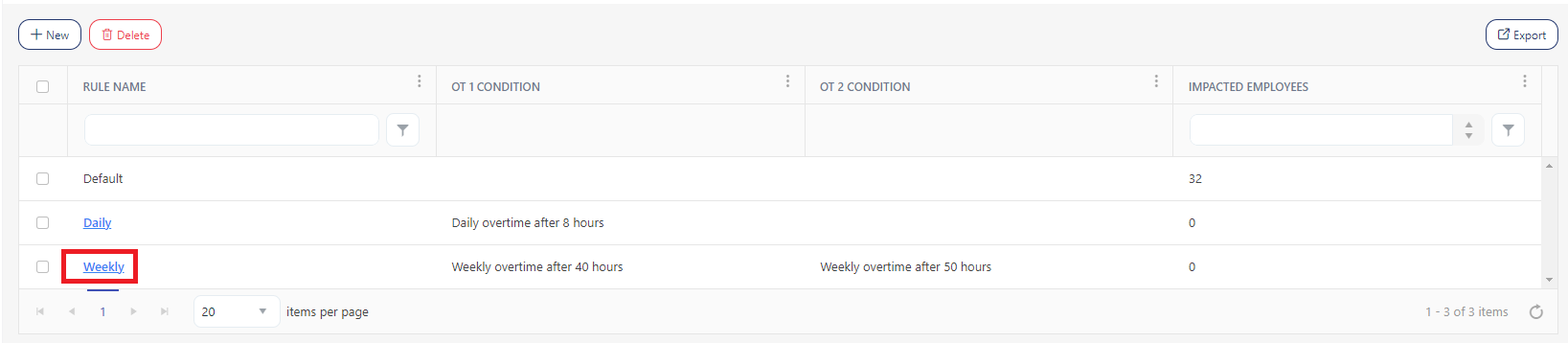
On the View Payroll screen, click on the rule name. It is a link that will navigate to the View/Edit Payroll Rule screen.
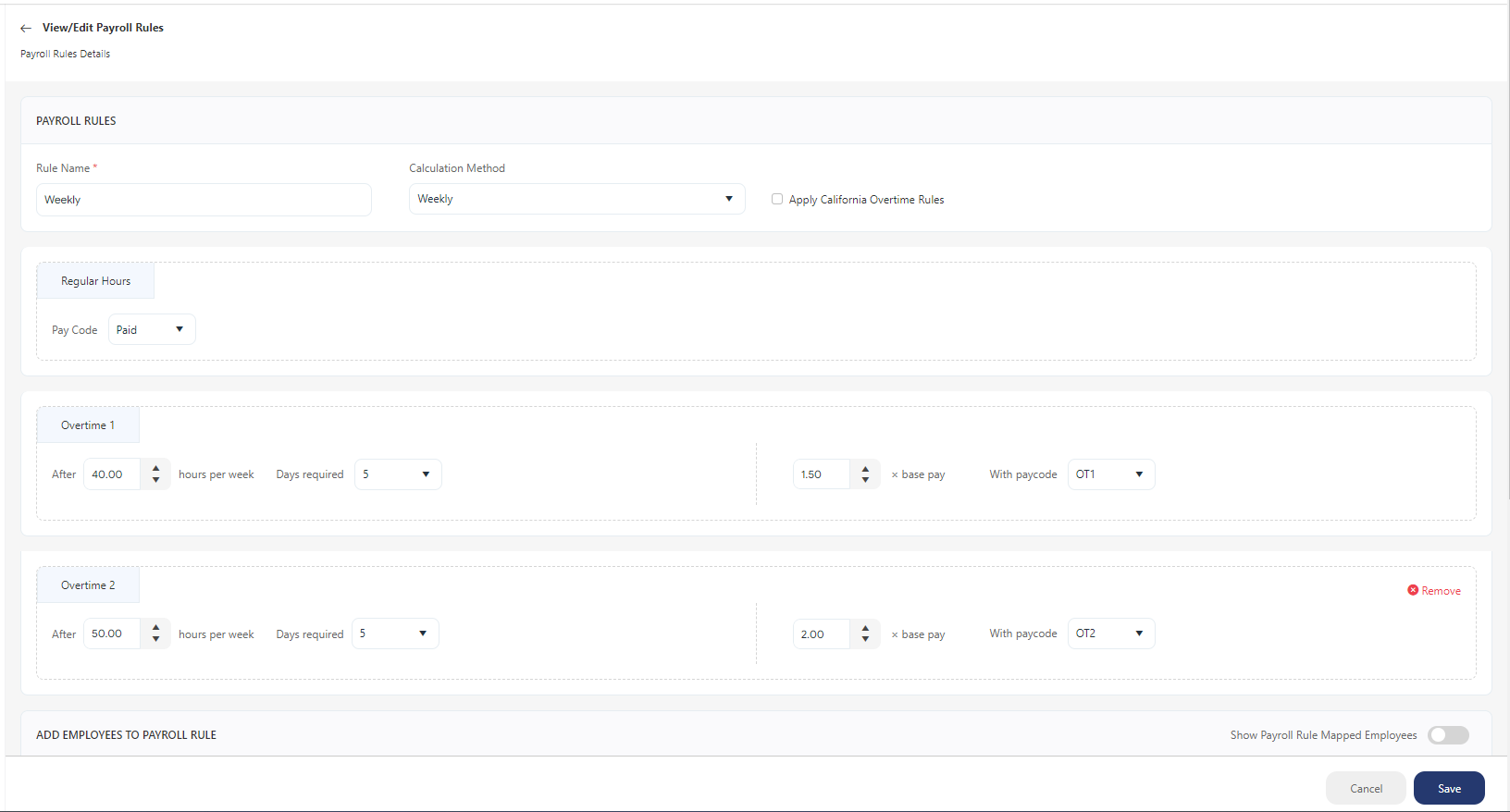
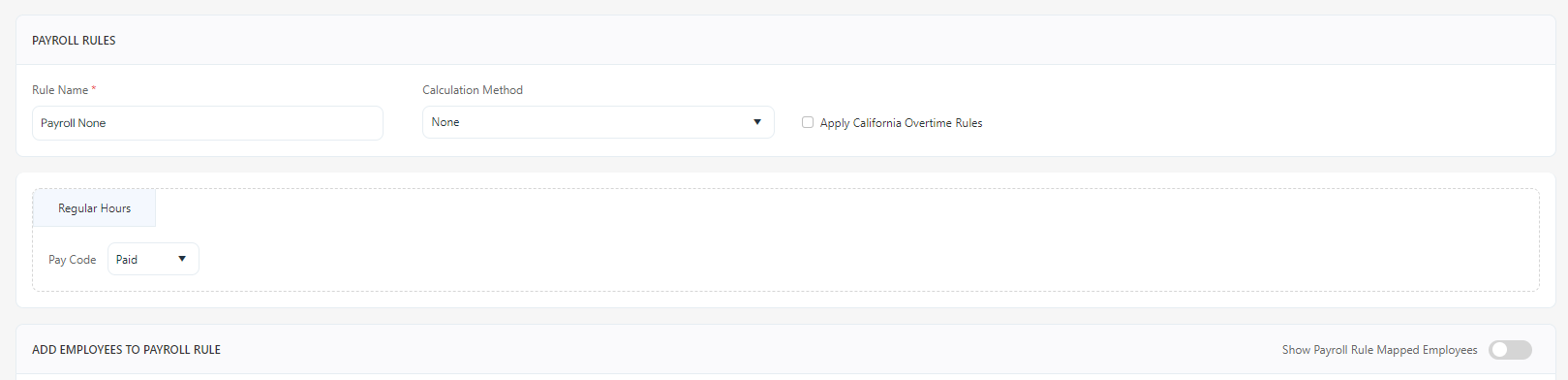
A View/Edit Payroll Rule screen will appear where you can update the overtime, regular hours, and employee assignments.
Payroll Rules
Update the Rule Name.
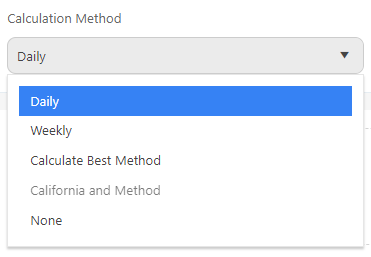
Select the calculation method. The options are Daily, Weekly, Calculate Best Method, California And Method, and None.
Select/update the paycode applicable for regular hours.
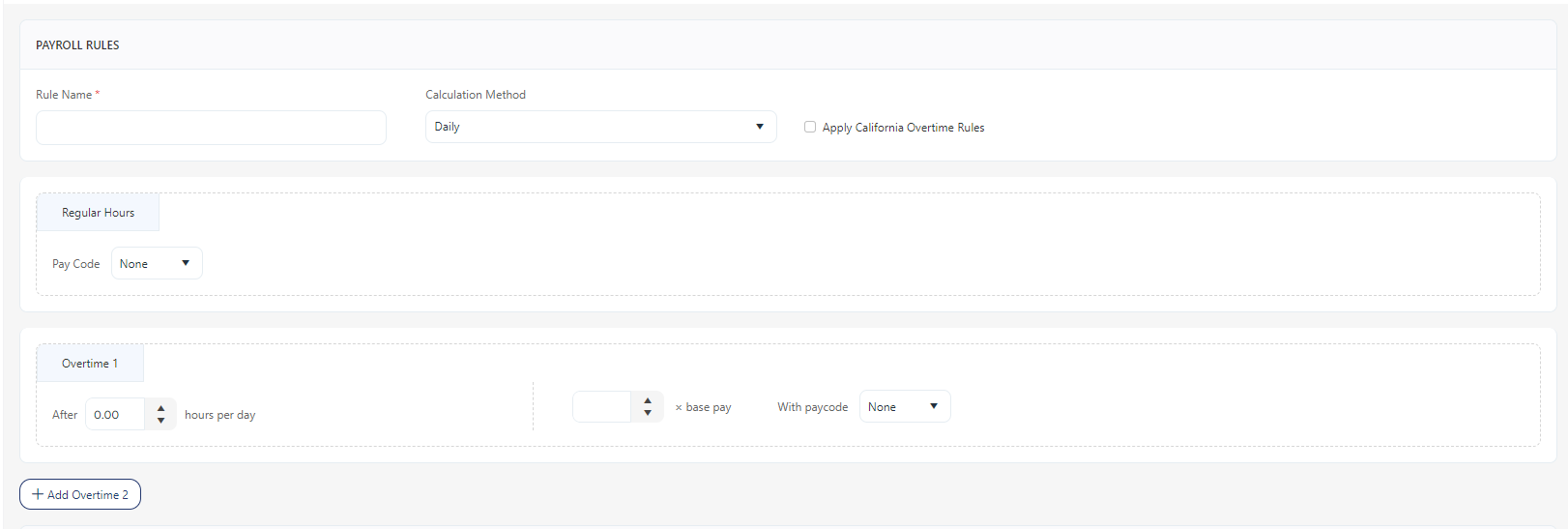
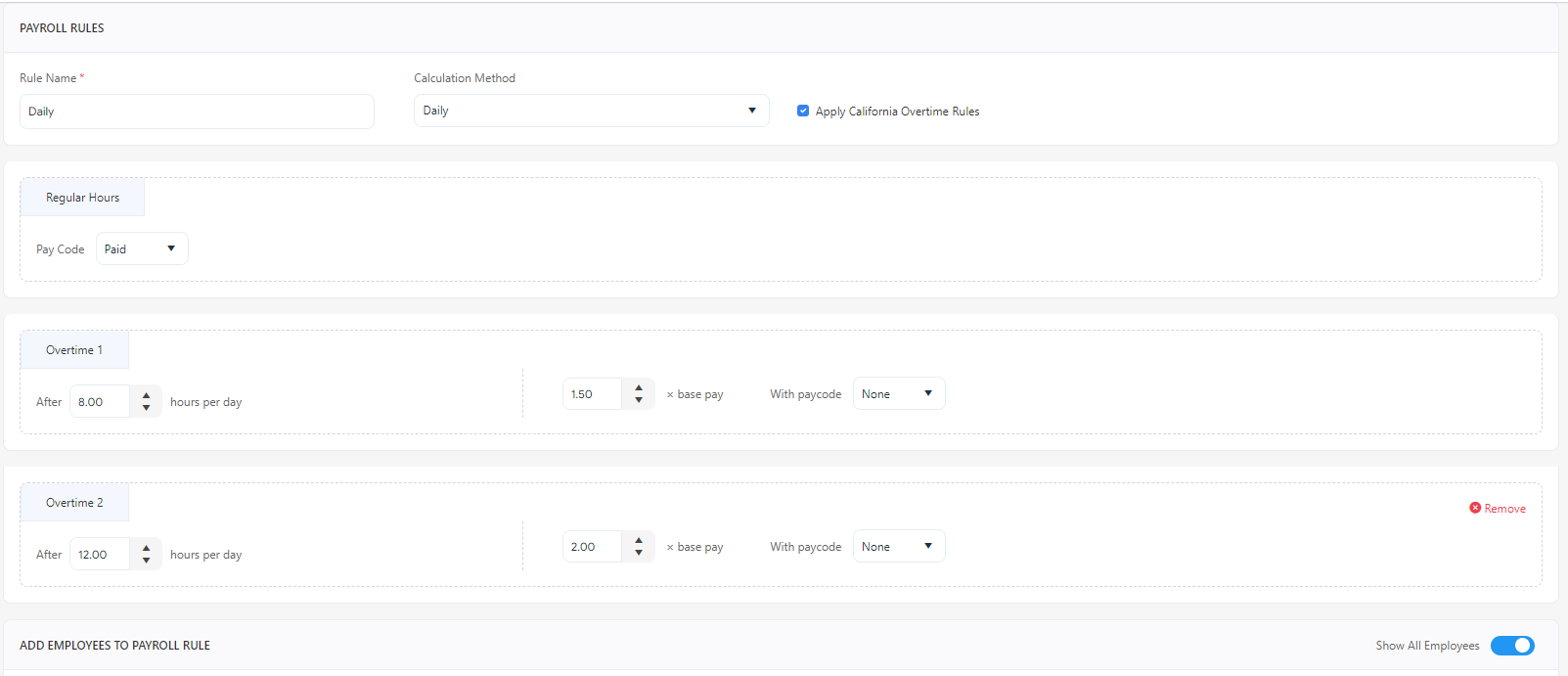
- Daily - Specify how many hours each day an employee must work before qualifying for overtime. This time is calculated using a daily total threshold, after which all time is overtime. The standard daily overtime threshold is 8 hours. Once an employee works 8 hours in a day, all the time worked after 8 hours is overtime. For example, if you work 10 hours today, you will get 8 hours of regular pay and 2 hours of overtime.
Overtime 1 - Enter the daily requirements.
- Total - Specify the number of hours required per day before overtime is paid.
- Pay Factor - The amount by which the pay changes for overtime. Enter the base pay amount. For example, 1.5 x base pay, 2x base pay, etc.
- Payroll Code - The payroll code that will be applied to this overtime. Select the paycode.
Overtime 2 - Enter the daily requirements.
- Click on the Add Overtime 2 button to add overtime 2 requirements.
- Enter the time required per day. Select base pay and paycode.
- Click on the Remove button to remove the Overtime 2 grid.
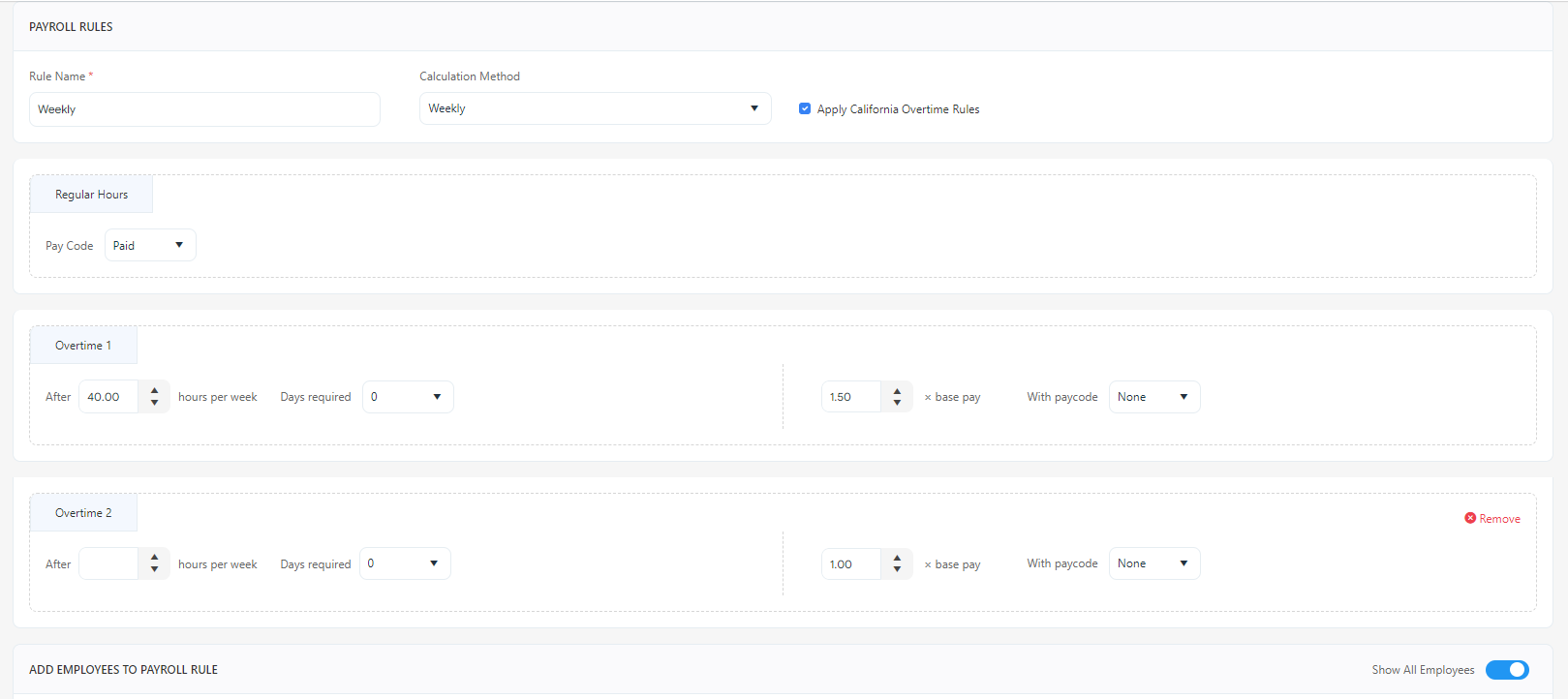
- Weekly - Specify how many total hours in the week an employee must work before qualifying for overtime. This time is calculated using a threshold total after which all time is overtime. The standard weekly overtime threshold is 40 hours. Once an employee works 40 hours in a pay week, all the time worked after the 40 hours is overtime. For example, if the first day of the week is Tuesday and you work 8 hours every day of the week, then on Saturday you will have accumulated 40 hours. If you work any hours on Sunday or Monday, these hours count as overtime.
Overtime 1 - Enter the weekly requirements.
- Total - Specify the number of hours required in a week that be worked before overtime is paid.
- Days Required - Specify the number of days required to be eligible for overtime.
- Pay Factor - The amount by which the pay changes for overtime. Enter the base pay amount. For example, 1.5 x base pay, 2x base pay, etc.
- Payroll Code - The payroll code that will be applied to this overtime. Select the paycode.
- If Overtime 2 applies, click on Add Overtime 2 to add Overtime 2 details. If not required, click on Remove.
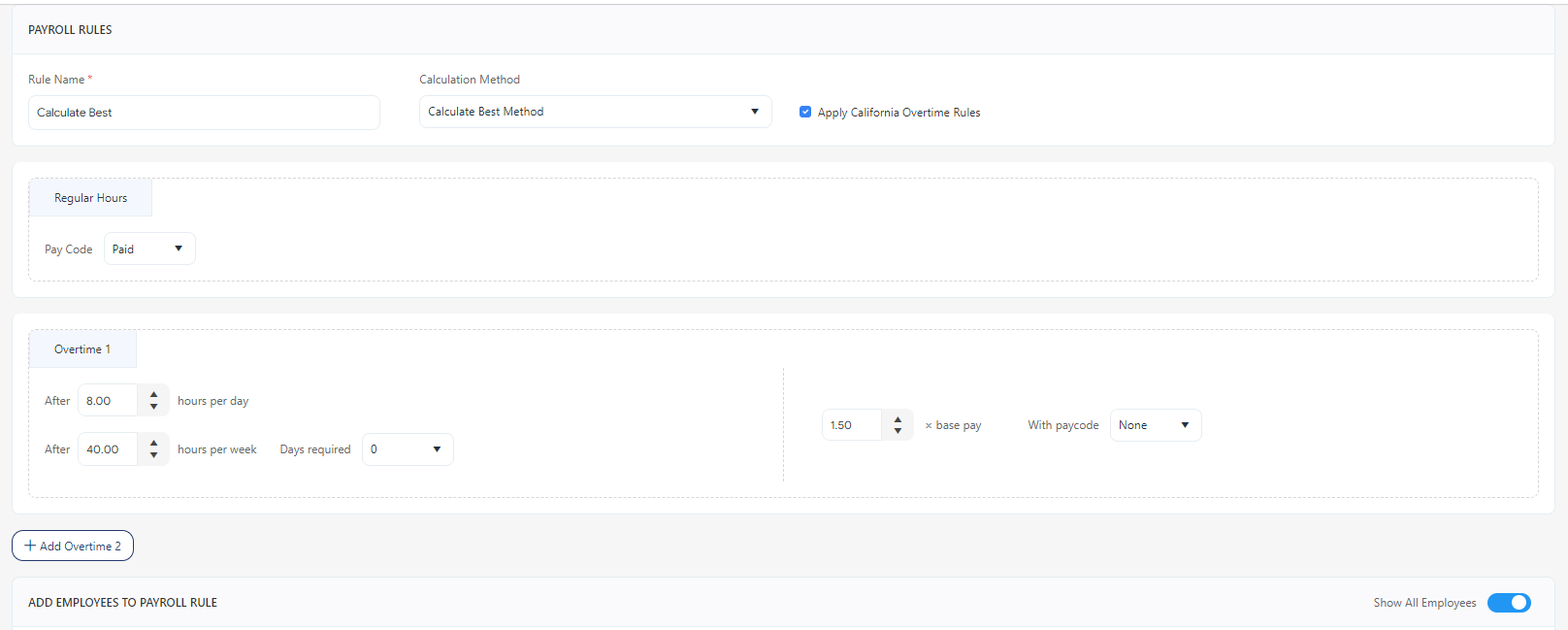
- Calculate Best Method - In Calculate Best method, specify both daily and weekly requirements, i.e. "how many hours each day an employee must work" and "the total hours in the week an employee must work" before qualifying for overtime. If you have thresholds for both daily and weekly overtime set up, the application will do both calculations and apply the one that gives the employee the most overtime.
For example, assume the schedule is Monday-Friday, daily overtime is set to 8 hours a day and weekly overtime is set to 40 hours a week. Consider the employee worked 8 hours from Monday to Saturday and in this case, the total weekly hours would be 48 hours. The employee would receive no overtime pay if you calculate overtime on a daily basis, but the employee would receive 8 hours of overtime if you calculate overtime on a weekly basis. The application will choose to calculate weekly overtime.
Similarly, if the next week that employee worked 9 hours a day for 3 days only, the weekly total would be 27 hours for that week. The employee would receive 3 hours of overtime calculated for daily overtime and 0 hours for weekly overtime. The application will choose to calculate daily overtime.
Overtime 1 - Enter the daily and weekly requirements.
- Total - Specify the number of hours required per day before overtime is paid.
- Total - Specify the number of hours required in a week that must be worked before overtime is paid.
- Days Required - Specify the number of days required to be eligible for overtime.
- Pay Factor - The amount by which the pay changes for overtime. Enter the base pay amount. For example, 1.5 x base pay, 2x base pay, etc.
- Payroll Code - The payroll code that will be applied to this overtime. Select the paycode.
- If Overtime 2 applies, click on Add Overtime 2 to add Overtime 2 details. If not required, click on Remove.
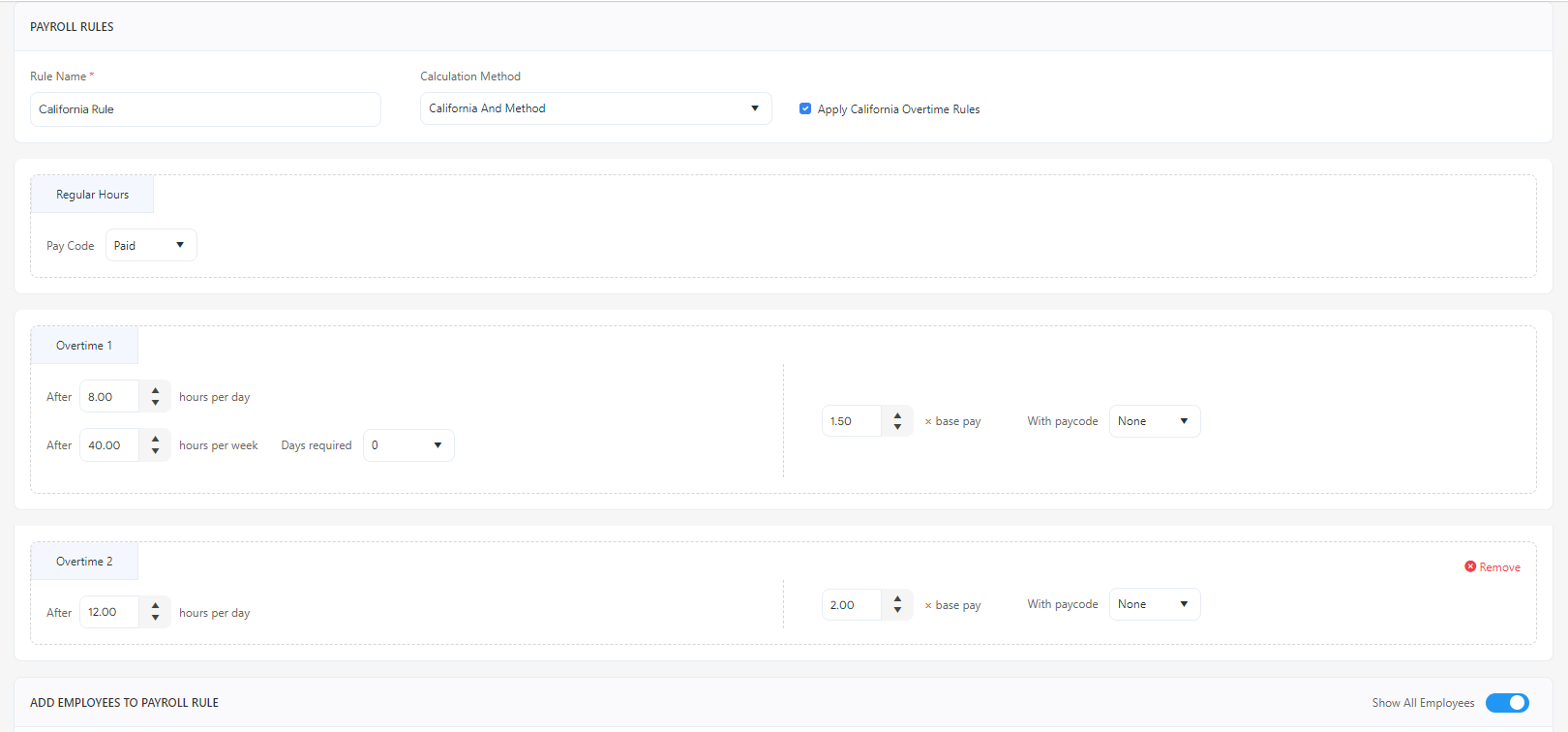
- California And Method - This option in the dropdown will be disabled by default. To enable this option, check Apply California Overtime Rules checkbox. The dropdown will automatically select California And Method. This method also needs you to specify both daily and weekly requirements, i.e. "how many hours each day an employee must work" and "the total hours in the week an employee must work" before qualifying for overtime.
Overtime 1 - Enter the daily and weekly requirements.
- Total - Specify the number of hours required per day before overtime is paid.
- Total - Specify the number of hours required in a week that must be worked before overtime is paid.
- Days Required - Specify the number of days required to be eligible for overtime.
- Pay Factor - The amount by which the pay changes for overtime. Enter the base pay amount. For example, 1.5 x base pay, 2x base pay, etc.
- Payroll Code - The payroll code that will be applied to this overtime. Select the paycode.
- If Overtime 2 applies, click on Add Overtime 2 to add Overtime 2 details. If not required, click on Remove.
Note: Weekly overtime 2 is not applicable for the "California And method".
- None - Select None if there is no overtime pay in your organization.
Add Employees to Payroll Rules
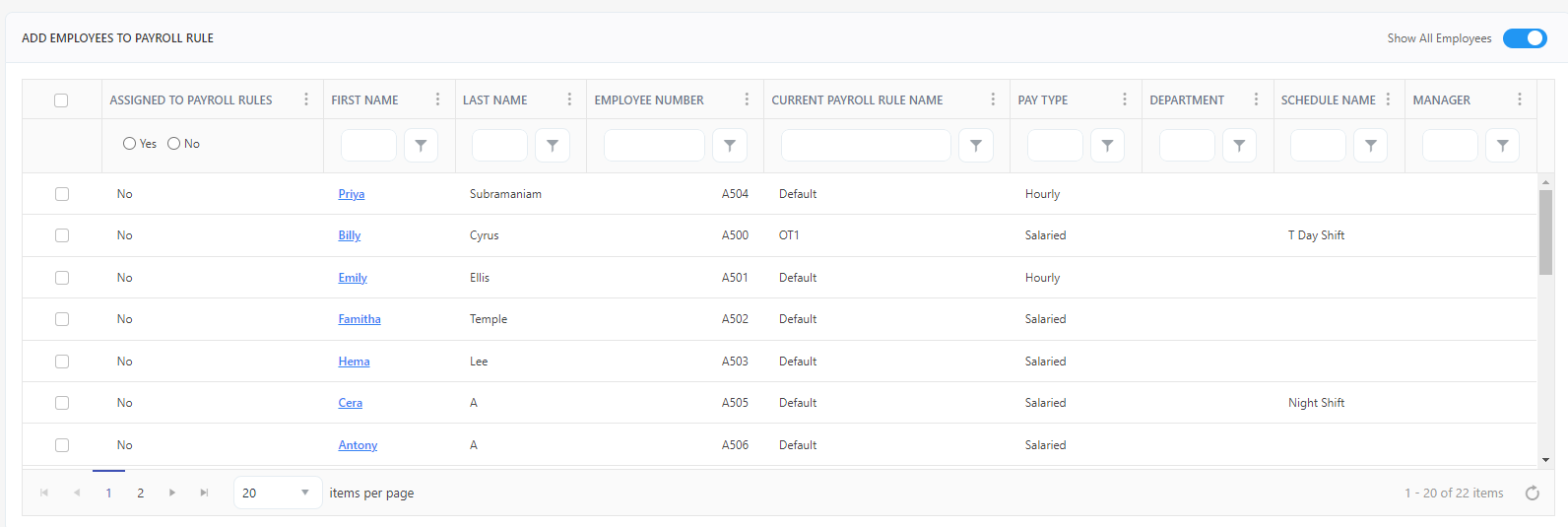
The section allows you to update payroll rules - employee assignments. The overtime calculation and payroll processing will depend on the overtime rule settings. It will display the following details:
- Checkbox - Check the checkbox to assign an employee to a payroll rule.
- Assigned to Payroll RuleS - Displays "Yes" or "No" based on whether an employee is assigned to a payroll rule. This selection filters the assigned and unassigned employees accordingly.
- Employee Number - Display the unique employee identification number.
- First Name, Last Name - Display the employee's name. The First Name is a link that will navigate the View Employee screen. The link will work only if the employee has view employee related permissions.
- Pay Type - Displays the pay type - salaried or hourly.
- Department Code - Displays the department's name/code.
- Schedule Name - Display the assigned schedule for the employee.
- Manager - Display the manager's name.
- Current Payroll Rule Name - Display the payroll name assigned to an employee.
- Filter - Each column on the table has a sorting and a search option. A search text box is provided in each column, allowing you to type and search for specific values within that column. A Filter/ Sorting Applied will appear which will display the filter/sorting applied on the list.
- Show All Employees and Show Payroll Rule Mapped Employees switch - The default setting is "show all employees". Show all employees will list all the employees and show payroll rule mapped employees will list the employees who are mapped to a payroll rule.
Click Save. Use Cancel to cancel the changes.