
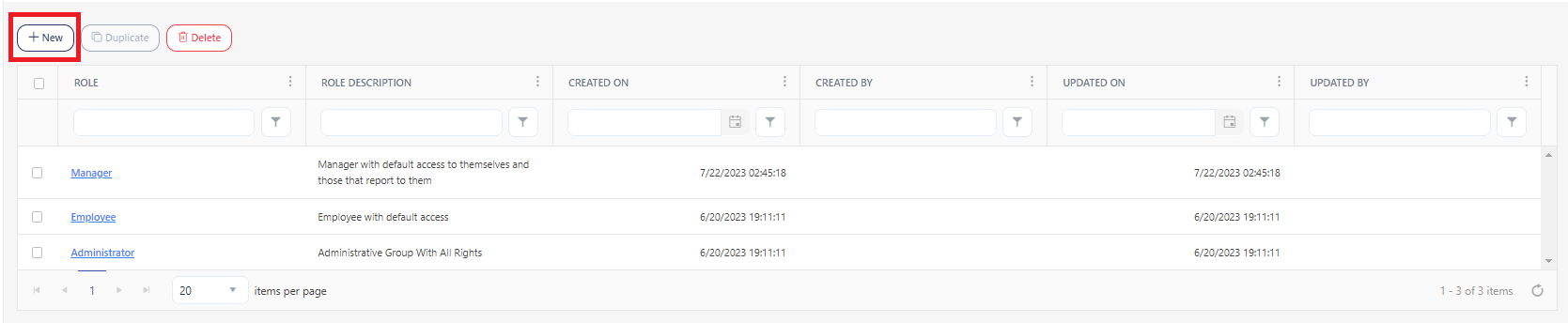
The View Roles screen allows you to view the predefined roles, and the roles created by your company administrator. The first-time user will only see the predefined roles and they are employee, manager, and administrator roles.
Note: You should have roles permissions to allow access, add, edit, and delete. Refer to permission for more details.
Click Roles below Setup.

The View Roles screen will display "Employee", "Manager", and "Administrator" roles by default. Any roles created later on will also get displayed.

The Created By and Updated By columns for the "Employee", "Manager", and "Administrator" roles will not show any information.
The View Role screen also provides a provision to add, edit, delete, and duplicate a role.
Note: You cannot edit employee, manager, and administrator roles.

Note: You cannot delete employee, manager, and administrator roles.


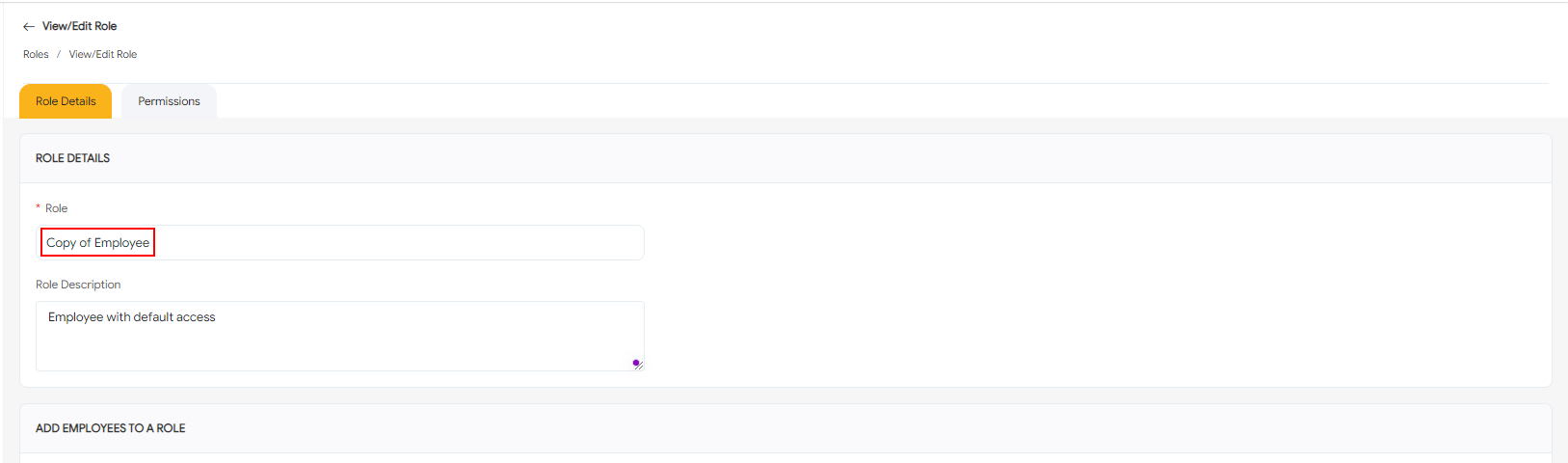
Note: You can duplicate employee, manager, and administrator roles.

Each column on the view screen has a sorting and a search option. You will see a search text box in each column where you can type and search. In some cases, the column will only have a sorting option. The search box in each column in an application provides users with a more precise and granular way of filtering data, making it easier to navigate and find the information they need. Enter the text/value that you want to search. You can also enter multiple search terms across different columns. The application will apply all search criteria to filter the data, showing the rows (on the top) that match all the selected criteria.
This approach enables you to filter data based on multiple criteria simultaneously, making it easier to find the specific information you are looking for.

This feature is an indicator in the application to show you that sorting or a filter/set of filters has been applied to a list. This indicator can help users keep track of the filters that are currently in use and understand which items are being displayed because of those filters.