Add Employee
The Add Employee screen enables you to create and add new employees to the system. It's important to note that the number of employees you are allowed to add is determined by the license you have. This includes regular employees, administrators, and managers. Please ensure that the total number of employees, including an admin, does not exceed the limit specified by your license.
General
Personal
Pay
Clock
Attachments
Note - To add an employee, the user needs a role that enables employee addition, along with "allow access and create" permissions for both employee and related sections. Refer to permissions for more details.
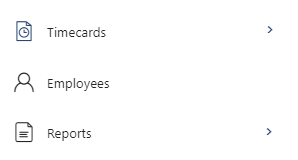
To add an employee, click on Employees.
Click on Add Employee.
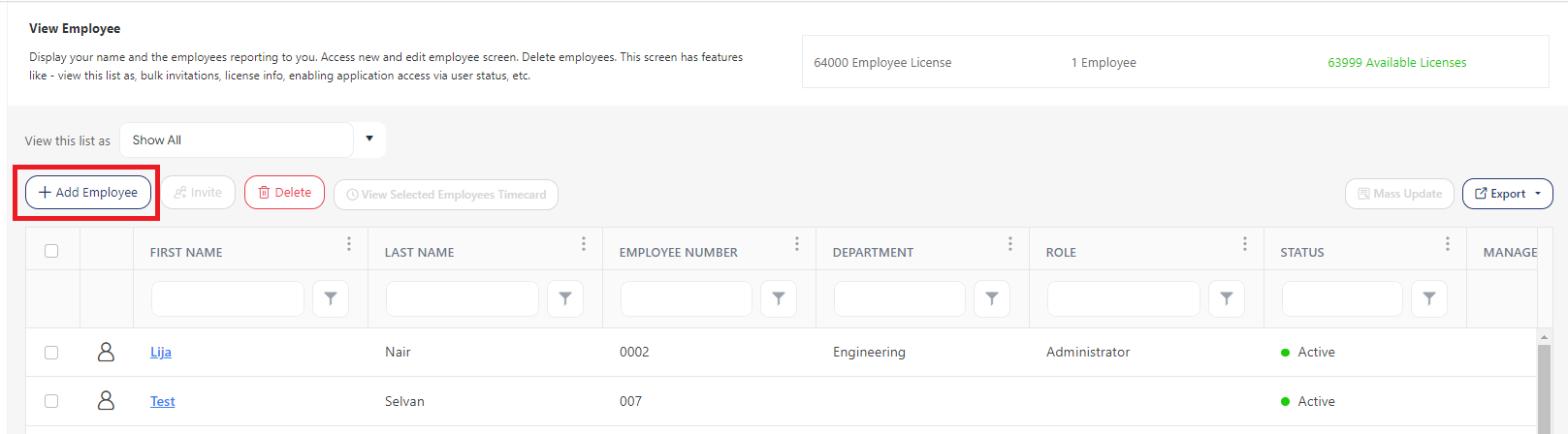
Add Employee screen has 6 tabs - General, Personal, Pay, Clock, and Attachments.

General
- Employee Details - Enter the employee's general details:
- First Name (Required) - Enter the employee's first name.
- Last Name (Required) - Enter the employee's last name.
- Employee Number (Required) - Enter the employee number. The employee number can be automatically generated if Automatic Employee Number is enabled on the Settings screen.
- Time Zone (Required) - Select the employee's time zone. By default, it will display the time zone selected on the Localization settings. Note that you can change the time zone settings for each employee and save.
The remaining fields below employee details are optional.
- Middle Name - Enter the middle name of the employee, if any.
- Title - Enter the designation.
- Badge/Card Number - Enter the badge/card number.
- Department - Select the department name. The departments are added in the Department screen.
- Manager - The dropdown will populate all the employees. Once you assign a manager and save. The assigned manager will start seeing this employee on their View Employee screen.
- To view all the employees in an organization, one should have View All Employees permission. Refer to the topic - Viewing All Employees.
- If someone wants to see this employee, they should have the "View Employee List From" field set to the assigned manager. The related topic is Setting View Employee List From.
- Note that assigning a manager enables the Manager Approval checkbox on the Timecard Settings section.
- Schedule Name - The dropdown will populate all the schedules. The schedules are added on the New Schedule Template screen. This schedule will be the employee's default schedule.
Note: If an employee does not have a schedule template assigned to them, the clock in/out button on the Home screen will be hidden.
- Status - The options are Active, Inactive, and Leave
- The status "Active" appears when you create an employee. By default, the status will be active. Once you add an employee, it leads to a decrease in the license count by one.
- The status "Inactive" appears for employees who are not using the application. Note that making a user Inactive will increase the License count. The inactive employee can not log in to the application. Refer to Steps to Inactivate an Employee topic.
- The status "Leave" appears for the employees who are on leave. The status leave will not have any effect on the License count.
- Type - The options are Full Time and Part Time. Select one option.
- Salaried / Hourly - Select the rate type - salaried or hourly option. This is the employee's default setting. Also, refer to the Rate Type in the Pay tab section.
Note - Any change made on the salaried or hourly section of the Pay tab will not reflect on the General tab. The administrator should manually update the rate type on the General tab whenever there is an update on the employee's pay.
- Exempt / Non-Exempt - Toggle the switch to select the exempt or non-exempt option.
- Site - Select the site. The sites are added in the Sites screen. Refer to the Site Restriction on the role screen.
Note: The employee’s assigned site does not impact geo-fences, and all sites with Geo Enabled are used for all employees.
Note: The employees with Employee - SSN/SIN/NIN - "Self" permission can edit their records and "Others" permission can edit other's records. An Employee with an “employee role” can access the “Edit Employee” page from the Profile icon.
- Start Date, Termination Date, and Next Review - The start date is the date of joining, the termination date is the last working day in the organization, and the next review date is the date when employee performance is assessed.
- Payroll Rules - Select the payroll rule. The Payroll Rules feature allows you to define and configure the payroll rules for calculating payroll and overtime. Access View Payroll Rules topic for more details.
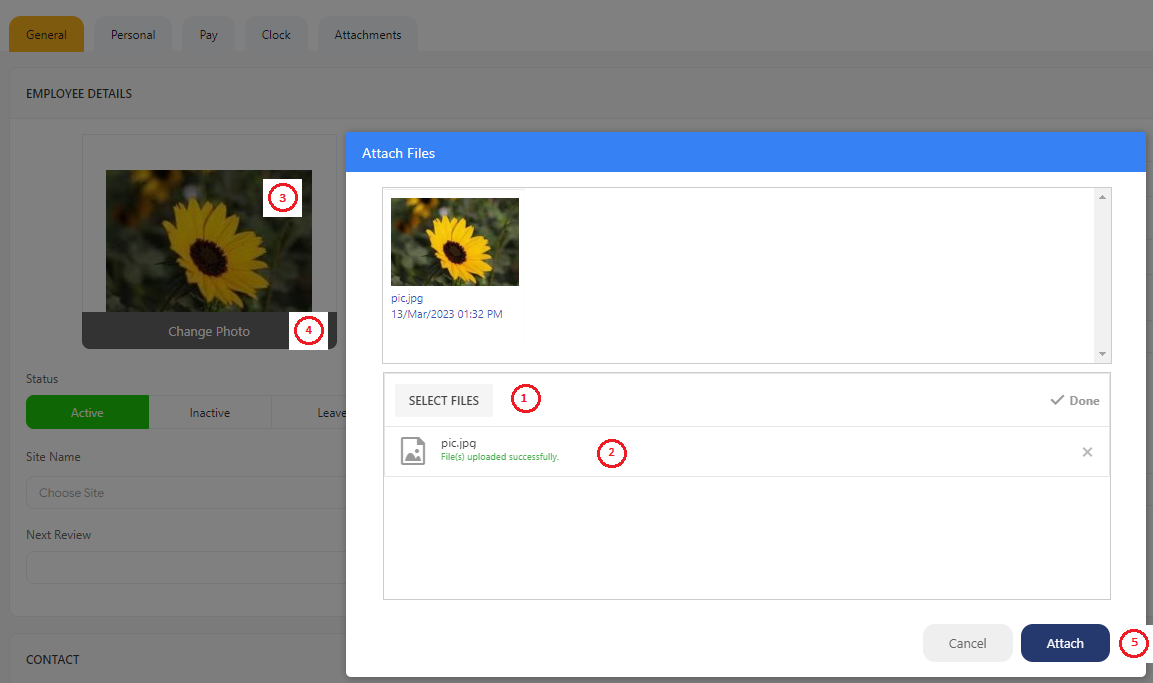
- Attach Photo - Click on the Attach Photo button. A popup screen appears where you can click on the Select Files button and browse a picture. Once the picture is uploaded, the photo will be added. The Attach Photo button changes to the Change Photo button. Click on the Attach button on the popup screen.
Note: While changing the picture, the Attach button on the popup screen would be the Change button as you are changing the display picture. The picture details will also be available on the Attachment tab. If you delete the profile picture from the attachment tab, the picture gets deleted from the general tab.
- Contact
- Office Phone, Cell Phone (Optional) - Enter the phone numbers
- Work Email (Required) - Enter a valid email ID. An invitation to register is sent to this email ID.
- If the "Employee will access the application" is checked, you cannot save the employee information without a valid Work Email ID.
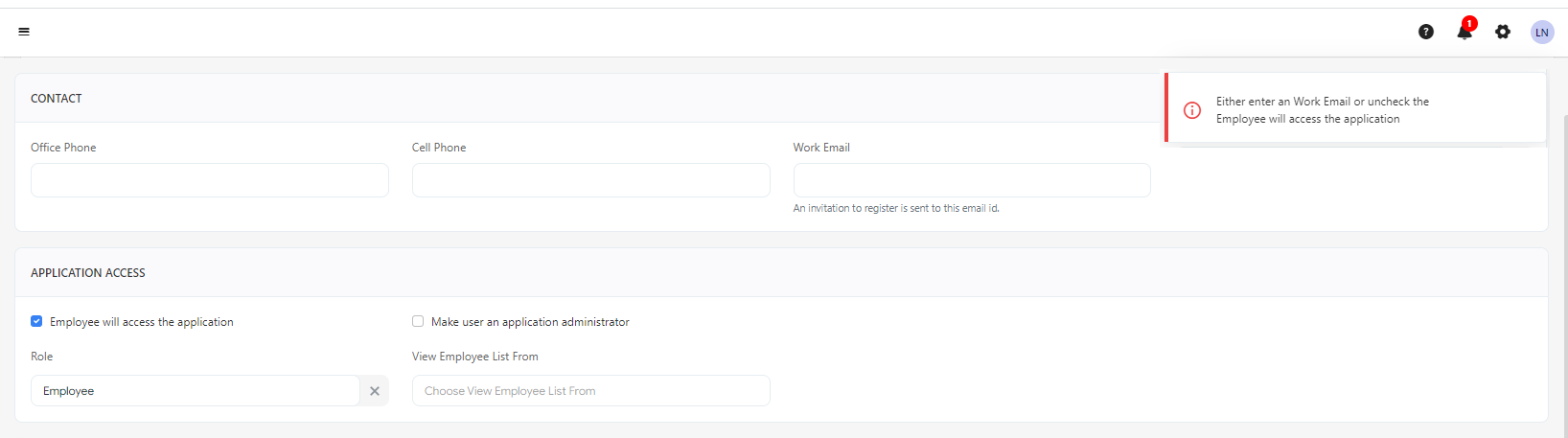
- Application Access
- Employee will access the application - This feature provides application access to a user. By default, the checkbox will be checked and the status will be "Active". Note that you can uncheck this checkbox for an active user too.
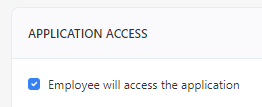
Note that unchecking the checkbox will hide all the fields that appear in the application access section. The following fields appear if the "Employee will access the application" checkbox is enabled.
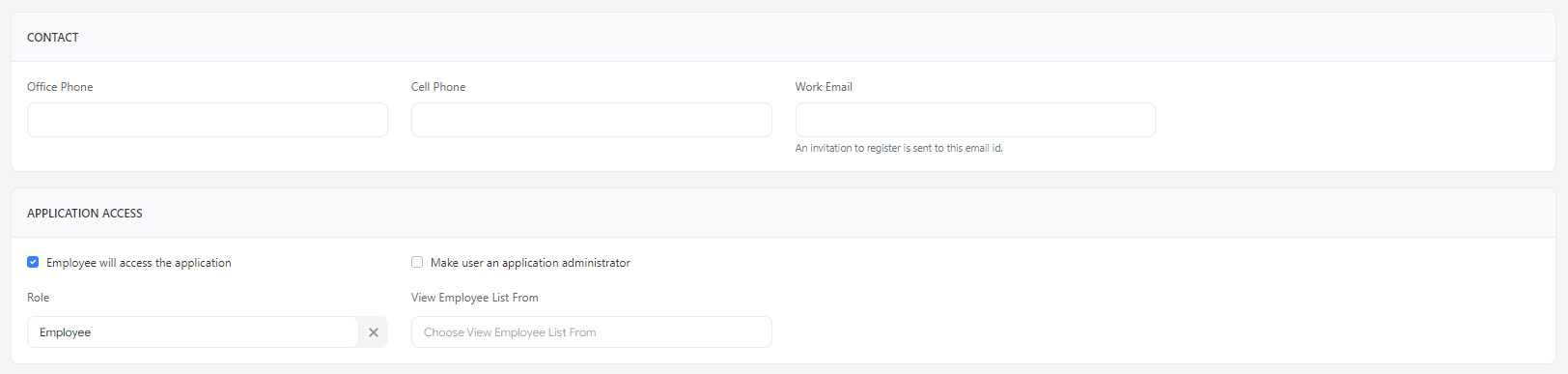
- Role - The "Employee" is the default role. You can select another role as well. A new role is added on the Add Role screen. By default, the dropdown will show administrator, manager, and employee roles.
- Make the user an application administrator - Check this checkbox to make the employee an application administrator.
Note -
- The first employee who logs in to this application will have this checkbox checked by default. The App Administrator can change their role. They have permission to check and uncheck the “App Admin” flag for others. An employee without the app admin permission cannot modify the checkbox for others.
- An employee that has the Application Administrator attribute turned on can view all employees.
- View Employee List From - Select the employee from the list. It allows configuring an employee to view the employee hierarchy from another's perspective. This employee should have the Employee - View Tree from Employee permission to use this feature.
The related permission is Employee - Application Access.
- Timecard Settings (All Optional)
- Weekly Time Card Requires
- Employee Approval - When you are adding a new employee, this checkbox is enabled and checked by default. You can check/uncheck this checkbox. If this checkbox is checked, it means that the employee should approve/submit their timecards. Refer to the topic Submit Timecard/Approve Timecard.
Note:
- The employee approval checkbox will be disabled if you uncheck the "Employee will access the application" checkbox.
- If only Employee Approval checkbox is only checked, then the manager cannot approve.
- Manager Approval - This checkbox is disabled by default. This checkbox is enabled and checked only when you assign a manager to an employee. If this checkbox is checked, it means the employee's timecard requires the manager's approval. The assigned manager would see the Approve button on the employee's timecard on the View Timecard screen. Refer to the topic Approve Timecards.
Note:
- If only manager approval is checked, then only a manager can approve the timecard.
- When the "Manager approval" option is checked, the timecard can be approved by an employee who is an "Application Administrator" and has the role of "Administrator" or "Manager" in the application.
- Required Only if Overtime - Required Only if Overtime (OT) is enabled only if the manager approval checkbox is checked. If this checkbox is checked, it means the employee's timecard requires the manager's approval if they have overtime.
Note
- If there is no OT, the employee can approve their timecard, but the manager can not approve it.
- If there is an OT, the employee can submit the timecard, and the manager will approve the employee’s timecard.
- Never Export Payroll - This setting means to exclude this employee when performing an export of timecard data to their payroll system. Refer to the topic Export Payroll.

You can uncheck/check timecard settings checkboxes based on your company's requirements. The related permission is Employee - Time Card Settings.
Personal
The personal tab captures employees' personal details. All the fields are optional.
- Contact
- Home Phone and Personal Email - Enter the employee's personal phone number and email ID.
- Address
- Address 1 - Enter the employee's address, city, state/province, postal code, and country.
- Add the Geofence.
Note: For the timecard to record geofence data, we recommend configuring both the "Capture Punch Geolocation - Web" and "Capture Punch Geolocation- Mobile" settings, specifying whether it's required or optional, and ensuring that permission to add location data to each punch is granted.
- Geofence this Location - Check the checkbox to add a geofence to the address. Selecting the checkbox will enable the Geofence Radius field.

- Once the 'Geofence this Location' checkbox is selected, enter the geofence radius. Note: The geofence radius ranges from a minimum of 30 meters to a maximum of 80000m (49.72 miles), with a default radius of 50 meters.

- Click on the View on map link to view the geofence area.
- Click on the Add Address button to add Address 2.
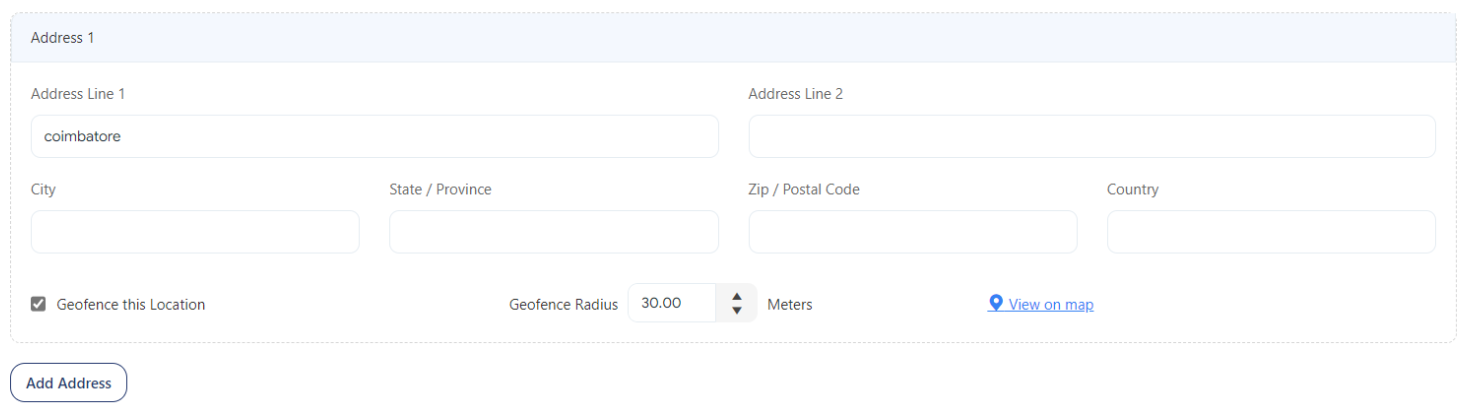
Warning: Choosing too small a radius may result in punches not being recognized as 'In the zone.' Also, keep in mind that near large buildings, GPS signals can drift more than usual. Wasp Barcode cannot be responsible for GPS hardware accuracy.
- Emergency Contact Information
- Emergency Contact and Note - Enter the emergency contact info. A note specific to the employee can be added in the note field.
The related permission is Employee - Details and Contact and Employee - Notes.
- Demographics
- Date of Birth - Select the date of birth from the calendar.
- Gender - Select gender. The genders are added in the Genders screen.
- Race - Select race. The races are added in the Races screen.
- Marital Status - Select the marital status.
The related permissions are Employee - Personal, Employee - Demographics - Others, and Employee - Demographics - Self.
Note: The employees with Employee - Demographics - "Self" permission can edit their records and "Others" permission can edit other's records. An Employee with an “employee role” can access the “Edit Employee” page from the Profile icon.
Pay
The pay tab captures the current and future pay rates that include pay class (hourly/salaried), pay rates, and effective date.
- Add/Edit Pay Rate

- Effective Rate - Select the date from the calendar. It is the date from when the salary change happened or will happen.
- Rate - Enter the rate.
- Rate Type - The options are hourly and salaried. By default, one of the rate types will be selected. The selection depends on the rate type selected on the General tab. The rate type can capture the employee's future pay rate changes, too. You can add a new rate type with new rates and the effective date. Any change made in the rate type on the pay tab will not alter the rate type selected on the General tab.
Note- Once the effective date starts, the administrator should manually update the rate type on the General tab.
- Rate History
- The rate history captures all rates set up for this employee, along with their effective dates.
Note - Rates can be edited or deleted prior to being used in the pay cycle. If it is used, the rate will be locked and uneditable.
- Edit - The rate type and rate can be edited in the "Rate History" table itself.
- Delete - You can delete the rates from the rate history table.

The related permission is Employee - Pay rates.
Clock
The clock tab is to assign clocks to an employee. You can assign multiple clocks to a single employee.
- Clock User Details
- Clock User ID - Enter the clock user ID. The user ID is required for a user who clocks in and out using a physical clock. This field maps the punches to an employee. If a clock is assigned to the employee and the clock user ID is empty, a validation message will appear, indicating that the employee needs a Clock User ID to punch a clock.
Note
- This field is not mandatory for an employee who only uses the web or mobile clock in/out feature (on the home screen).
- This field only accepts numeric values with no leading zeros.
- The clock user ID must be unique.
- Display Name - It is the name entered on the clock.
- Privilege - The options are normal user, registrar, and super admin.
Note: These are internal Clock Roles. Admin has full access to the clock. Registrar is a subset of permissions on the clock, primarily for registering users’ fingerprints to the clock.
- Passcode - It is the passcode entered by the employee. The passcode remains hidden by default. Use the eye icon to view the passcode.

Note: With WaspTime and the BC100, RF200, HD300, or B1100/B2000 clocks, if an employee chooses to type on the keypad rather than just swiping their badge, the clock expect them to enter their badge number followed by their passcode. With PreciseTime and the new clocks, the employees are created on the clock with an UserID that matches their Employee Number in the program, and the Badge Number is separate. When swiping their badge, it will read the Badge Number, but if they choose to manually type on the keypad, it will expect them to enter their UserID/Employee Number followed by their passcode. If their Badge Number does not match their Employee Number and they try to type the Badge Number, the clock will respond "Invalid ID".
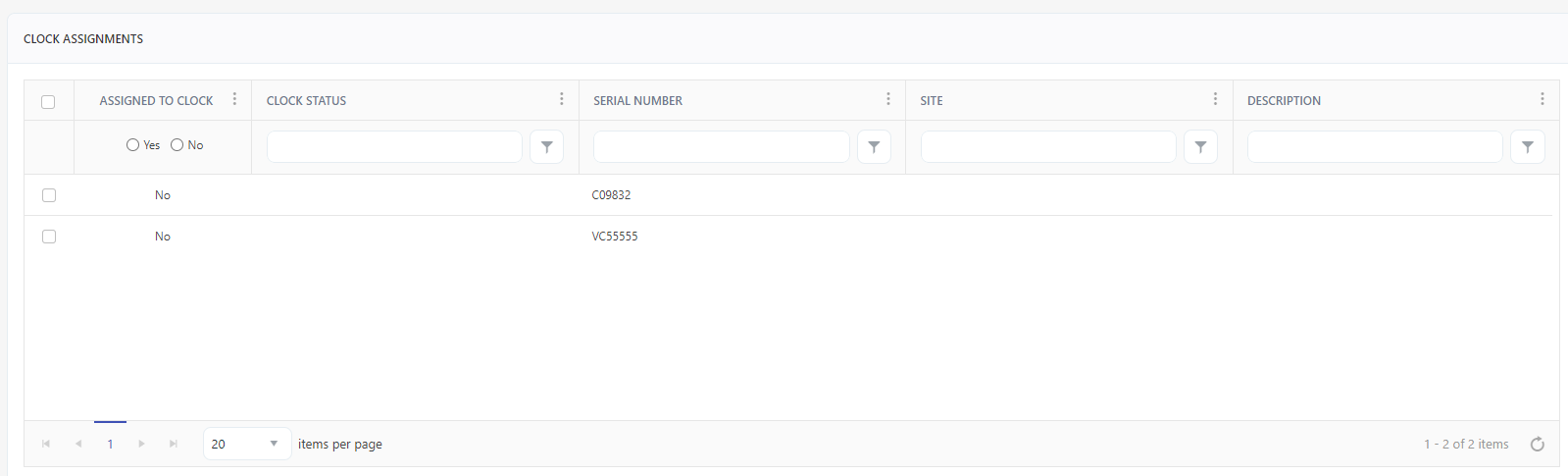
- Clock Assignments
- Assigned to clock - Display Yes or No. "Yes" means the clock is assigned to the employee and "No" indicates the clock is not assigned to the employee.
- Clock Status - Clock Status is to show if a request to add an employee to a clock has been processed or is still pending. The status would be "In Queue" or "On Clock". You can view the status on the Edit Employee screen or on the Edit Clock screen.
- Serial Number - Display the clock's serial number.
- Site - Display the site where the clock is installed.
- Description - Display the description that you added while adding a clock.
- Filter - Each column on the table has a sorting and a search option. You will see a search text box in each column where you can type and search.
Assign Clocks
- To assign a clock to an employee, check the checkbox to select the clock. Click save.
Note - The employee is not immediately "assigned to" a clock. It is assigned only when you click on the save button. Also, note that it is possible to assign a clock to an employee who does not have a user record and who may not actually log into PreciseTime.
The related permission is Employee - Clock Assignments.
Attachments
The Attachment tab is to attach any employee related documents. This tab also stores the display picture attached on the General tab.
To attach files, click on the Attach Files button.
Click on the Select Files button. Browse the files.
Once the file is uploaded, click on the Attach button.
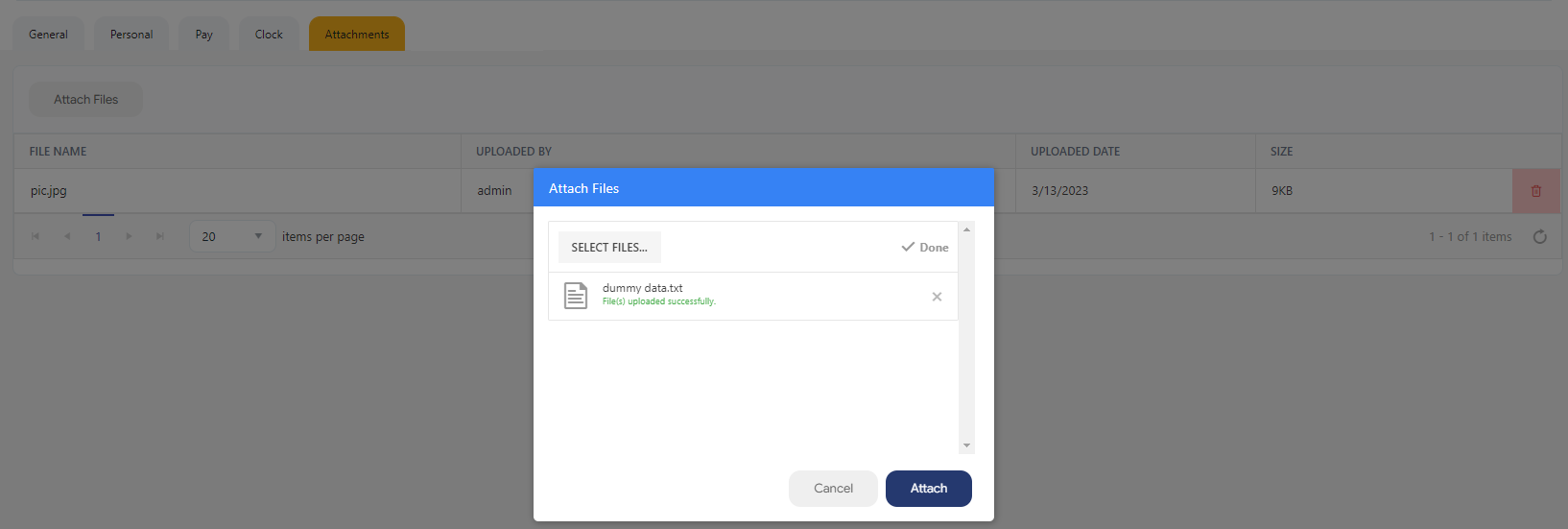
To edit the file name, double-click over the file name to enable inline editing. Edit the filename and click on the tick icon. use the trashcan icon to delete the file.

Note: If you delete the profile picture from the attachment tab, the picture gets deleted from the general tab.
The related permission is Employee - Attachments.