View Timecards
View Timecards discusses on how to correct the discrepancies in your team's timecard and then approve their timecards. You can add, edit, and delete punches. This screen has additional features like adding absences, approving timecards, overriding overtime, etc.
Accessing Your Team's Timecards
View, Edit, Manage, and Approve Timecards
Prerequisites
General Details
Calendar
Clock In/Out Table
Approve & Reject Timecards
Pay Period Summary
Daily Summary
Additional features are:
Note - Refer to permissions to view timecard-related permissions.
Accessing Your Team's Timecards
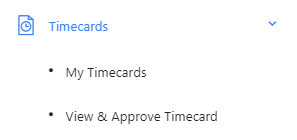
- Click on View & Approve Timecards below Timecards.
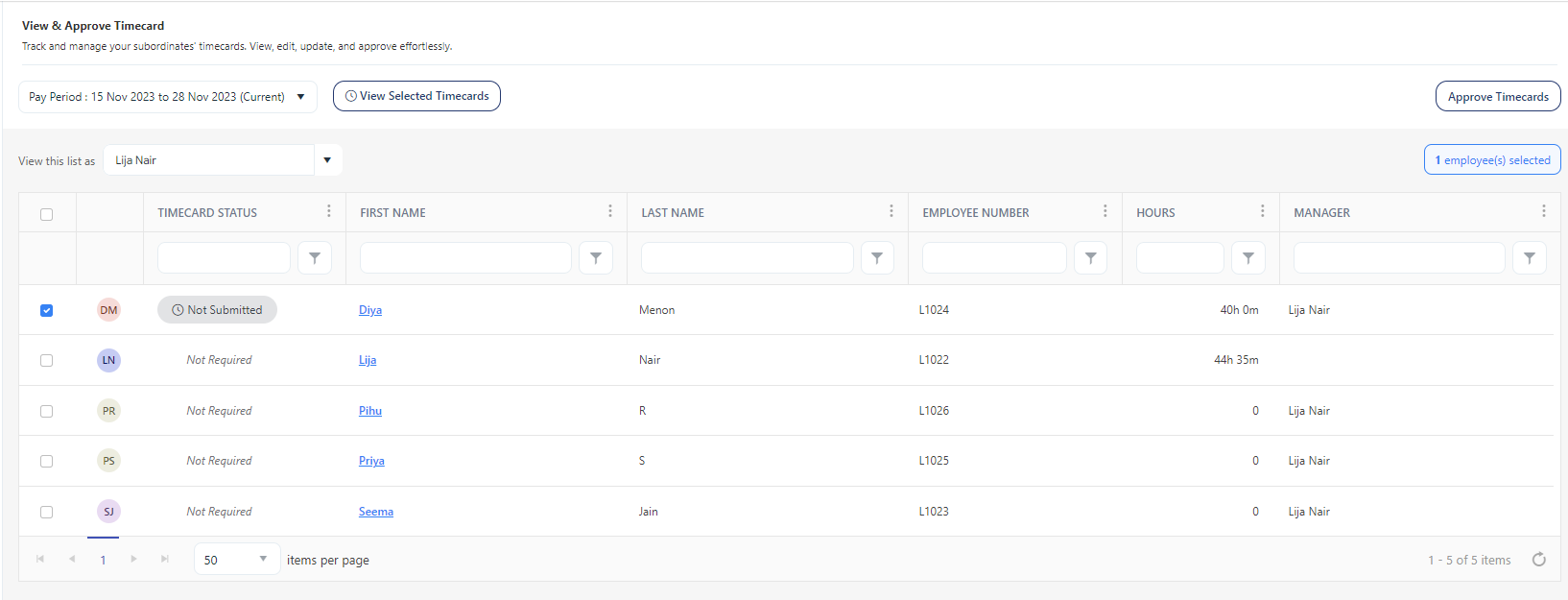
- From the list, there are two options:
- Click on the first name of the employee to view their timecard or you can select the checkbox and click on the View Selected timecards.
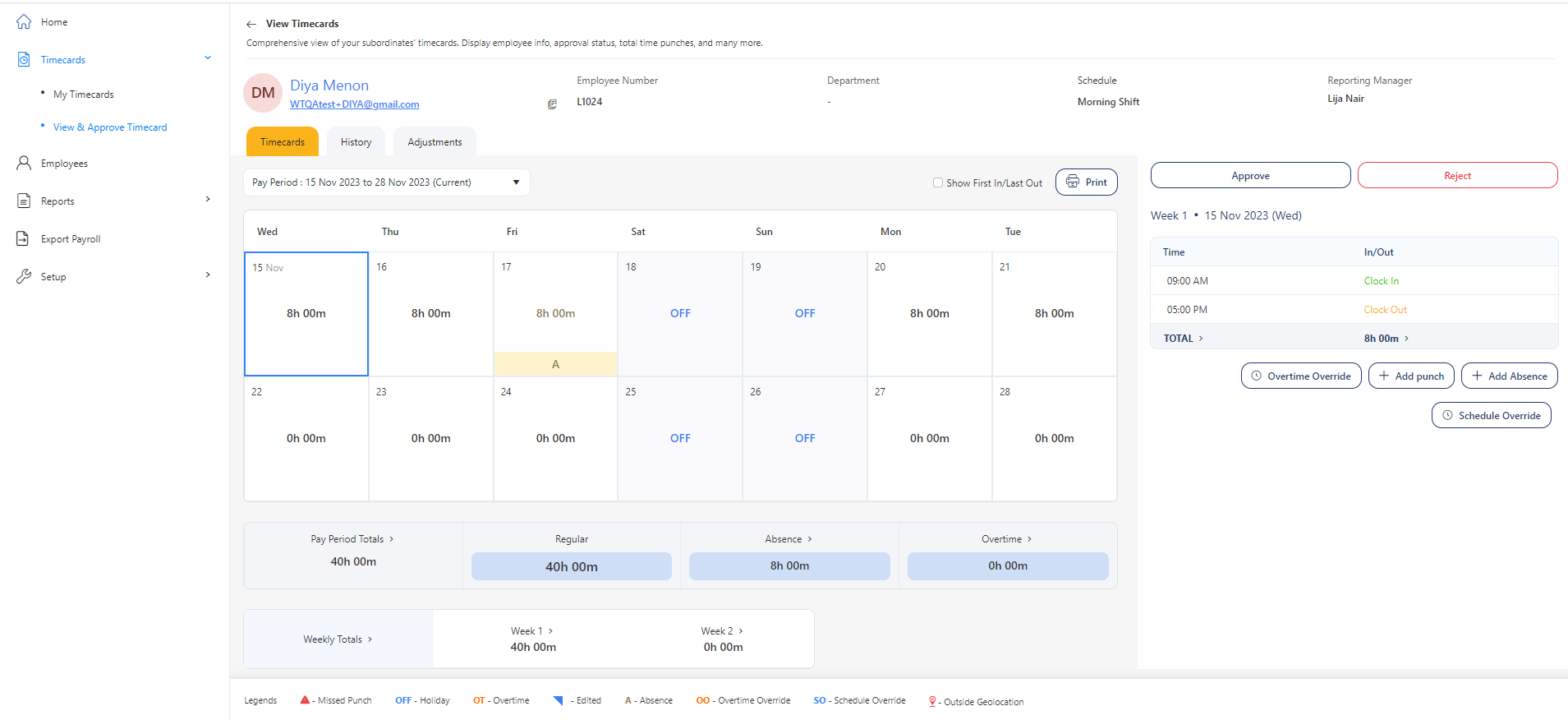
The screen will navigate to the View Timecards screen.
Or
- To view the timecards of multiple employees, select the checkboxes and click on View Selected timecards. Refer to the topic View Selected Timecards. The screen will navigate to the detailed view screen where you can use the dropdown field on the top-right-hand side of the screen to select an employee.
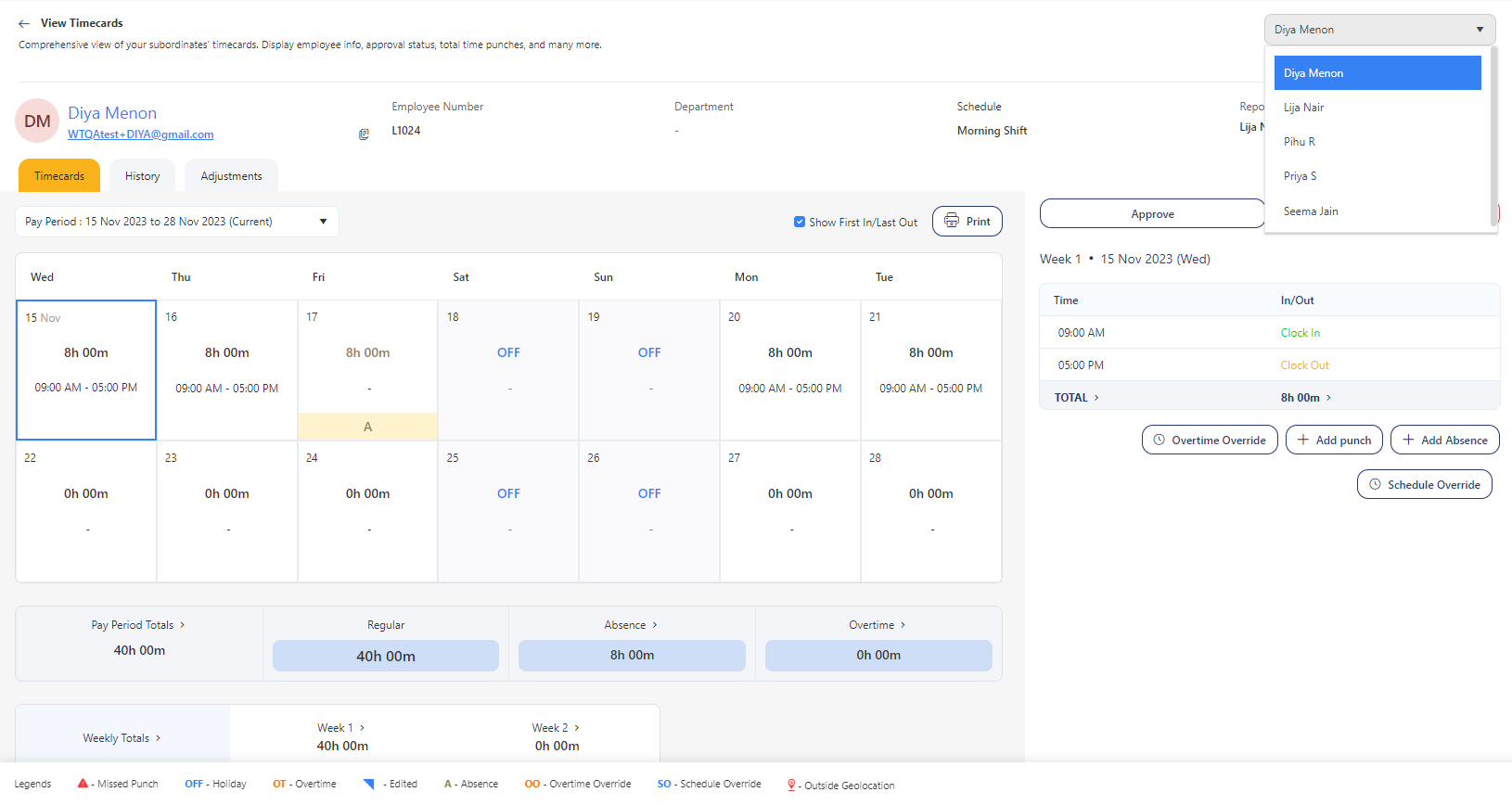
- You can view and manage your team's timecards.
View, Add, Edit, Manage, and Approve Timecards
Prerequisites
The following are the prerequisites for a timecard to work:
- If the time is captured from a physical clock, a clock must be assigned to an employee, and ensure that the employee's details are on the clock.
- A schedule must be assigned to an employee if you want to track worked time.
- The Pay Period Settings (type of pay period and/or the first day of the week) and the regular paycode in the Payroll Rules must be set.
- If not set, you will see a message indicating that the payroll and pay period settings are not configured. It needs to be set up before you clock in. Also, you will not be able to add punches or absences.

- Overtime will be displayed on the timecards only if overtime is configured on the payroll rules screen and an employee is assigned to a payroll rule.
- Overtime Override button will appear only if a payroll rule (including overtime rule) is assigned to an employee.
- The timecard settings - Employee approval, Manager approval should be checked to enable employee/manager approval.
- The employee should have permission to view, edit, and delete other's punches and absences. Permissions assigned to a role determine functionality restrictions.
General Details
The section displays the employee's personal information, and they are:
- Name - Display your name.
- Email ID - Display your company ID. The email ID is hyperlinked which will allow you to select an app to open this in the "mailto" link and the copy icon allows you to copy the email ID to the clipboard.
- Employee Number - Display your employee number.
- Department - Display your department name.
- Schedule - Display the schedule assigned to you.
- Reporting Manager - Display your reporting manager's name.

- Apart from personal information, you will also see the pay period and the date range.

Pay Period - It is a dropdown option where you can select the current pay period, next pay period, and previous pay periods. The default is the Current pay period. You can view up to 12 previous pay periods.
Pay Period Range - Based on the pay period selected, this field will display the pay period's start and end date.
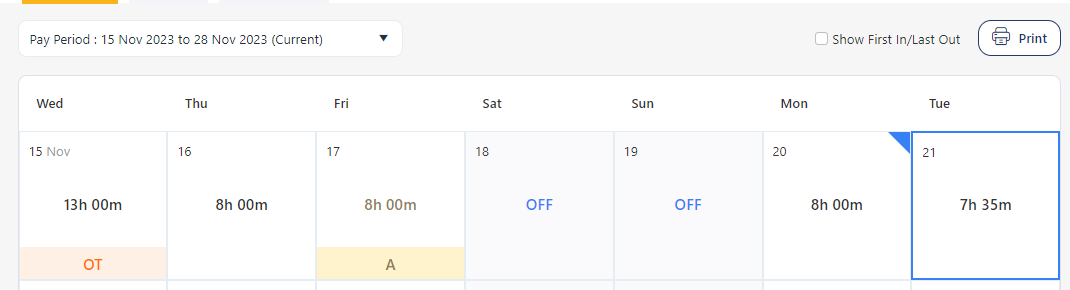
- To switch to the previous pay periods, select any of the Previous date ranges. You can view up to 12 previous pay periods.
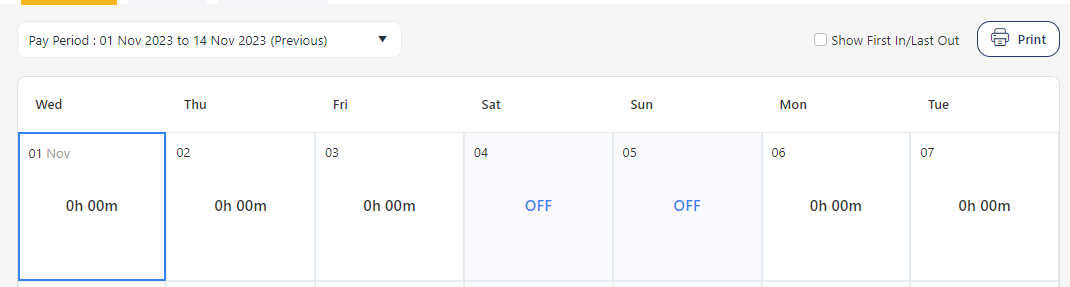
- Similarly, to view the next pay period, select the data range that has "Next" in it.
- Print Button - This button will allow you to print the timecard.
- The print-optimized version preserves all vital timecard information, such as dates, punch-in and punch-out times, breaks, total hours, and notes.
- The fonts, layout, and spacing will be adjusted to improve readability when printing the timecard.
- When choosing the print option within the browser (using Ctrl + P or Command + P), the print-friendly version is displayed in the print preview.
- The printed timecard is formatted to fit standard paper sizes like A4 or Letter, ensuring that no data is cut off.
- Any colors used in the print-friendly version are optimized for grayscale printing.
- Upon completing the printing process or closing the print preview, the user is seamlessly returned to the standard view of the timecard page.
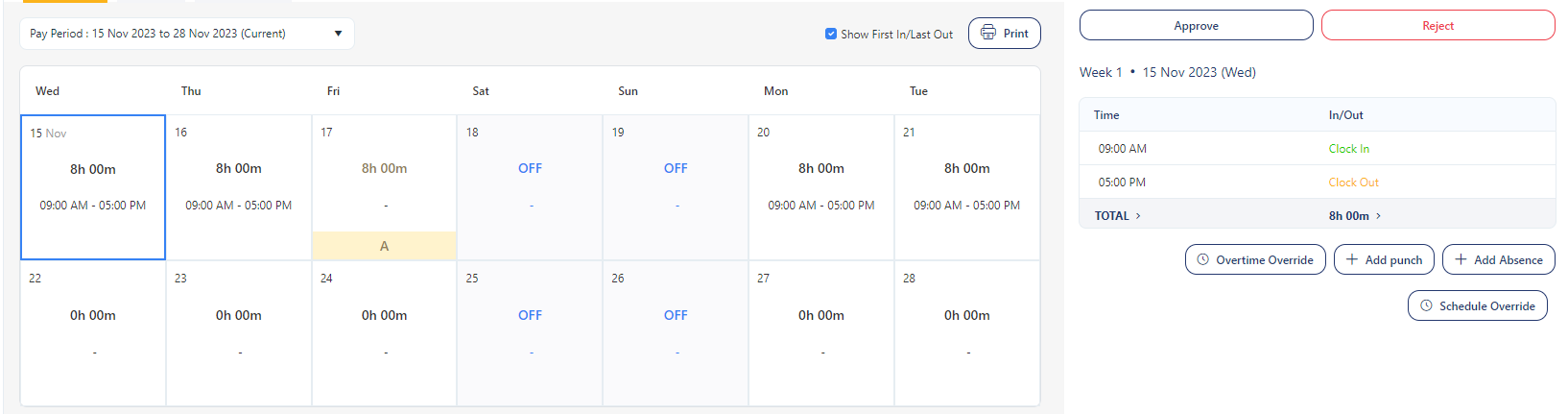
- Show First In/Last Out - This checkbox when checked will show the In and Out time on the calendar. By default, it is disabled. It will display only the initial clock-in time for a day if the employee hasn't clocked out, mark missed punches with an error icon for days with an odd number of punches, and for days of absence, present no clock-in or clock-out times.
Calendar
The Calendar gives a preview of total hours, days with missed punches, the day when the punch is edited, overtime, overtime override days, and off days.
Note: The pay period and the first day of the week depend on the pay period settings. Similarly, the schedule template assigned to an employee determines their hours and off days.
The calendar displays the following details:
- Total Time - The total time is the complete span of time from when an employee starts their shift to when they finish, considering all the scheduled breaks and pauses within that period.
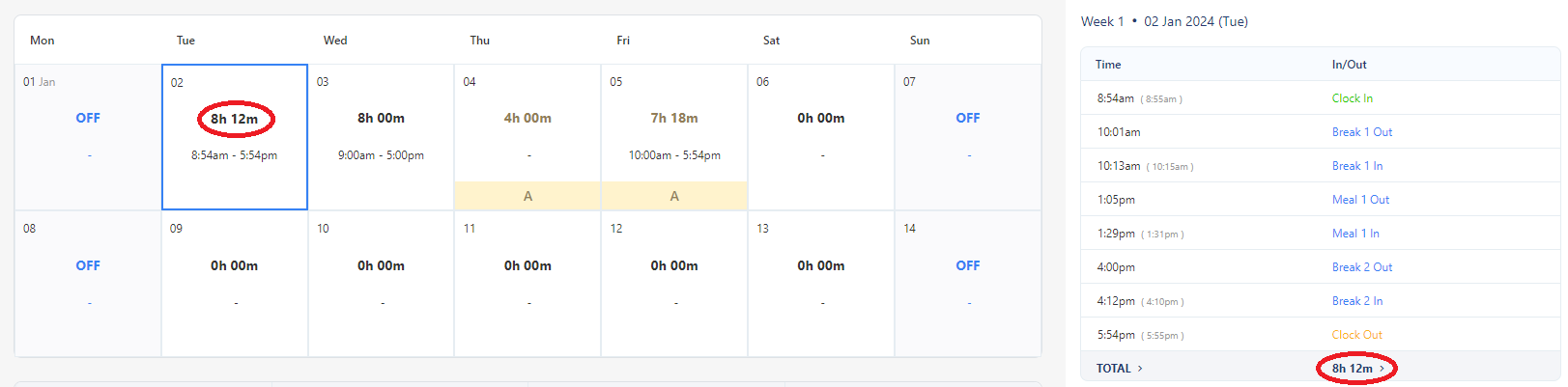
- Missed Punch - Missed Punch refers to a situation where an employee forgets to clock in or clock out, i.e. the clock in/out table has no entry for the specific time when the employee should have punched in or punched out. When a missed punch occurs, the employee or their manager should rectify the missed punch. This may involve manually adding the missed punch. Refer to the Missed Punch topic.
Note that the missed punch will appearon the calendar according to the Missed Punch Alert Buffer settings. It is the duration that you have set for displaying the missed punch warning after the scheduled out time.
- Overtime - Overtime refers to the additional hours worked by an employee beyond their regular working hours. The overtime rules are set on the payroll rules screen. When an employee exceeds their regular working hours and fulfills the criteria for overtime hours, an OT label is displayed on the calendar. This display serves as a visual representation of the employee's work schedule, including both regular and overtime hours. Refer to the Overtime topic.
- Edited Time - The edited time refers to a modified or changed punch time entry for a specific day. When a punch time entry is edited (or deleted) on the clock in/out table for a specific day, a blue edit symbol (
 ) will appear on the top right corner of the calendar, indicating that changes have been made to that day's entry. Refer to the Edit Punch topic.
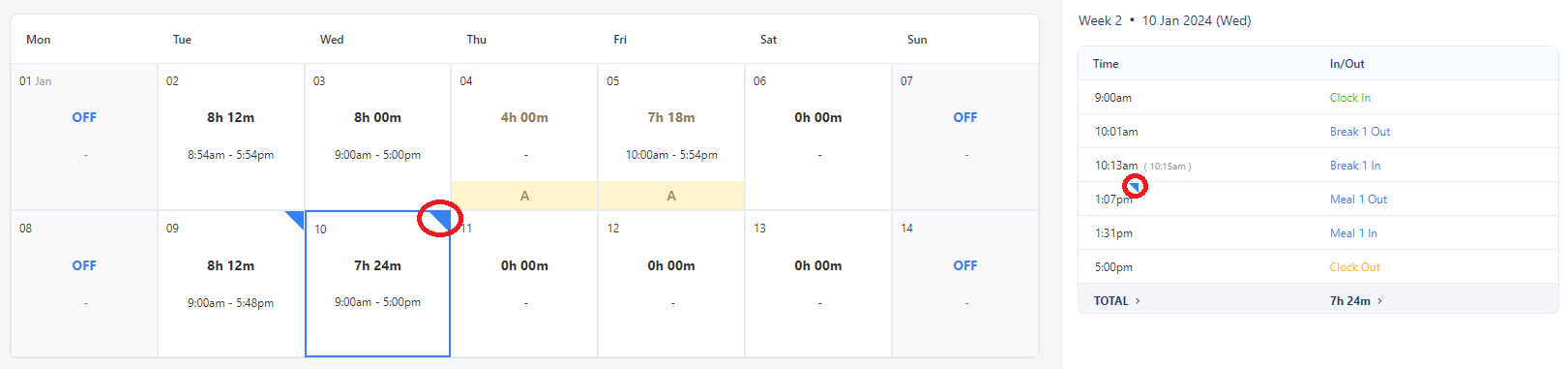
- Selected Day - The selected day will be highlighted in blue on the calendar.

Clock In/Out Table
The table registers all the punch-in and punch-out information of the employees. This process typically involves employees punching in/out using the web-clock in/clock out feature or using their unique identification, such as a using a card, entering a PIN, or using biometric authentication like fingerprint or facial recognition. By default, the current date would be selected on the calendar and the table will show the punch details of the selected date.
To view the punch details, select a data.
The table will display the following information.
- Clock In - "Clock In time" refers to the designated hour when an employee is expected to report to work and begin their shift. This time can vary depending on the specific shift schedule and the policies of the organization. For example, an employee might have a clock-in time of 8:00 AM, which means they should arrive and be ready to start working at that time.
- Clock Out - "Clock out time" or "end time" refers to the designated hour when an employee's work shift is expected to conclude. This is the time when the employee is free to leave the workplace or complete their assigned tasks. For example, if an employee has a clock-out time of 4:00 PM, it means they are scheduled to finish work and can leave the premises at that time.
- Meal Out - Meal In - "Meal out" refers to the time when an employee punches to go out for a meal break. It signifies the start of their designated meal time. "Meal in" signifies the end of the meal break period, i.e. when the employee resumes their work after having their meal break. Note that you can edit the meal break names on the Schedule Template screen. Refer to the topic Schedule Template.
- Meal 2 Out - Meal 2 In - "Meal 2 out" and "Meal 2 in" refer to the second meal break taken by employees. These terms follow the same pattern as "meal out - meal in" but indicate the times for the second meal break. Note that you can edit the meal break names on the Schedule Template screen. Refer to the topic Schedule Template.
- Rest Out - Rest In - Rest breaks designate break times specifically allocated for tea or beverage breaks, allowing employees to rest and refresh during their work shifts. Rest Out means when the employee stepped out for a break and Rest In means when the employee resumes work. The same applies to "rest 2 out" and "rest 2 in". Note that you can edit the rest break names on the Schedule Template screen. Refer to the topic Schedule Template.
- Total - Total time refers to the overall duration or length of an employee's work shift, including all the components, such as a clock-in, clock-out, rest breaks, and meal breaks. It represents the complete span of time from when an employee starts their shift to when they finish, taking into account all the scheduled breaks and pauses within that period.
-
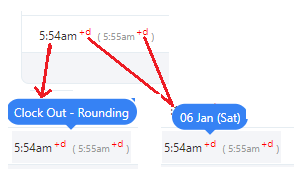
Rounding Rules - You can apply rounding rules to clock-in, clock-out time, and breaks (both rest and meal). If rounding rules are applied to any one or both of these, the table will display both the actual and adjusted (rounded) time. The actual time will be in brackets. The total will be the sum total of the adjusted time, which is outside the brackets. On hover, it will show the type of roundings i.e. Clock In rounding, Clouck out Rounding and break rounding. Refer to the topic Viewing Rounding Types and Time Adjustments for more information.
-
Missed Punch symbol ( )- Missed punch symbol appears when the table has an odd number of punches. An odd number of punches appear when an employee forgets to clock in or clock out.
-
Approve button - The approve button will appear for an employee who has the "Manager Approval" checkbox checked. Refer to Approve Timecards topic.
- Time zone - If your team member's time zone is different from your time zone, then a label will be shown above the table to indicate that the employee's time zone differs from yours. All time entries will be saved in the employee's time zone. The label will also display the specific time zone of the employee. Refer to the topics - Home Time zone and Supported Time zone values.

- Note that manually entering time on a timecard will always be entered in the timecard’s employee home time zone.
- While adding or editing timecard punches, punches will be displayed, added, and captured in the employee’s time zone. (Instead of browser or manager time zone)
- If you're accessing your punch records from a time zone other than your home time zone, a label will be shown above the table to indicate that your time zone differs from your home time zone and all your time entries will be saved based on your home time zone.
Functionalities:
-
Add New Punch - Add New Punch will allow you to add a punch if there is any technical issue, missed punch, discrepancies, etc. Refer to the Add Punch topic.
-
Edit Punch - The edited time refers to a modified or changed punch time entry for a specific day. The time is edited on the clock in/out table. Once edited for a specific day, a blue edit symbol () will appear over the edited time on the clock in/out table and on the top right corner of the calendar. Refer to the Edit Punch topic. Double-click over the time and you can edit the time.
-
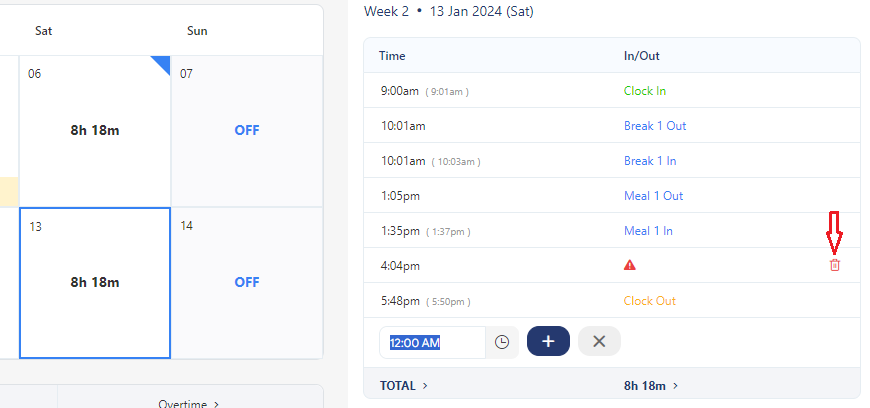
Delete Punch - The trashcan appears when you hover over each row. Click on the Trashcan icon to delete any punch. Refer to the Delete Punch topic.
-
Current Day & Next Day radio button - The current and next day radio button appears for the employee who has a night/overnight shift that involves clock -in on the current day and clock-out on the next day. This button is specifically useful for the employee who is adding the overnight shift punches manually using the Add New punch button. Refer to the Add Next Day Punch topic.
-
Absences -The row displaying absences will be highlighted in yellow for better visibility. This visual distinction will help differentiate between absences and punches. Refer to the Adding Absences topic.
Note: You can press the "Enter" key to insert a new time entry. When you do so, the time will be added, and a fresh time entry field will be displayed. To close a time entry field, simply click the ESC button on the keyboard or the "X" icon.
Viewing Rounding Type and Time Adjustments
The Clock In/Out table will display the actual time and the adjusted time. The total time will be based on the adjusted time.
- The hover will display the type of rounding. There are two rounding - Clock in/out rounding and Break Rounding. Refer to the topic Schedule Template.
- The Clock In-Out time is adjusted based on the In-Out time and Clock rounding, including the rules and advanced settings, set on the schedule template.
- Meal and Rest breaks are rounded based on the break rounding rules set on the schedule template. Refer to the topic Rounding in the Schedule Template.
- The actual time will always be displayed in brackets.
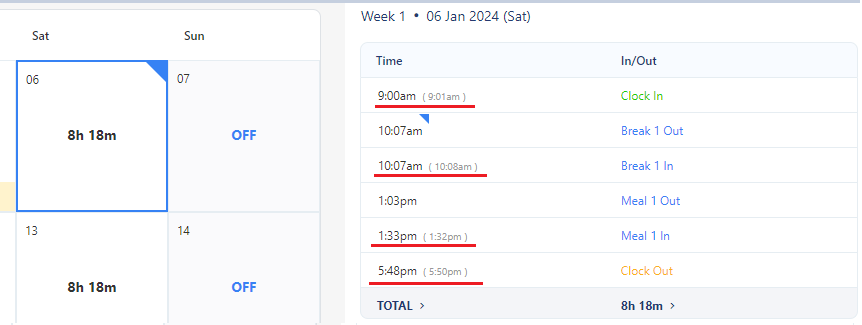
- The table will display the actual time only if rounding is not set for clock in-out time and/or for breaks."
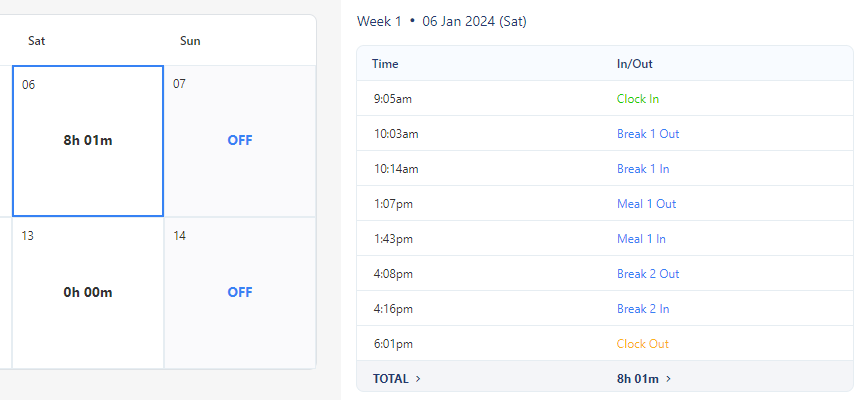
- Example 1 - Consider that the rounding is set to 15 minutes in the "In-Out Rules" section on the schedule template.
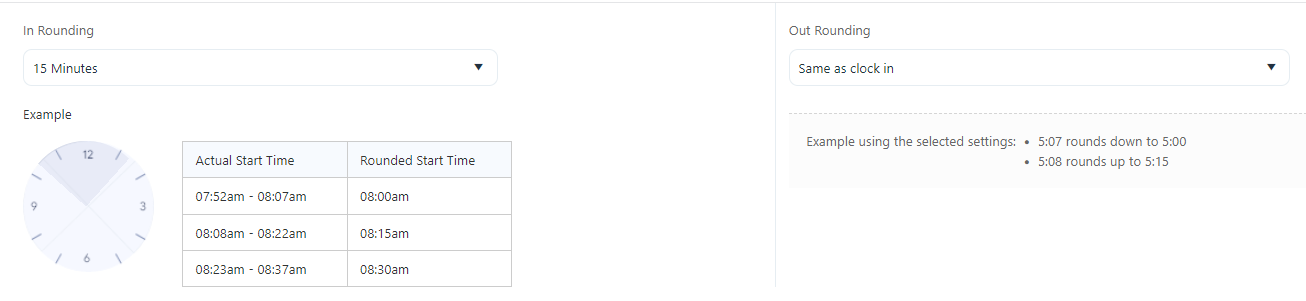
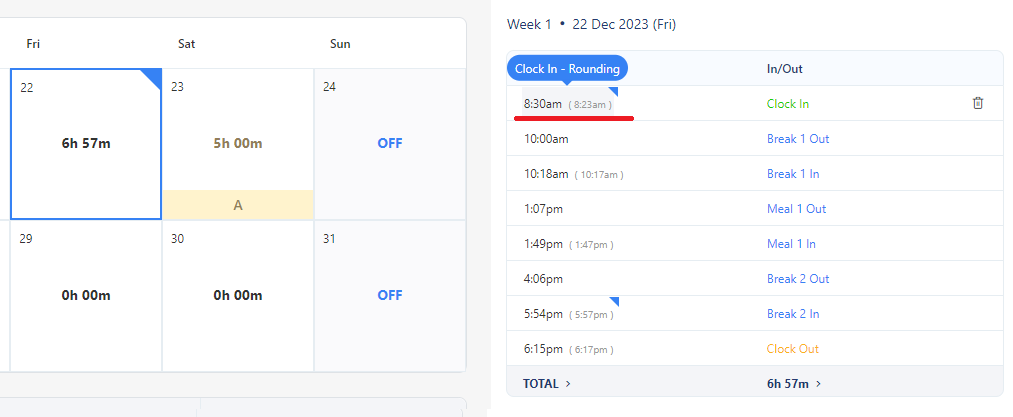
- The image below illustrates a Clock-In time of 8:23 a.m., which is rounded up by 7 minutes, and the adjusted time will be displayed as 8:30 a.m. When you hover over the time entry, it will reveal the type of rounding, which in this case is Clock In rounding
- Example 2 - Consider that the meal and rest break rounding is set to 6 minutes.
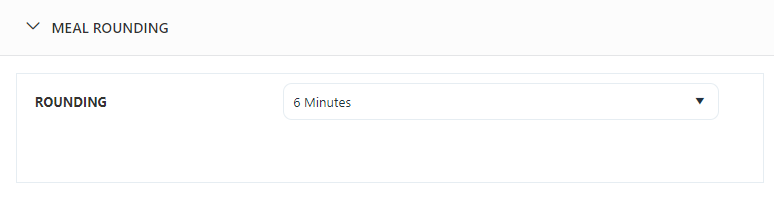
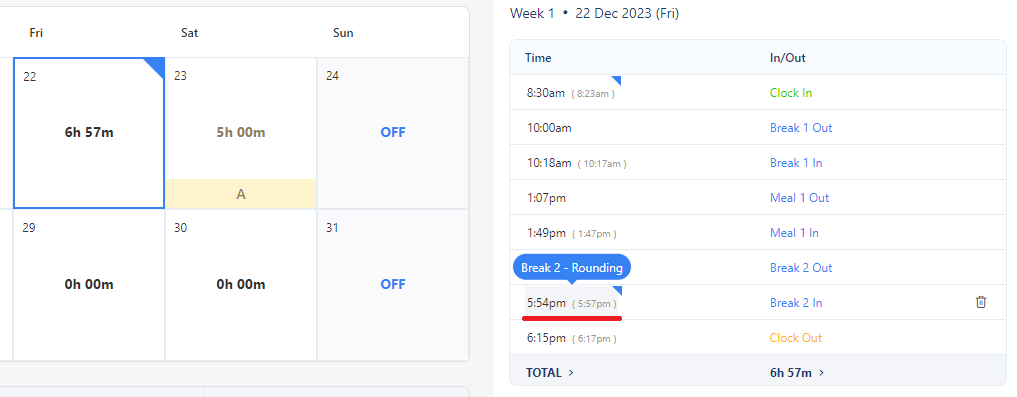
- The image below illustrates that the break-out time is 5:57 p.m.; it undergoes a rounding down process by 3 minutes, and the adjusted time will be displayed as 5:54 p.m. When you hover over the time entry, it will reveal the type of rounding, which in this case is Break 2 rounding.
Add Punch
A punch is added when there is a technical issue, missed punch, discrepancies, etc. The technical issues could be a malfunctioning card reader, network outage, or software glitches. A manager might need to manually add punch time to ensure accurate record-keeping.
To add a punch:
- Select a date on the calendar. Consider that there are no punch details for the selected date. Note that if there are punches then the Clock In/Out table will populate the time entries of the selected date.
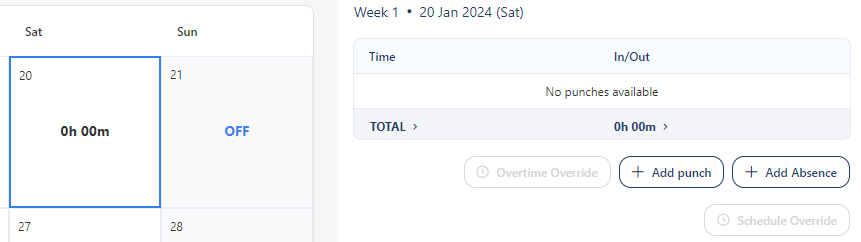
- Click on the Add Punch button.
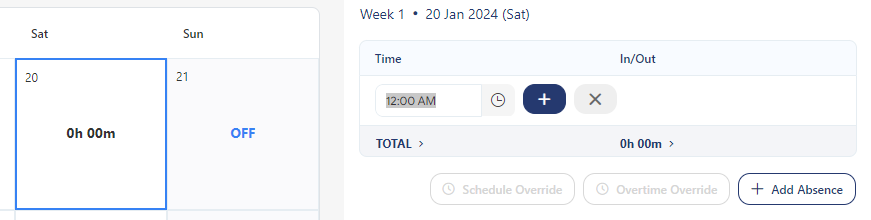
- Enter the time. Click on
 symbol to add the time.
The first entry will be considered "Clock In" time. The second entry is "Clock Out" time. If you add more, then "Clock Out" is replaced with Meal In- Meal Out", and "Rest In - Rest Out" time depending on the assigned schedule template and break configuration.
- Add the Clock In, Clock Out, Meal, and Rest Breaks.
- If there are an odd number of punches, a message will appear indicating the same and a missed punch symbol will appear on the clock in/out table.

- Add/delete the missed punch. The missed punch symbol will disappear once the punches are even.
Note that the missed punch will appear on the calendar only after the Missed Punch Alert Buffer duration settings.
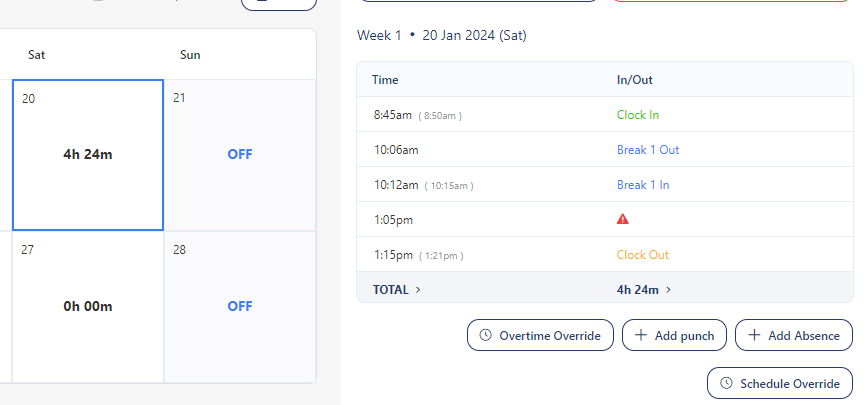
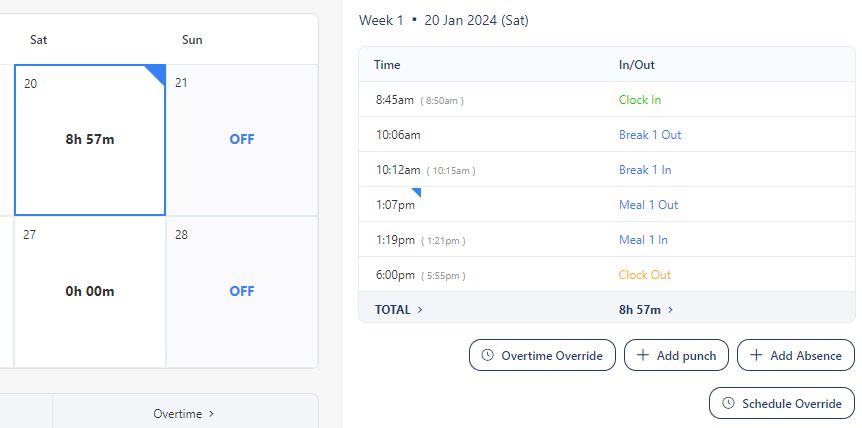
- Further, if you edit or delete the punches, a blue mark will appear, indicating that the time is edited or the punch is deleted. In case of punch deletion, the edit mark will only appear on the calendar.
Add Next Day Punch
A next-day punch is required when an employee works a night or overnight shift. The clock in /out table has a provision to add a next-day punch.
- Select a date on the calendar.
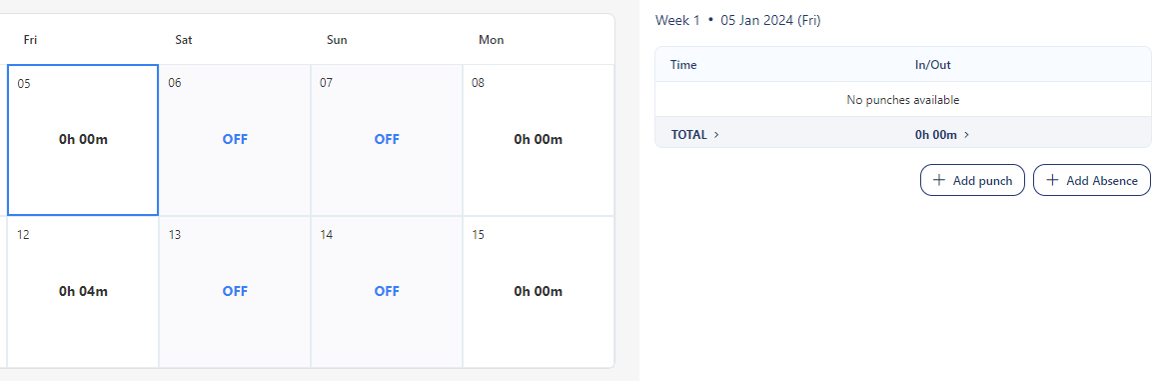
- Click on Add Punch to add a punch.
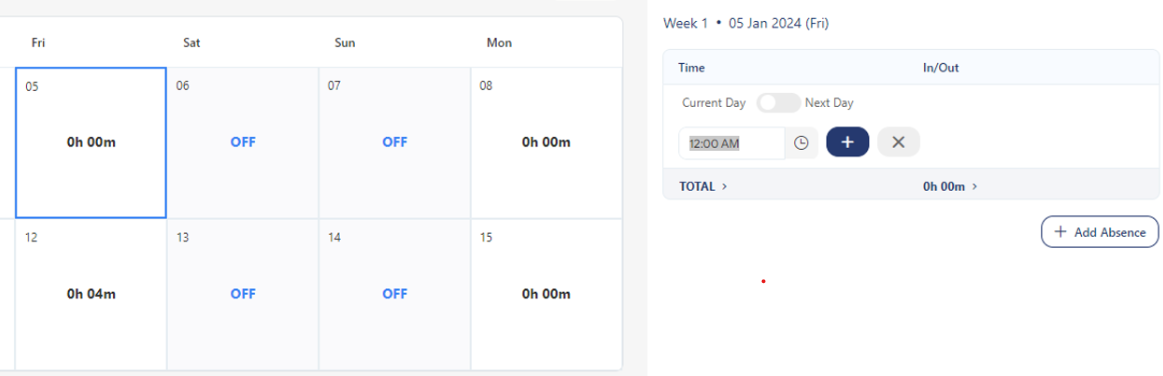
- A switch Current Day - Next Day will appear over the time entry field. For the next day time entry, enter the time and move the switch to Next Day.

- Click on button to add the time.
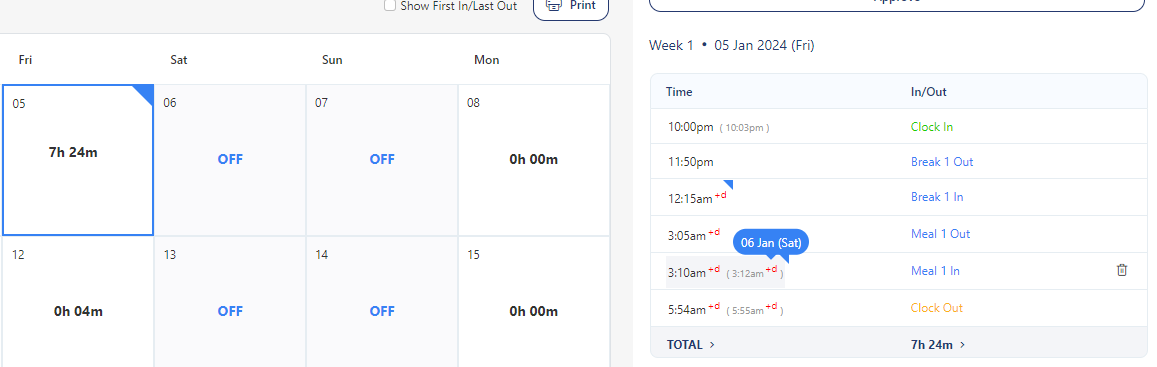
- On hover, it will show the type of rounding (Clock In/Out or Break Rounding) and on hovering over the +d sign will display the following/next day date.
Edit Punch
- Select a date on the calendar. The Clock In/Out table populates the time entries of the selected date.
- Click over the time that needs to be edited. It will enable the edit mode.
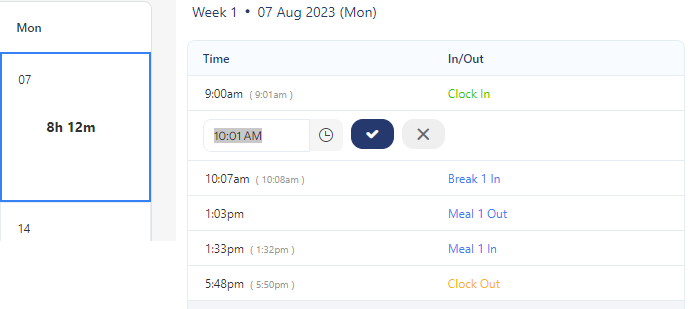
- Edit the time. Click on the tick
 button or click on the cross
  button to cancel editing.
- A blue mark will appear on the calendar once the time is edited.
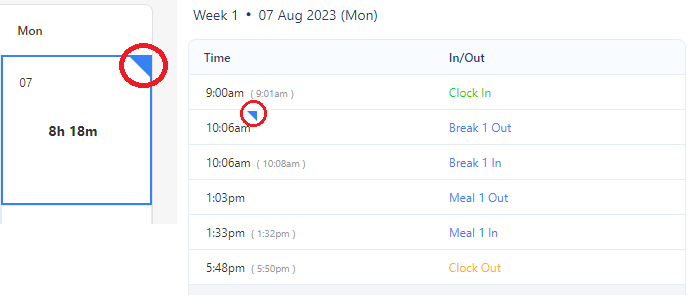
Note: When editing an employee's punch details, the geolocation data (if available) will be displayed and remain unaltered. Changes made to other punch details do not affect the stored geolocation data.
Missed Punch
The missed punch will appear if there are an odd number of punches. The calendar will display the missed punch symbol once the specified duration in the Missed Punch Alert Buffer settings is elapsed. Note that the missed punch will appear on the calendar according to the Missed Punch Alert Buffer settings. It is the duration that you have set for displaying the missed punch warning after the scheduled out time.
To fix the missed punch:
- Select a date on the calendar that has symbol.
- The Clock In/Out table will populate the time entries for the selected date. It will show where the time entry is missing.
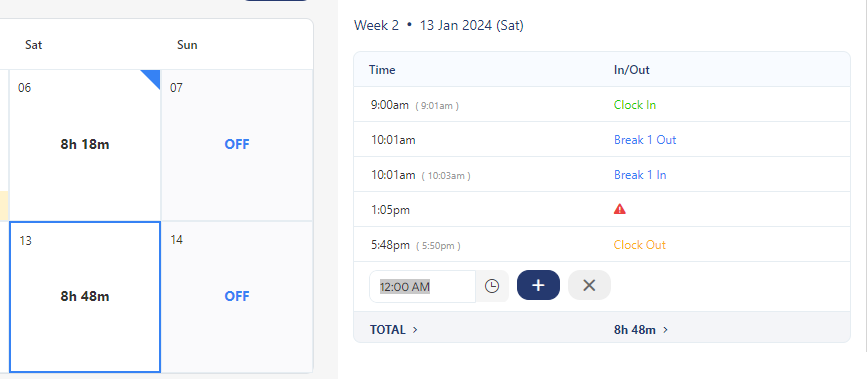
- Click on Add Punch button. Add Time.
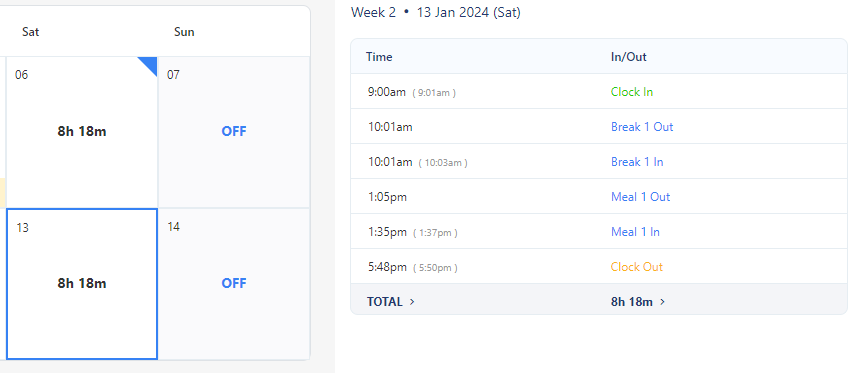
- The missed punch symbol will disappear. Note that the edit symbol will appear on the calendar if you delete a time entry or add a missed punch.
Delete Punch
The punch is deleted for various reasons, like removing an odd number of punches, incorrect or duplicate entries, system malfunction, employee requests, etc.
- Select a date on the calendar. The Clock In/Out table populates the time entries of the selected date.
- Hover over the table. You will see a trashcan icon next to each entry.
- To delete, click on the trashcan icon. On deleting the time entry, an edit symbol will appear on the calendar.
Overtime
The timecard will display the "OT" label to indicate that the employee is eligible for overtime based on the configured payroll rules and the hours worked. OT stands for overtime.
- Overtime is configured on the Payroll Roles screen, and the employee is assigned a payroll rule. These rules define the criteria or conditions under which overtime is applicable.
- If the number of hours worked by the employee exceeds the designated regular hours, it triggers the overtime calculation.
- The hours worked should not only exceed the regular hours but also fulfill any additional requirements specified in the overtime rules. These requirements include the Overtime calculation applied, such as daily, weekly, best calculation, etc.

Adding Absences
Adding absences means recording an absence to an employee's timecard. You can enter the reason for an employee's absence, the time, and the absence code for a designated week.
Note: You must have the Absence Codes set up before using this screen.
- Select a date on the calendar.
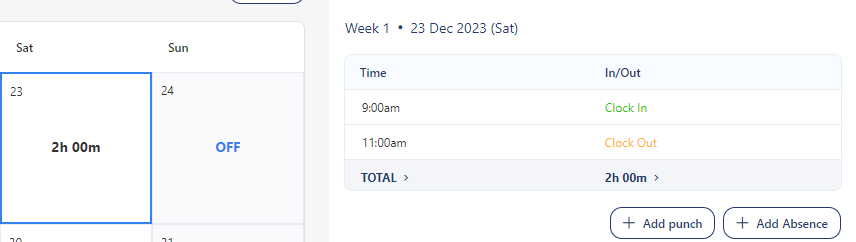
- Click on the Add Absence Button.
- Select an absence code, and add hours and notes.
Note: The time will automatically appear on the hour field if each absence has a default hour already defined. Refer to the Absence Codes topic for more details.
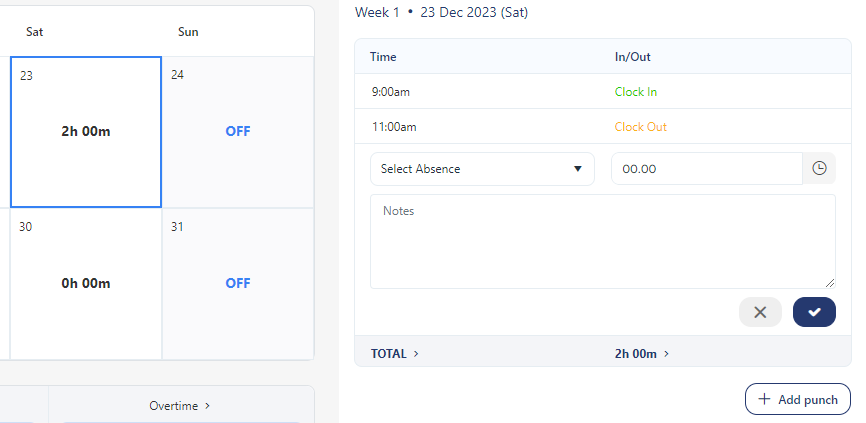
- Click on the tick button or click on the cross button to cancel.
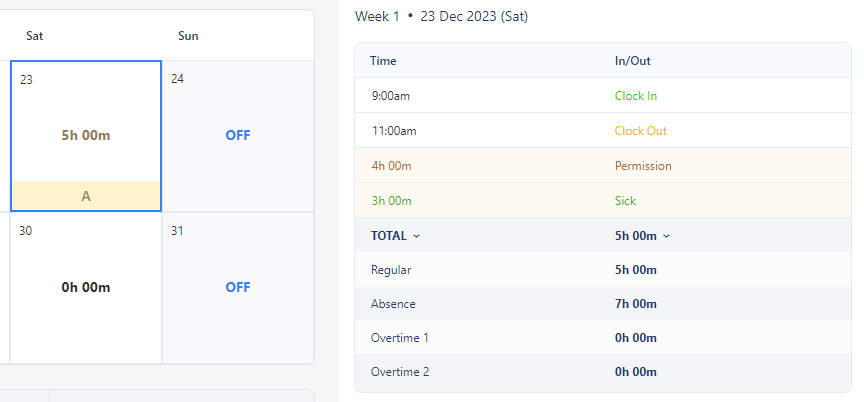
- The absences added will appear on the Clock in/out table and the calendar will display the symbol "A" indicating that an absence is added. The paid and unpaid absences are shown in different colors. Paid is shown in green and unpaid is shown in red (might look like brown) on a yellow background.
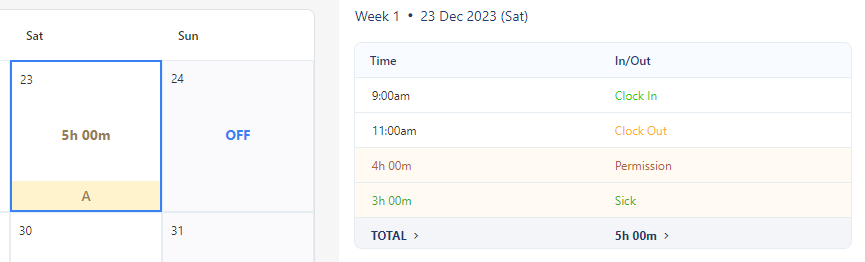
- To delete an absence entry, you will notice a trashcan icon appearing when you hover over the respective row. Click on the trashcan icon to delete the absence.
Approve & Reject Timecard
Both the Approve and Reject buttons will be disabled in the following scenarios:
- The Approve and Reject buttons will be rendered inactive for a manager if they are reviewing someone who is not their direct report.
- The Approve and Reject buttons will be disabled for a manager if the employee has only the employee approval checkbox selected, or manager approval if overtime is chosen.
Approve Timecard
The Approve button is enabled when the following conditions are met:
- The timecards should have at least one pair of punch entries.
- There should not be any missed punches.
- Adding Absence will also enable the button.
- Additionally, the approval button will stay active despite adding and subsequently removing a punch from a specific day. This button will continue to be enabled, even if there are no punches on other days.
Note: Employees with invalid punches, lacking a reporting manager, or having zero time entries for the pay period are ineligible for approval.
Notes on approving the timecards:
- A manager will be able to approve the timecard regardless of whether the employee submits/approves their timecard and when the manager approves, the status will be approved on the Employee screen.
- If a timecard requires manager approval, then the manager must approve it for the timecard to be approved.
- The timecard will be processed even if the manager fails to approve it.
To approve timecards:
- Click on the employee name if you are planning to view and approve one employee. If there are multiple employees, then select the employees on the view screen and click on the View Selected Timecards button.
- Use the dropdown option provided on the top-right-hand side of the screen to select an employee.
- Verify the pay period. By default, the current pay period will be selected.
- Fix the missed punches, absences, and discrepancies.
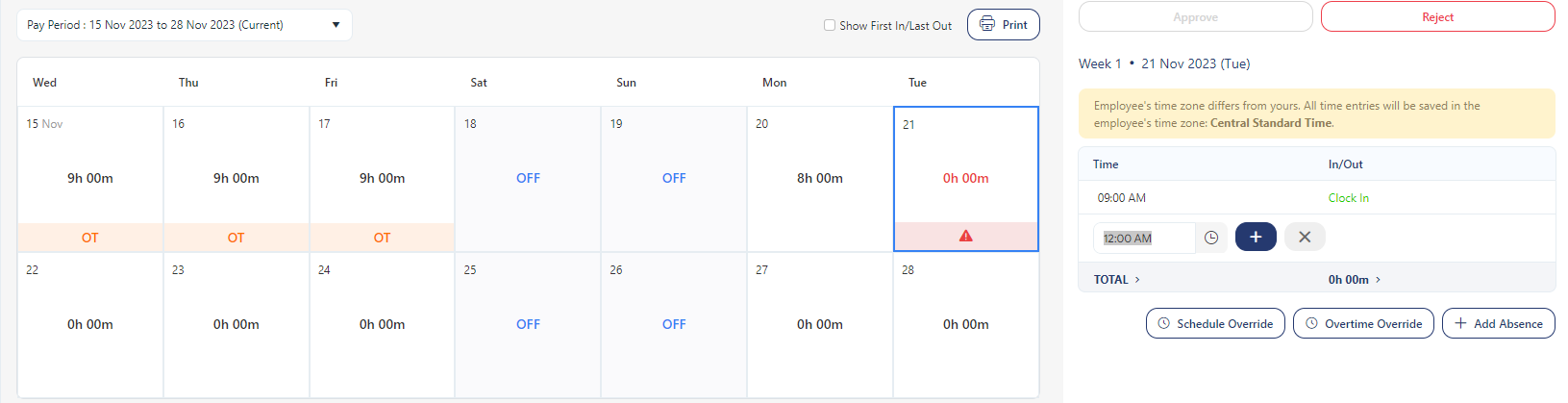
- Once done, click on the Approve button.
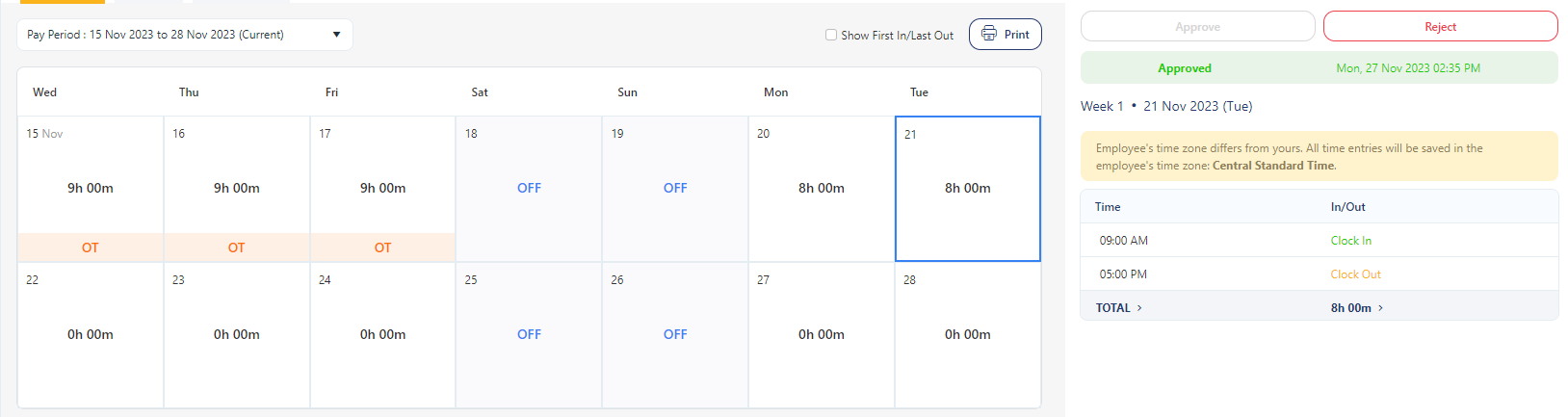
- On approval, a message will be displayed, indicating that the timecard has been approved. Additionally, a label showing the "Approved" status, along with the date and time of rejection, will appear below the Approve-Reject buttons.

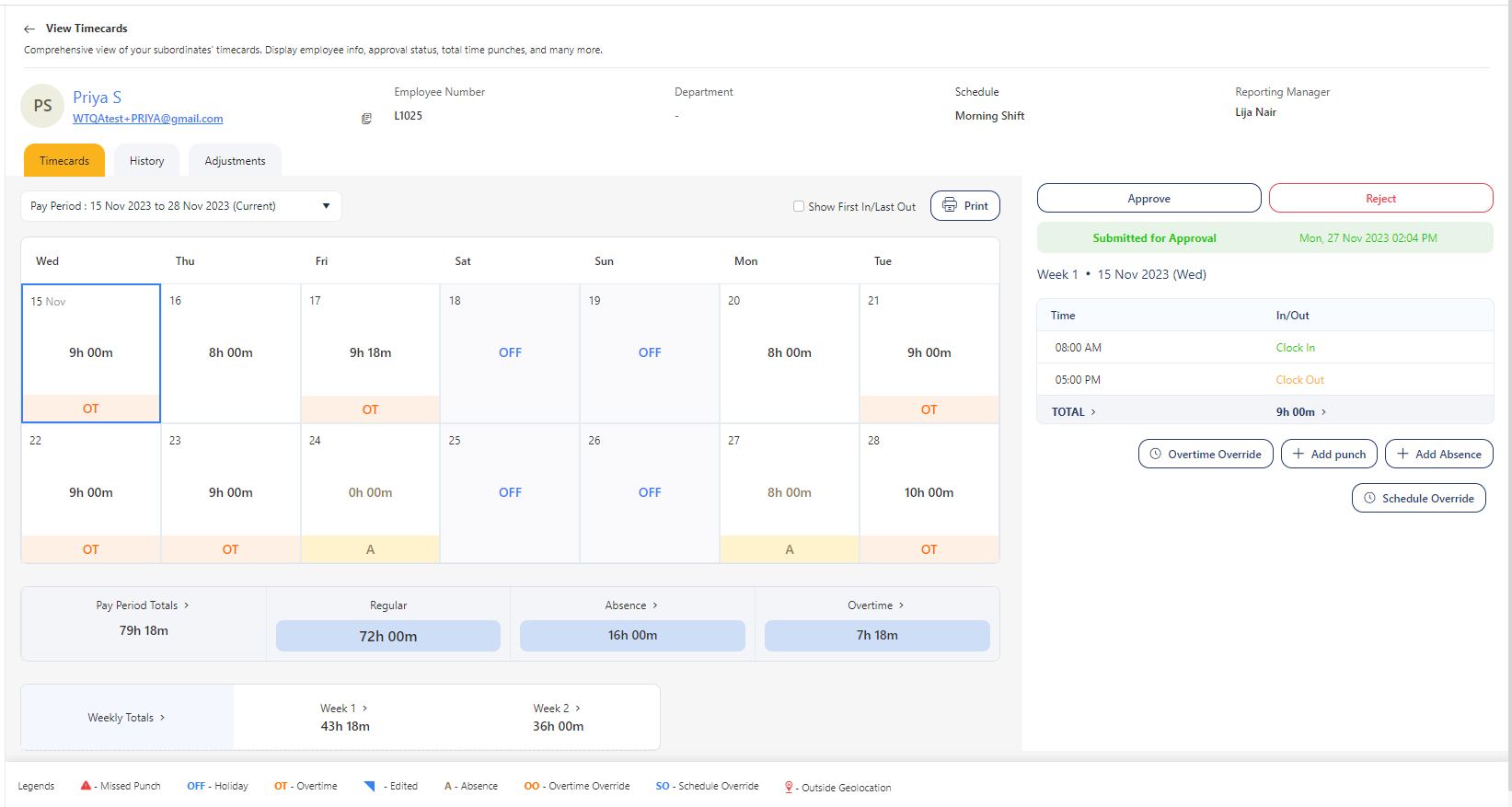
Note: Sometimes, a label reading "Submitted for approval" may appear above the Approve-Reject buttons. This signifies that the employee has submitted the timecard for the manager's approval. This situation arises when the "employee approval" checkbox is selected for that employee.
Reject Timecard
The Reject button will be enabled in the following scenarios:
- By default, it will always be enabled. The prerequisite is that the manager reviewing the timecard must have the "manager approval" checkbox checked on the employee screen.
- The button will remain active, allowing you to reject an approved timecard if needed.
- If any changes are made by the admin in the timecard approval section, the punches must be reprocessed to reflect these changes. Reprocessing involves making modifications such as additions, deletions, or edits. For example, consider a scenario where the employee initially only had the "employee approval" checkbox selected, preventing the manager from approving or rejecting the timecard. Subsequently, if the admin corrects this mistake by granting the “manager approval”, the activation of the approve/reject button would require the manager or employee to perform additions, removals, or edits to punches.
To Reject a timecard:
- Click on the employee on the View & Approve timecards screen.
- On the View Timecards screen, review the timecard.
- If there is any issue or discrepancy, click on the Reject button.
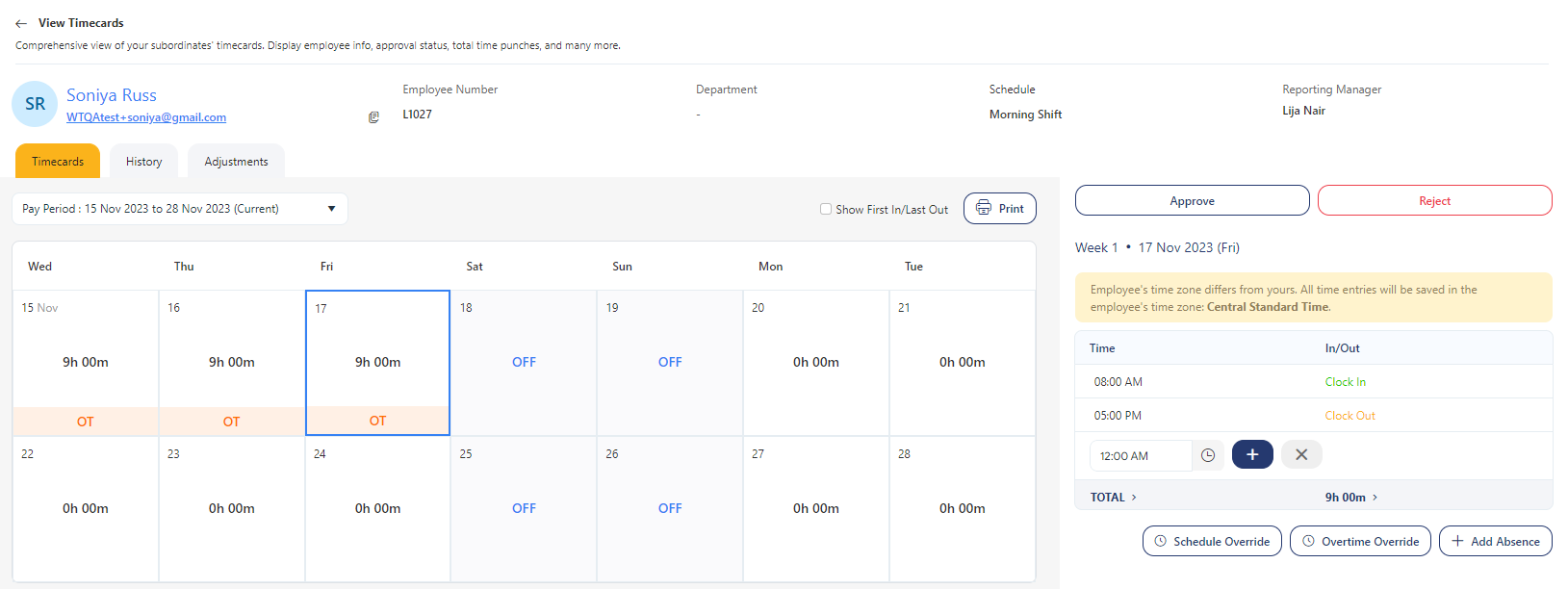
- Enter a note and click on the button.
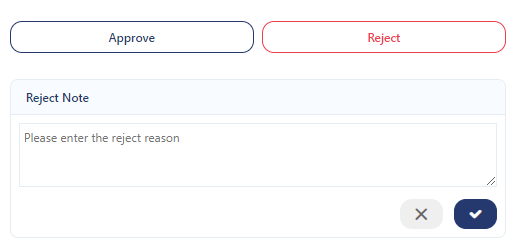
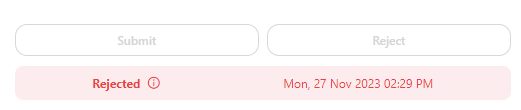
- A message will be displayed, indicating that the timecard has been rejected. Additionally, a label showing the "Rejected" status, along with the date and time of rejection, will appear below the Approve-Reject buttons.
Pay Period Summary
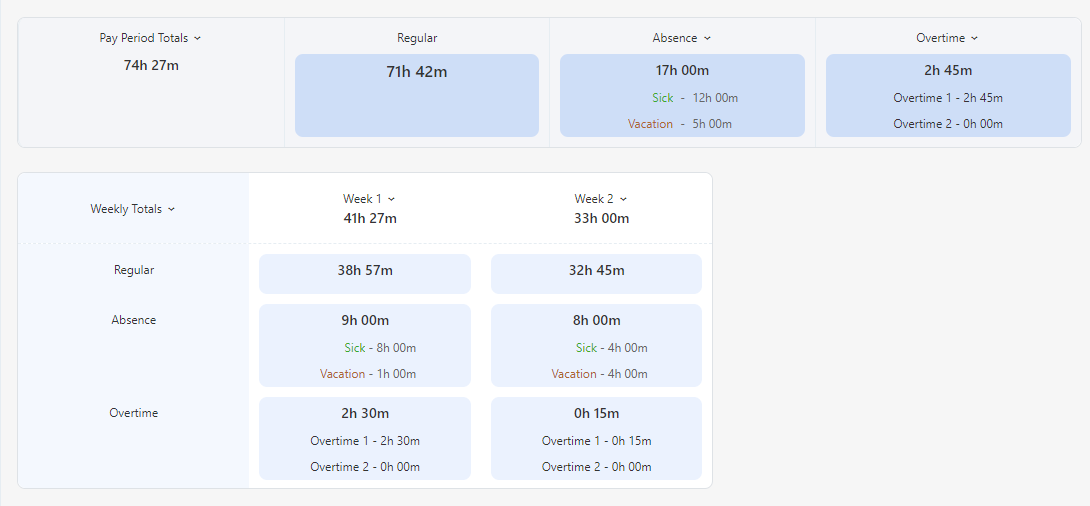
The provided table presents a thorough overview of the accumulated hours for each week and the overall pay period. It also includes pertinent details like regular hours, absences, and overtime. By default, the "current" pay period is pre-selected.
It will display:
- Pay Period Totals - This section provides an overview of the hours worked during the chosen pay period. It shows the cumulative hours worked, including regular hours, overtime, and any instances of absences.
- Weekly Totals - This section will display the current week's total. This is beneficial when the pay period is bi-weekly, semi-monthly, or monthly.
- The first row presents the total hours worked for each week and the overall total for the pay period.
- The second row shows the total regular hours worked for each week and the cumulative total.
- The third row indicates the total absences for each week and the overall absence total for the pay period. Expanding the arrow reveals the type of absence and the logged hours.
- The fourth row presents the total overtime hours for each week and the overall overtime total for the pay period. Expanding the arrow reveals the logged hours for overtime 1 and overtime 2.
Daily Summary
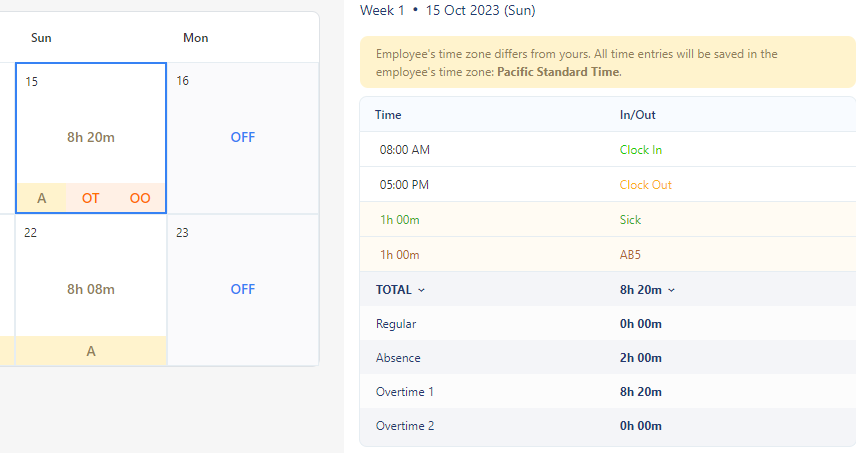
The Daily Summary is presented within the Totals section of the clock in-out table, offering a comprehensive snapshot of daily regular, overtime, and absence hours. Within this table, you will find the following information:
- Regular: This section showcases the cumulative regular hours worked during a specific day.
- Absence: It provides an overview of the total absence hours recorded for that particular day.
- Overtime 1: This section displays the aggregate of overtime 1 hours worked on the given day.
- Overtime 2: Similarly, it shows the total overtime 2 hours logged for that specific day.
Geofence
The Geofence feature records the punch location and notifies the user by displaying an icon and a hover message on the timecard, indicating that the punch occurred outside the designated area.
Requirements:
- For the timecard to record geofence data, we recommend configuring both the "Capture Punch Geolocation - Web" and "Capture Punch Geolocation- Mobile" settings, specifying whether it's required or optional, and ensuring that permission to add location data to each punch is granted.
-
For accurate geofence tracking, employees must be associated with a site and/or address (which can be set up in the "Personal" tab on the employee screen). The address or site assignment plays an important role in determining whether a punch occurred within or outside the defined geofence boundaries.
To view the geofence information:
- Click on the View & Approve Timecard. The geofence (
 ) icon will be shown next to the "timecard status column" for the employees who have punches recorded outside the designated geofence area.
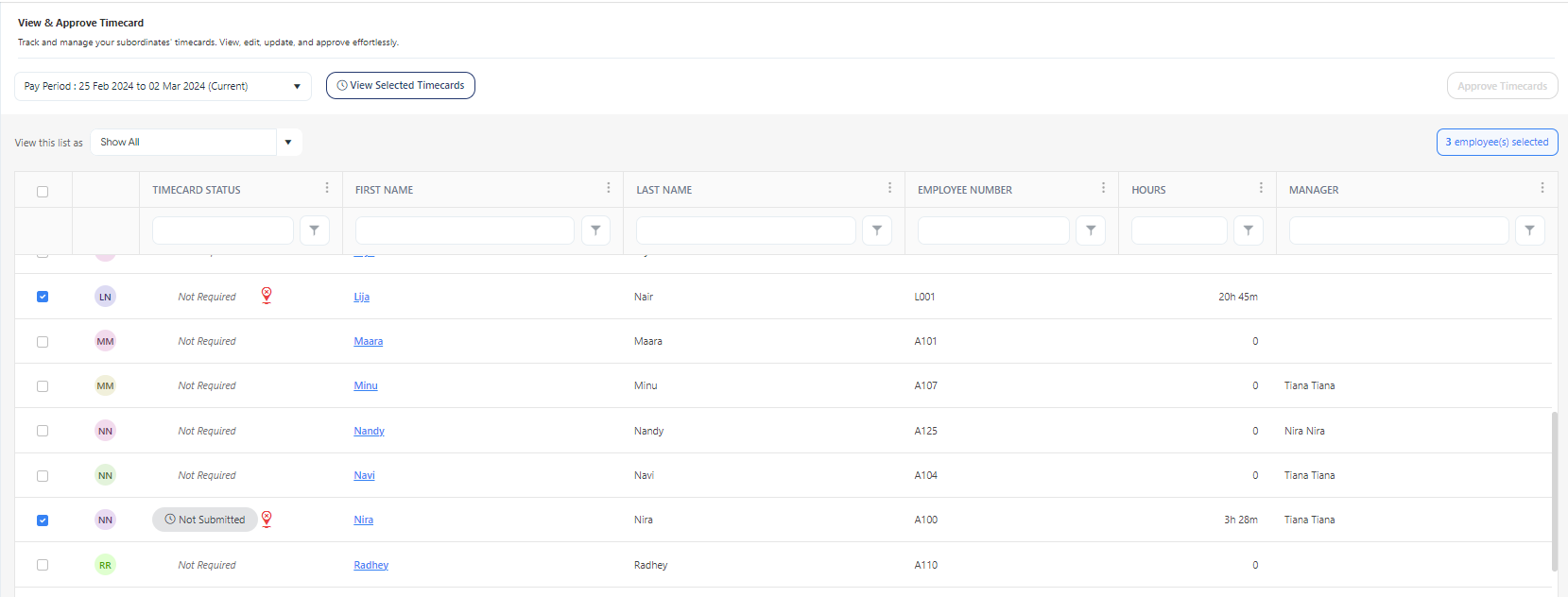
- Click on the employee's timecard to view the details.
- On the View Timecards screen, look for a geofence () icon on the calendar. This icon signals that a punch occurred outside the designated geofence area. Click on the date with the geofence icon to access more details.
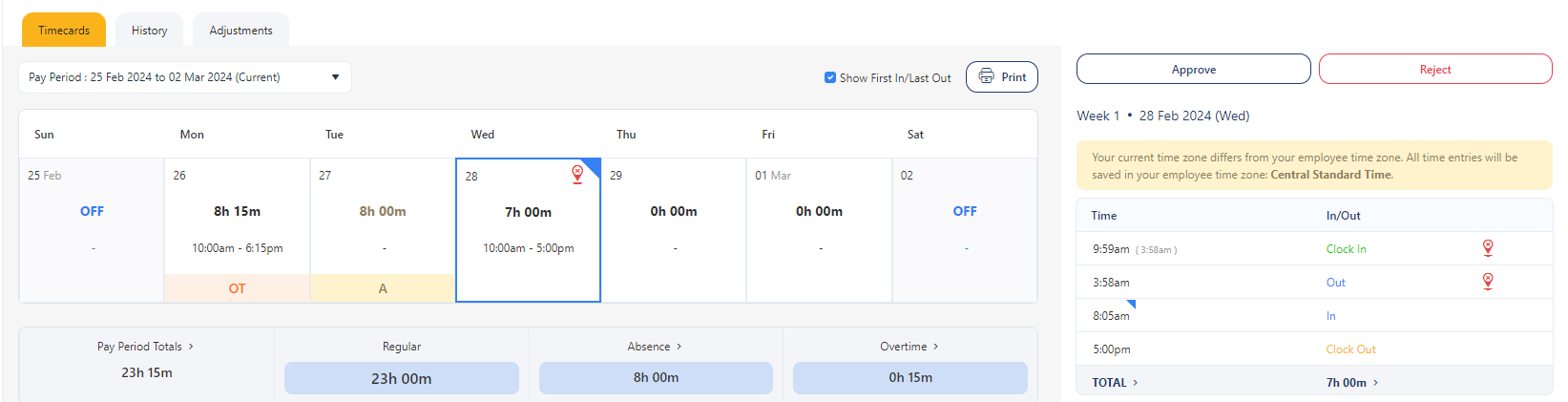
- Review the Clock In/Out table to view the specific punch that happened outside the geofence.
Note that if an employee clocks in or out outside the geofence area at a specific day and time, both the clock in/out table and the calendar will display the geofence icon.
- Hover over the geofence () icon to reveal a tooltip message: "View punched location from outside geofence."
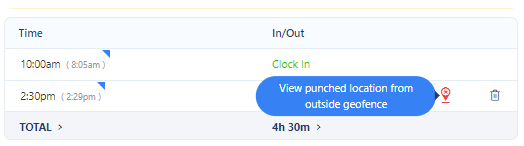
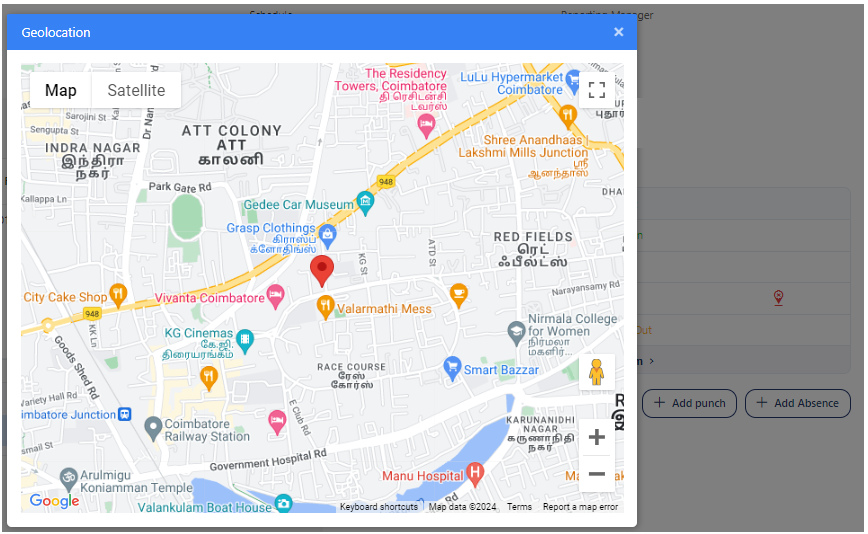
- Click on the geofence () icon on the clock in/out table to view the location on the map, gaining a visual representation of where the punch occurred outside the geofence boundaries.
History
The History screen allows you to view changes made to an employee's timecard and identifies who made those changes. All manual changes made to the timecard are recorded on this screen. The most recent change will be shown at the top of the list. The data on this screen is read-only and cannot be edited. Click on the History tab to view the changes.
Click on the History Tab.
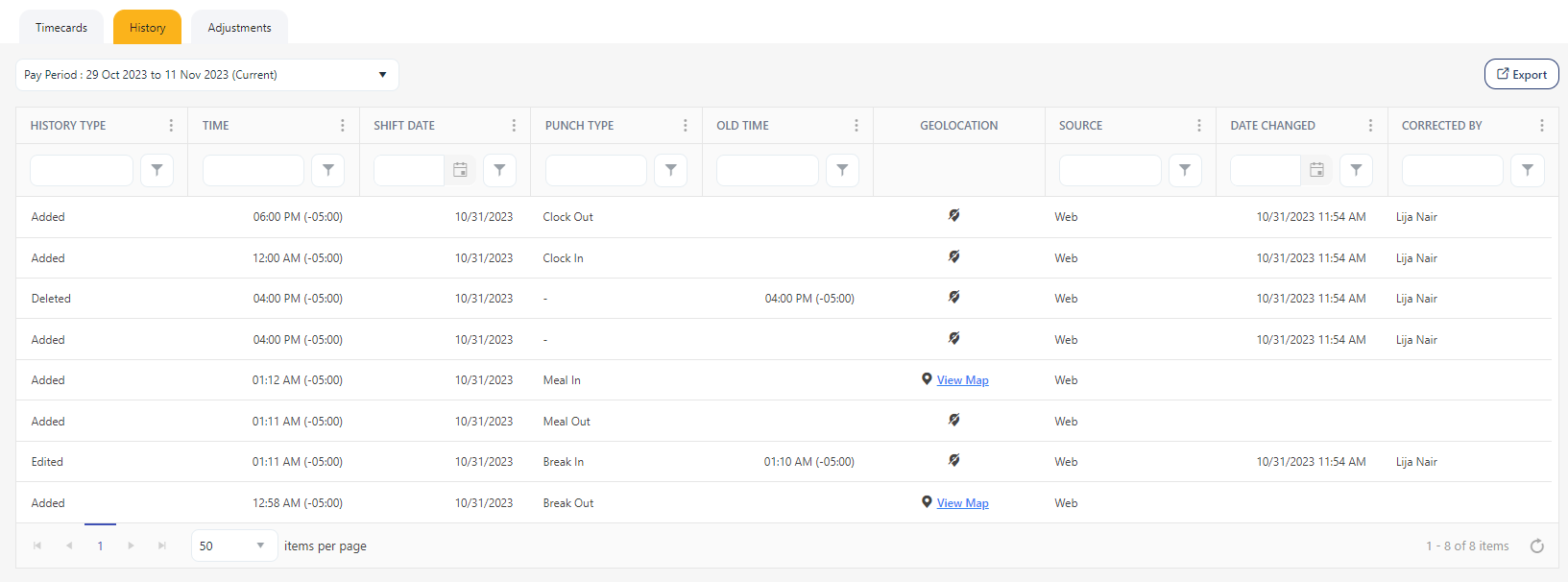
The screen will display the following details:
- History Type - Shows the actions taken on punches: added, edited, and deleted.
- Time - Display the added, edited, or deleted time.
- The time column will display the offset if the employee's time zone differs from the home time zone.
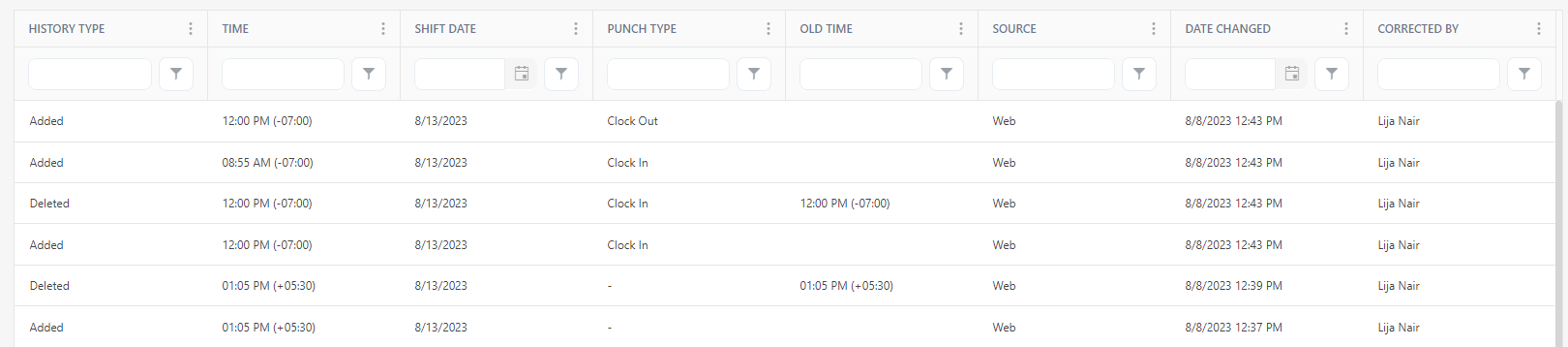
Note: The "Geo location" column is not selected in the column selector options. You can access this column selector by clicking on the three dots located next to the column heading.
- Similarly, it will show the day and date if the punch date is different from the timecard's selected date. This generally happens when a shift starts on the selected day and ends on the next day. Example: Night Shift employee whose shift ends on the next day.
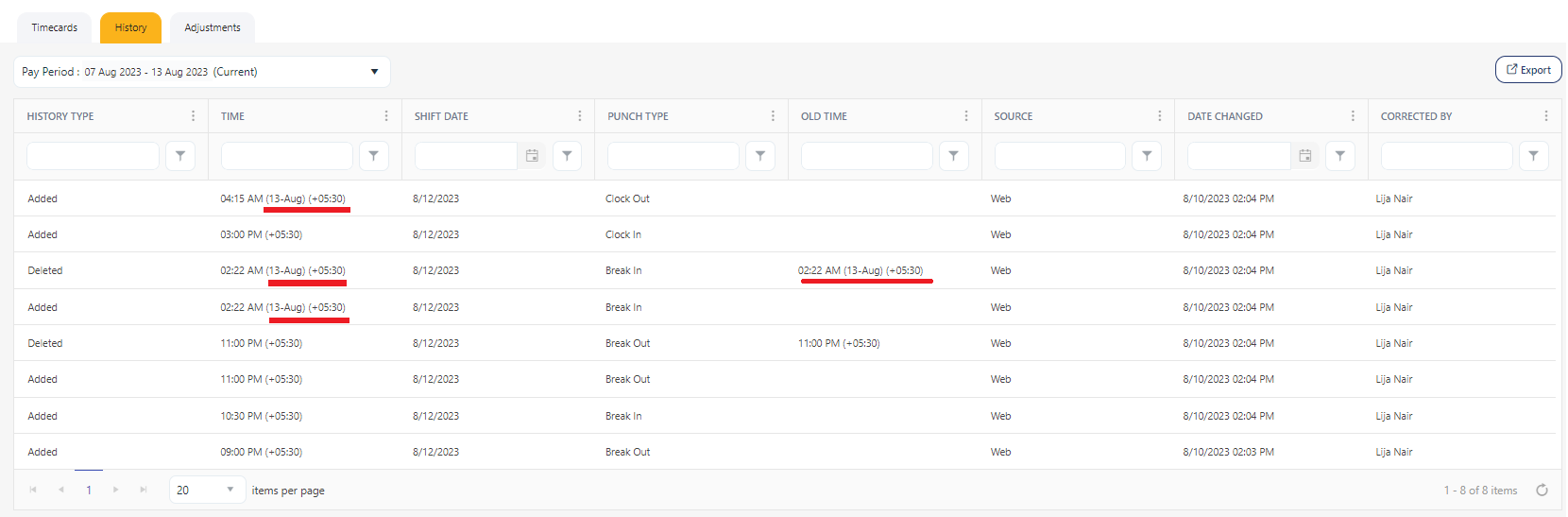
- Shift Date - Displays the shift start date.
- Punch Type - Indicates punch types like clock-in, clock-out, etc.
- Old Time - It is the time that was corrected.
- Source - Indicates the source like web, mobile, clock, etc.
- Date Changed - The specific day when the time was adjusted or rectified.
- Corrected By - Name of the employee who corrected it.
- Geolocation - If the "Capture punch geo location" setting is enabled, and the employee has been granted location access, a View Map link will appear. However, a "No map" symbol will be displayed if location access is not granted or not captured. Refer to the topic - Mobile Settings and Capture Punch Geo Location on the web.
- Is Outside of Geofence - The status will display either "Yes" or "No." If the status is "Yes," it means the punch occurred outside the geofence boundaries. Conversely, if the status is "No," it indicates that the punch was within the designated geofence area.
- PC Identifier - The PC identifier displays the employer's PC details from which the web punch was initiated.
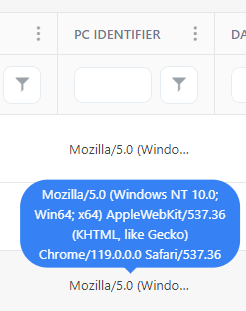
Note: Please be aware that the three dots in the header offer an option to hide or unhide the column header that you do not wish to view.
Adjustments
The Adjustments screen will display the adjustments made while calculating the totals for this timecard. Adjustments are made based on the employee’s schedule and the rules associated with it. This includes Rounding and Automatic Unpaid Breaks. This is a read-only screen. These adjustments are subtracted from the Regular total displayed on the Timecard screen.
Click on the Adjustments Tab.
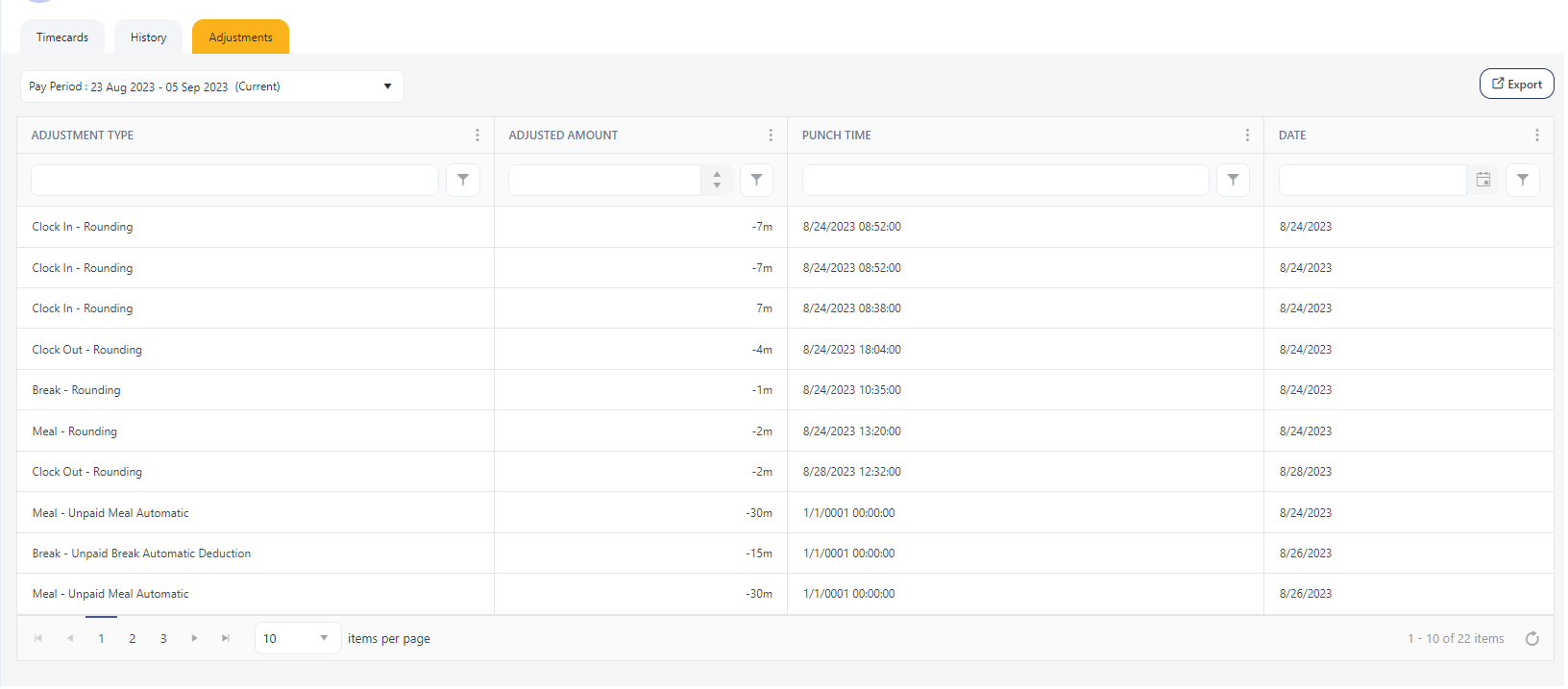
The screen will display the following details:
- Adjustment Type - The modification made in any of the following areas: clock in and clock out rounding, grace period, penalty period, meal & rest break rounding, and automatic unpaid breaks.
- Adjustment Amount - Displays the modified time in minutes.
- Punch Time - This shows the recorded time of the punch.
- Date - Indicates the specific date.
Note: Please be aware that the three dots in the header offer an option to hide or unhide the column header that you do not wish to view.
Overtime Override
The Overtime Override screen allows you to grant overtime to an employee on a daily basis, overriding the preset overtime rules for that specific employee. This feature is only applicable to managers. An employee cannot override overtime for themselves.
The Overtime is configured on the Payroll Roles screen, and the employee is assigned a payroll rule. These rules define the criteria or conditions under which overtime is applicable.
Note: To access the Overtime Override feature, you need to ensure that an overtime rule is assigned to an employee. The Overtime Override button will be enabled once there is a time entry on the clock in/out table, indicating that they have clocked in on that particular day.
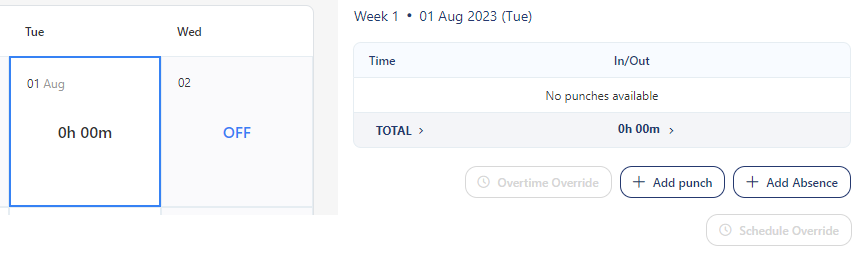
To override overtime:
- Select a specific day on the calendar. The system will populate the in and out times for that selected day based on the employee's clocked hours.
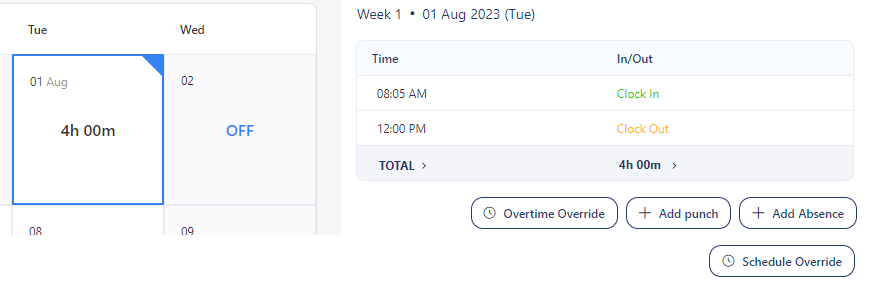
- Click on the Overtime Override button.
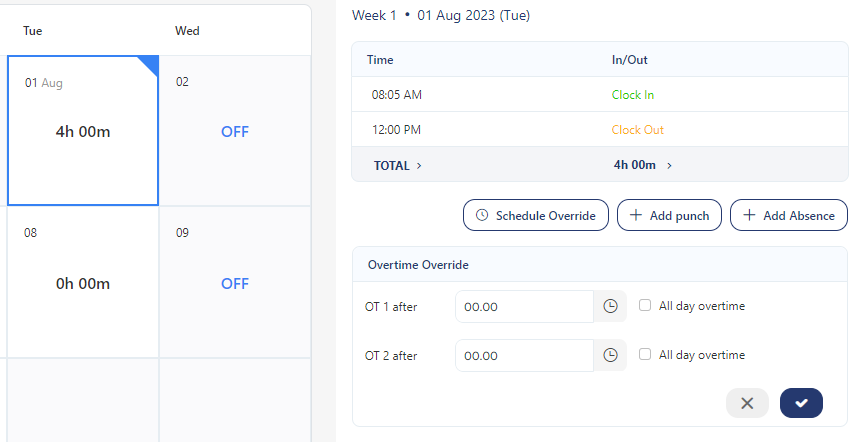
- Enter the number of hours after which overtime should be applied. This could be the "OT1 after" and/or "OT2 after" time. For example, if an employee should receive overtime (OT1) after working 9.5 hours on Friday, you would enter "9.5" in the appropriate field.
- Check "All day overtime" if the entire day should be calculated as overtime regardless of the actual worked hours.
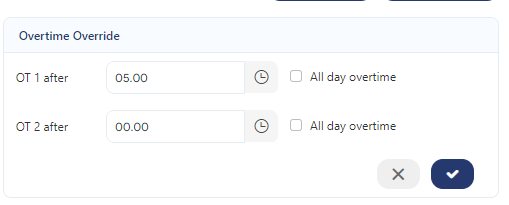
- Click on the tick button or click on the cross button to cancel.
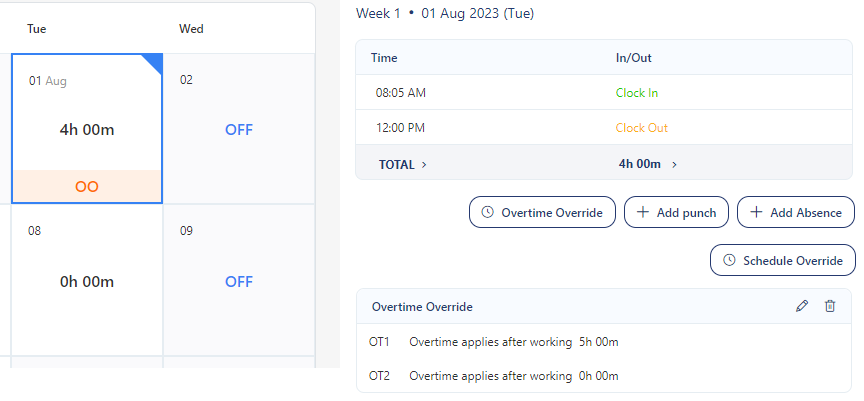
- The overtime override details will appear below the clock in/out table, indicating the specific overtime override time and any relevant information.
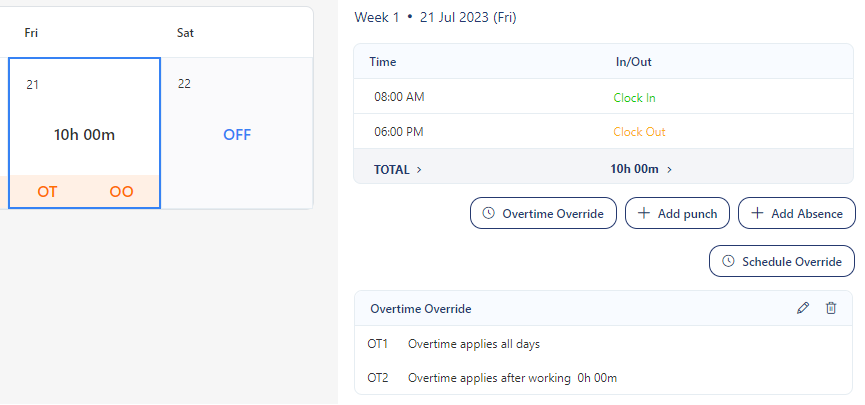
- If an overtime override is applicable for a day, the calendar will show an "OO" symbol to indicate that an overtime override is in effect for that day.
Note on Overtime Override, Absence, Missed Punch, and Overtime
To access the Overtime Override feature, you need to ensure that the overtime rule is assigned to an employee. The overtime rules are set on the Payroll Rules screen.
-
Having overtime override (OO) settings for a day doesn't imply that there is any actual overtime worked on that day. For instance, if the overtime override is after 8 hours of work, but the employee only works 7 hours, in such a case, only the "OO" would be displayed.
- If overtime override is set to "All Day Overtime", then the calendar will display both "OO" and "OT" where OT indicates that there is overtime on that day and OO indicates that there are override settings being applied.
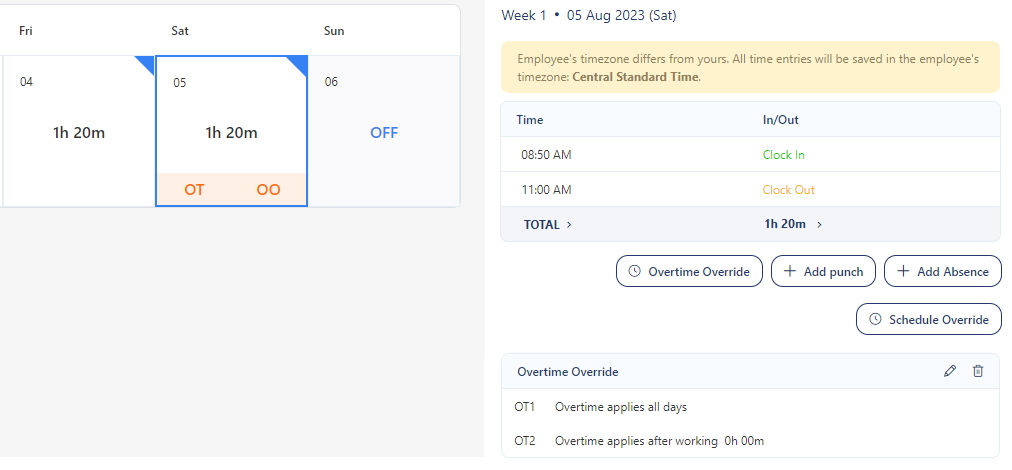
- Once overtime override is applied, "OO" appears to indicate overtime override is applied on that day. Once the employee exceeds the overtime hours, it will show "OT "along with "OO".
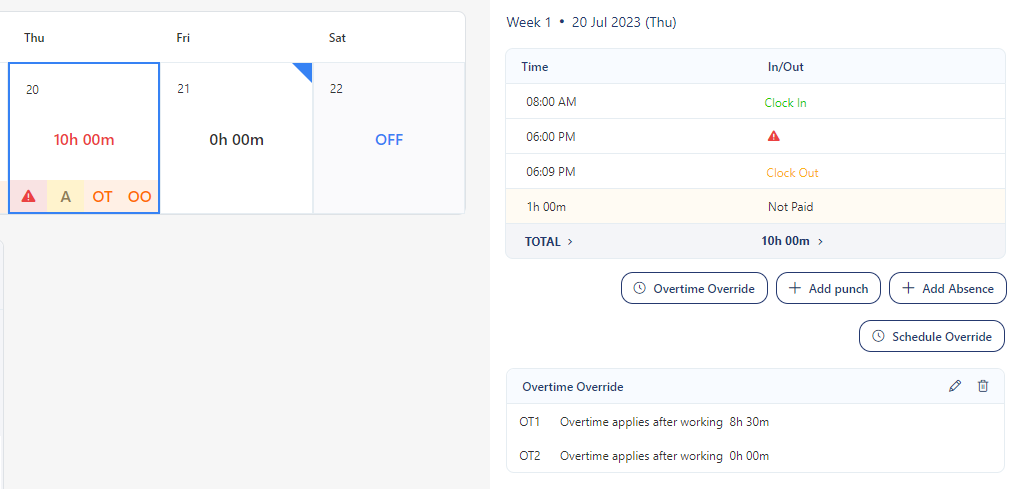
- Consider for an employee, an overtime rule is set and an overtime override is applied on a specific day. Assume there is a missed punch and also a one-hour absence, then that day on the calendar will display all the symbols "OT", "OO", "A (for absence)", and a missed punch symbol ().
Schedule Override
A schedule override is a temporary adjustment made to an employee's current work schedule. Based on the employee's need/request, the designated manager can make an adjustment like switching the current schedule to a different one or implementing a flexible timing arrangement.
- This feature is accessible within the "View & Approve Timecards" screen and is not available in the "My Timecards" section.
- Related permission is “Timecard - Others”
- To enable the Schedule Override button, a time punch entry or records of absences is a prerequisite.
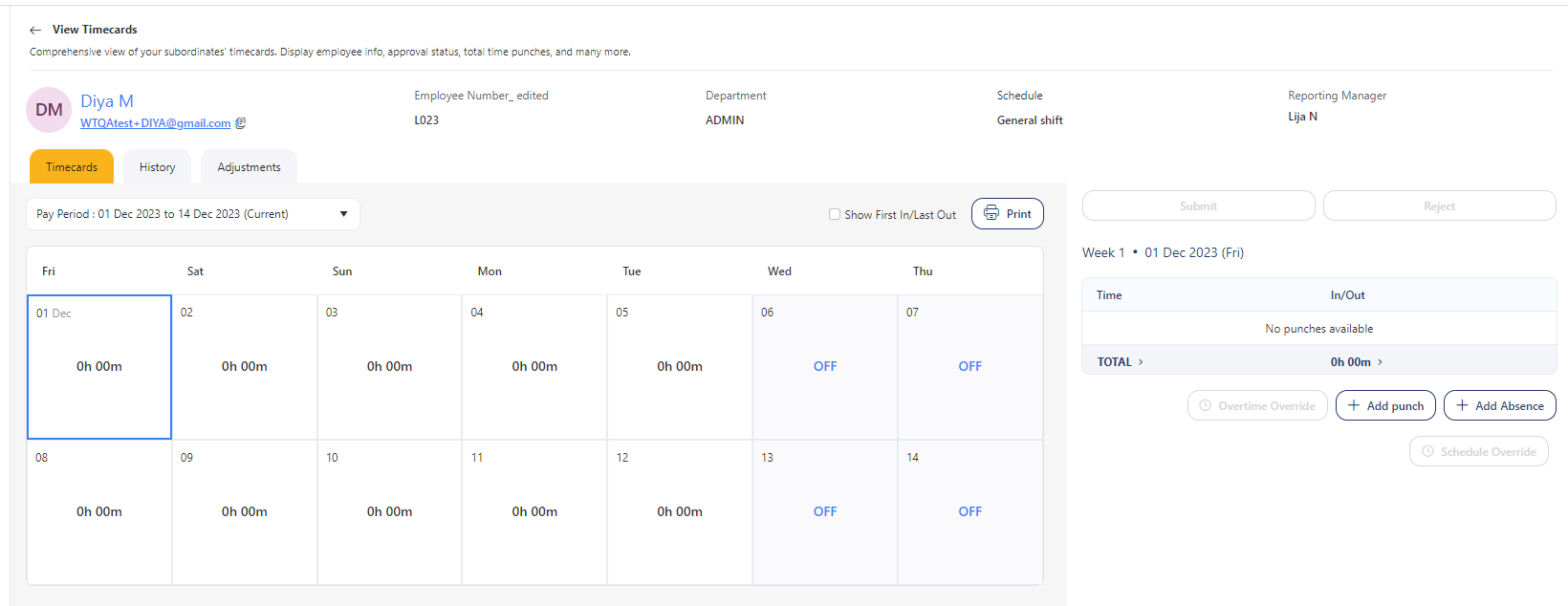
- Schedule Override will allow you to include either "to and from" time or simply "duration."
- A manager can override a schedule for past and current dates.
- Currently, you cannot override the schedule for future dates. The feature is not implemented yet.
To override a schedule:
- Select a specific day on the calendar. Ensure that there is either a punch or absence recorded for that day. The Schedule Override button will be enabled only if there is a punch or absence.
- Click on the Schedule Override button.
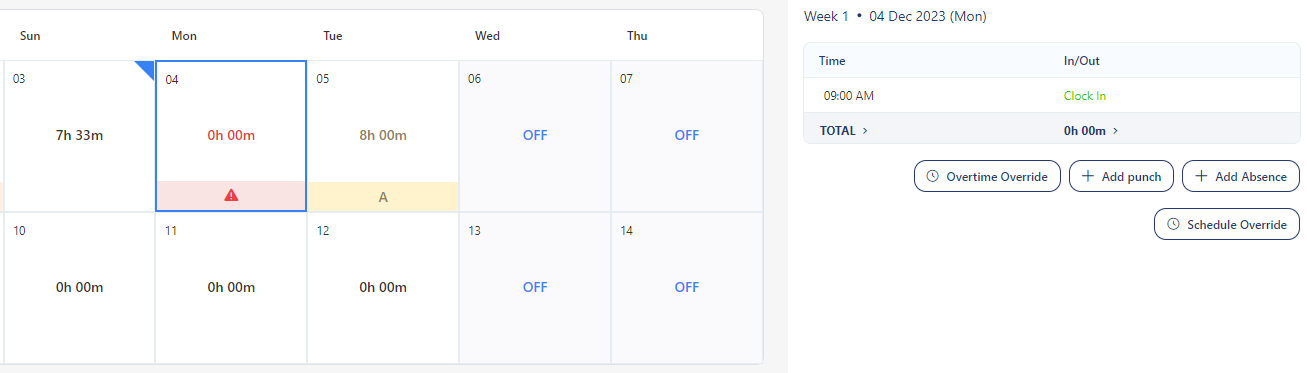
- Enter the scheduled start and end time, or specify the duration for flexible timing.
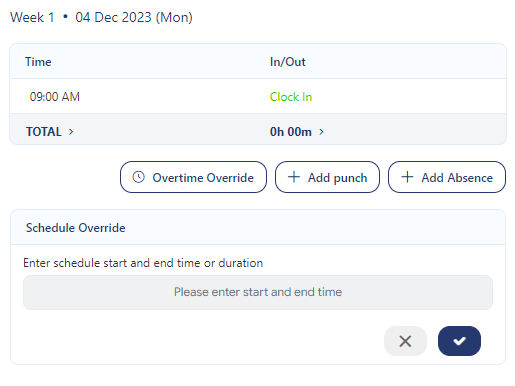
- Click on the tick button or click on the cross button to cancel.
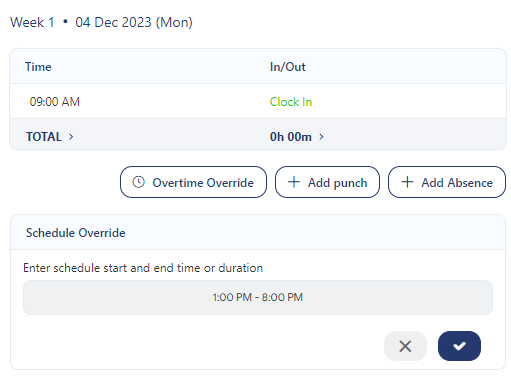
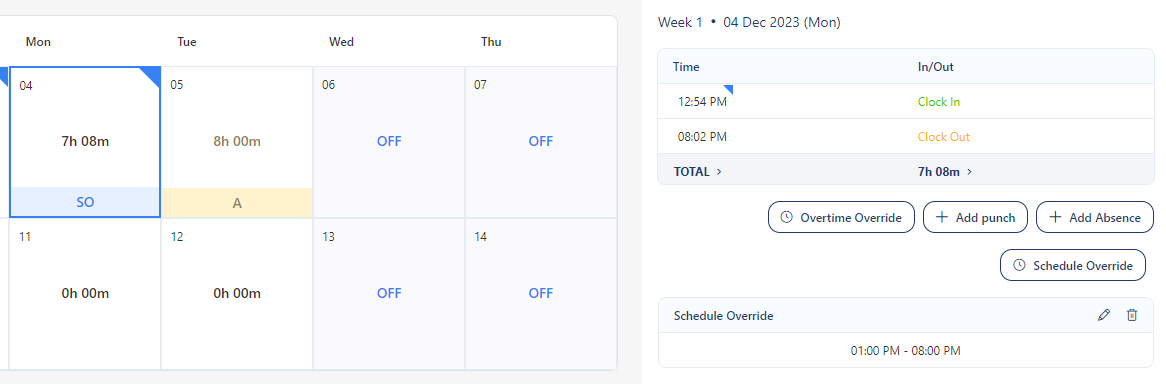
- The schedule override is applied for the selected day, and the calendar will display the "SO" symbol to signify that an overtime override is active for that day.