Clock
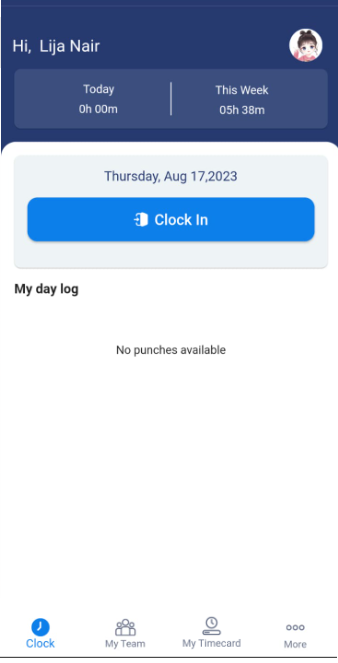
The Clock screen provides essential information about yourself, your total logged hours on a particular day and for a week, a provision to clock in and clock out, and ultimately, a time record for the currently logged-in day.
Once you log in to the application, you will be directed to the clock screen. The top section of the clock screen will display your name and the picture. Beneath your name, the accumulated hours worked on a specific day and over a week will be displayed.
To Clock In / Clock Out
- Start your work shift by tapping the Clock In button.
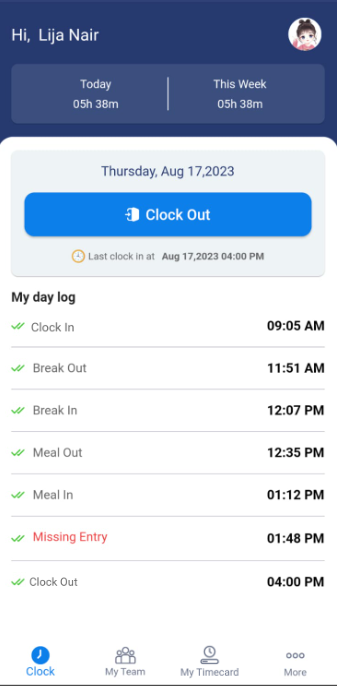
- Upon clocking in, the Clock In button will transition to Clock Out. The last clock in time will be displayed below the Clock Out button and on the "My Day Log" section.
- Likewise, when stepping away for a meal or rest breaks, tap on the Clock Out button.
- My Day Log will record the clock-in, clock-out, missed swipes, rest breaks, and meal breaks.
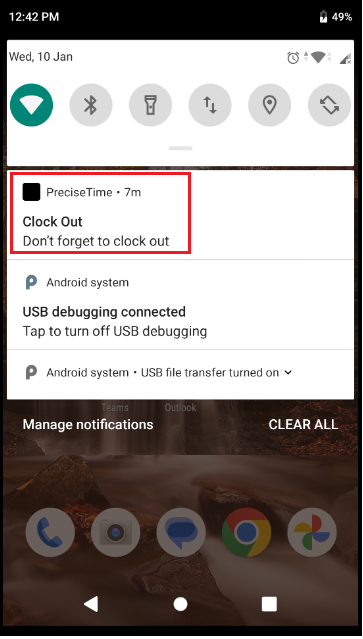
- Note that the user will receive a reminder to "Clock out" in the mobile notification section. The mobile notification section often appears at the top of your screen. To access it, swipe down from the top of your screen. It will show the notification panel, displaying your recent notifications and alerts.
Location Access
The employee's punch geo location will be captured only if the "Capture punch geo location -Mobile" setting is enabled, and the employee has granted location access. This mobile settings control captures the geo location information at the time the punch is performed. The options are: Required, Optional, and Off.
- Access the mobile application.
- Try to Clock In.
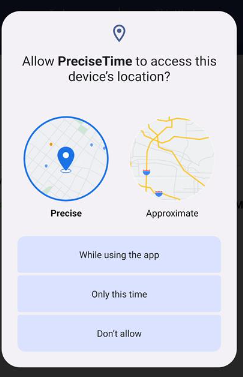
- A popup message will appear with the message "Allow PreciseTime to access this device's location? - While Using the app, Only this time, or Don't allow".
- When the "Capture punch geo location" setting is configured as "Required" :
- While Using the app: Choosing this option will not prompt for location access again during subsequent app sessions; it allows continuous access while the app is in use.
- Only this time: Selecting this option permits clocking in or out for the current session but will prompt for location access again upon the next app access.
- Don't Allow: If the user selects "Don't Allow," it will prevent them from clocking in entirely, and the system will continuously display prompts until location access is granted.
- When the "Capture punch geo location" setting is set to "Optional," the popup message will appear, where they can allow or block the location access. The users have the flexibility to either allow or block location access, and they can freely clock in or out without any enforcement.
- When the "Capture punch geo location" setting is set to "Off," it will not ask for location access, and users can clock in or out without needing to grant location permission.
Web Application References: